
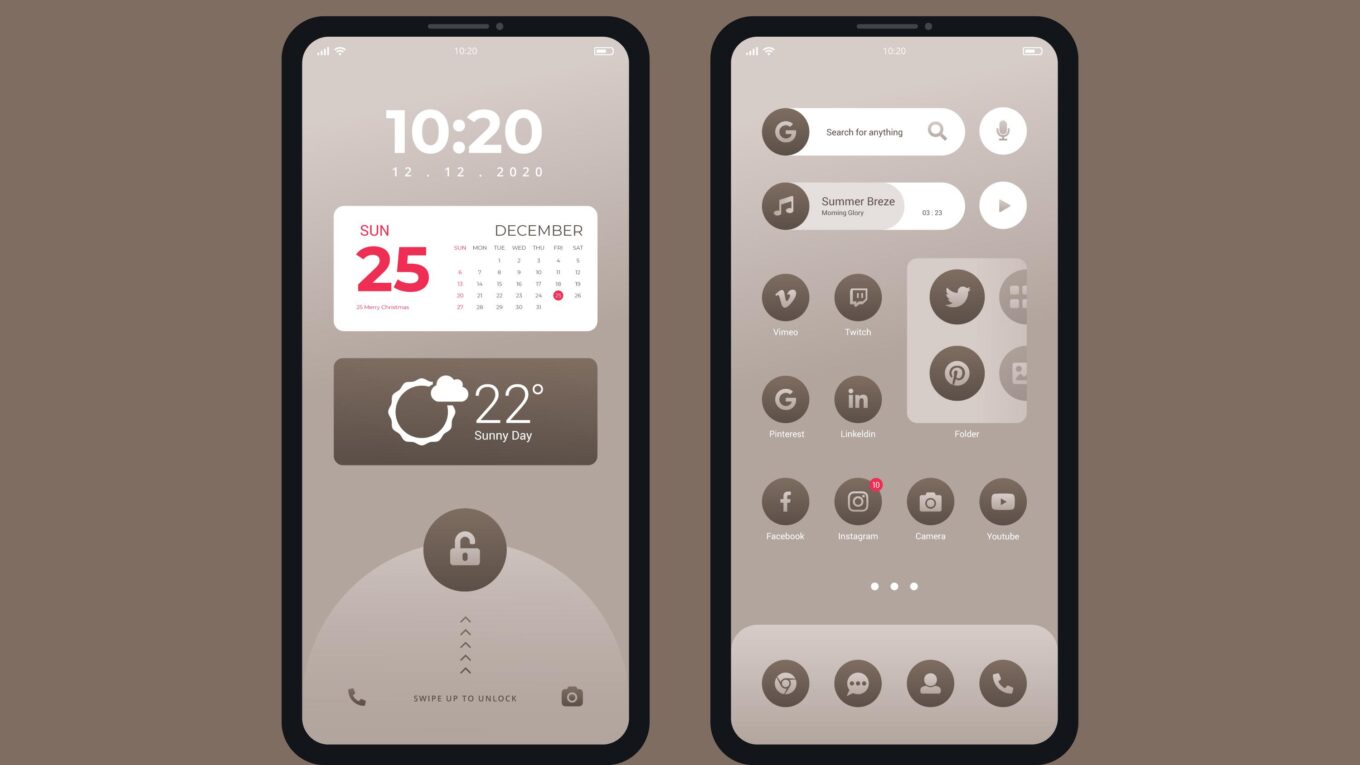
The 4 Best Minimal Android Launchers for a Cleaner, Faster Home Screen in 2026
Your Android home screen is the first thing you see every time you unlock your phone — and if it is cluttered with app icons, widgets, notification badges, and a wallpaper you never chose, it sets a chaotic tone for every interaction that follows. A minimal launcher replaces your phone’s default home screen with something cleaner, faster, and more intentional. Here are the four best options available in 2026, tested on real devices ranging from budget phones to mid-range Androids.
What a launcher actually does — and why it matters on budget phones
A launcher is the app that controls your home screen, app drawer, and dock. Every Android phone ships with one — Samsung uses One UI Home, Xiaomi uses MIUI Launcher, Motorola uses its own version. You can replace any of them with a third-party launcher from the Play Store, and your phone will use that instead without any rooting or technical setup required.
On low-end and mid-range phones, the default launcher is often one of the biggest sources of visual clutter and background RAM usage. Samsung’s One UI Home, for example, can use 150–200MB of RAM on its own. A well-built minimal launcher can do the same job in under 30MB — freeing up memory for the apps you actually use.
Beyond performance, there is a usability argument. A simpler home screen with fewer visual elements reduces the number of micro-decisions your brain makes every time you pick up your phone. Several studies on digital minimalism have found that reducing home screen clutter correlates with lower phone pickup frequency — useful if you are trying to be more intentional about screen time.
What we looked for in a minimal launcher
Before getting into the individual options, here is the criteria we used to evaluate each launcher:
- RAM footprint: how much memory the launcher uses while idle
- Install size: how much storage the APK takes up
- Customization depth: how much you can adjust without it becoming complicated
- App drawer behavior: whether apps are easy to find without visual noise
- Stability: no random crashes, no disappearing icons after a reboot
- Compatibility: works on Android 8 and above, no root required
1. Niagara Launcher — best overall
Install size: ~8MB | RAM usage: ~45MB | Free version available: Yes (Pro unlocks more customization)
Niagara is the closest thing to a perfect minimal Android launcher. Instead of a grid of icons, it displays your most-used apps as a vertical scrollable list on the left side of the screen. Your wallpaper stays front and center. Notification dots appear cleanly next to app names rather than as intrusive red badges. The entire experience feels considered rather than assembled.
The app drawer is accessed by swiping up — a familiar gesture — and shows apps alphabetically in a clean list format. No folders required, no icon packs needed. You can fit everything you need on a single screen without any visual complexity.
On a 2GB RAM phone, Niagara is noticeably lighter than any stock launcher from a major manufacturer. It also integrates with your contacts directly — swiping on a letter shows matching contacts, so you can call or message someone without opening a separate app.
Best for: anyone who wants a genuinely different, cleaner home screen without sacrificing discoverability of their apps.
One limitation: the free version limits you to 9 favorite apps on the home screen. The Pro version (one-time purchase around $7) removes this limit and adds font customization, icon size control, and hidden apps.
2. KISS Launcher — best for absolute minimalism
Install size: ~1MB | RAM usage: ~18MB | Free: Completely free, open source
KISS stands for Keep It Simple, Stupid — and the name is accurate. The home screen is almost entirely blank. A single search bar sits at the bottom. You type the first few letters of an app name, a contact, or a shortcut, and KISS surfaces it instantly. That is the entire interface.
At roughly 1MB installed and under 20MB of RAM, KISS is the lightest functional launcher available. It uses almost no resources, has no background processes, and will not cause your phone to slow down in any measurable way. It is also open source, which means no ads, no analytics, no data collection of any kind.
The tradeoff is that KISS is genuinely minimal — there are almost no visual options, no widget support in the traditional sense, and the interface will feel unfamiliar for the first day or two. Once you adapt to the search-first model, though, it is remarkably fast. Opening any app becomes a 3-keystroke process.
Best for: power users who want the absolute fastest, most distraction-free phone experience and are comfortable with a search-driven interface.
One limitation: not ideal if you prefer to browse your apps visually or use home screen widgets regularly.
3. Ratio Launcher — best for visual design
Install size: ~12MB | RAM usage: ~55MB | Free version available: Yes (Premium unlocks full customization)
Ratio takes a different approach to minimalism — instead of removing everything, it replaces the icon grid with text-based app shortcuts and a clean card layout. Your home screen shows your most important apps as text labels grouped into customizable sections, with a clock and date prominently displayed. It looks more like a well-designed productivity dashboard than a typical phone home screen.
The design philosophy behind Ratio is that text labels are faster to read than icons — your brain processes words faster than it interprets small images, especially when you are in a hurry. In practice, this holds up. Navigating to an app in Ratio feels faster than scanning a grid of icons once you have learned the layout.
Ratio also includes a focus mode that hides sections of your home screen at scheduled times — useful for limiting access to social media apps during work hours without deleting them entirely.
Best for: users who want a minimal launcher that also looks genuinely premium and distinctive, and who use their phone for focused work rather than casual browsing.
One limitation: the free version is quite restricted. The full Ratio experience requires a subscription (around $2/month or $12/year), which makes it the most expensive option on this list.
4. Olauncher — best free option with no ads
Install size: ~3MB | RAM usage: ~25MB | Free: Completely free, open source
Olauncher is the simplest paid-free alternative to Niagara. It displays a small number of text-based app shortcuts on a clean home screen — no icons, no dock, no widget clutter. You tap an app name to open it, swipe up to see your full app list, and swipe down to see your notification shade. That is the complete feature set.
What makes Olauncher particularly appealing is that it is completely free, open source, and contains zero ads or analytics. The codebase is publicly available on GitHub, which makes it one of the most privacy-respecting launchers available.
Customization is minimal but sufficient: you can choose how many app shortcuts appear on the home screen (between 3 and 8), adjust font size, and change the alignment of elements. There is no icon pack support, no widget support, and no advanced theming — but for users who want a clean, fast, private launcher at no cost, Olauncher delivers exactly that.
Best for: users who want the aesthetic of a text-based minimal launcher without paying anything or compromising on privacy.
One limitation: very limited customization compared to Niagara or Ratio. If you want fine-grained control over your home screen layout, you will hit the ceiling quickly.
Side-by-side comparison
| Launcher | Install size | RAM usage | Cost | Best for |
|---|---|---|---|---|
| Niagara | ~8MB | ~45MB | Free / $7 Pro | Best overall |
| KISS | ~1MB | ~18MB | Free | Absolute minimalism |
| Ratio | ~12MB | ~55MB | Free / $12/yr | Visual design |
| Olauncher | ~3MB | ~25MB | Free | Privacy + no cost |
How to switch your launcher on Android
Switching launchers on Android takes about 30 seconds and is completely reversible:
- Install the launcher you want to try from the Play Store.
- Press the Home button on your phone. Android will ask which app to use as your home screen.
- Select the new launcher. Tap “Always” to set it as your default, or “Just once” to preview it first.
- To switch back, go to Settings → Apps → Default apps → Home app and select your original launcher.
Your existing apps, data, and settings are not affected by changing the launcher. It is purely a cosmetic and interface change — nothing gets deleted or moved.
Frequently asked questions
Will a minimal launcher slow down my phone or cause problems?
No — in most cases it will make your phone faster. A minimal launcher uses less RAM than a stock launcher from Samsung, Xiaomi, or Motorola, which frees up memory for your other apps. The only risk is compatibility: some manufacturer-specific gestures (like Samsung’s swipe-down for the search bar) will no longer work, since those are tied to the stock launcher.
Can I still use widgets with a minimal launcher?
It depends on the launcher. Niagara supports widgets in its Pro version. KISS and Olauncher do not support widgets at all. Ratio has its own card-based system that replaces traditional widgets. If widgets are important to your workflow, Niagara Pro is the best minimal option that supports them.
Do these launchers work on Samsung, Xiaomi, and Motorola phones?
Yes — all four launchers work on any Android phone running Android 8 or above, regardless of manufacturer. No rooting or special permissions are required beyond setting the launcher as your default home app.
What happens to my app icons and folders when I switch?
Your apps stay installed and accessible — nothing is deleted. The new launcher simply shows them in a different way. If you switch back to your original launcher, your previous home screen layout is usually restored exactly as it was, since launchers save their configuration separately.
Final thoughts
If you have never tried a third-party launcher, start with Niagara — the free version is generous enough to decide whether the concept works for you, and the performance improvement on a budget phone is immediate. If you want something even simpler and completely free, Olauncher takes five minutes to set up and costs nothing. Either way, the switch takes less time than reading this article — and the result is a home screen that actually feels like yours.
For more ways to streamline your Android experience, check out our guides on Minimalist Phone Setups and the 8 apps we replace first on any new Android phone.

Noah Carter is a mobile tech writer focused on Android performance, minimalist phone setups, and lightweight app alternatives. He has spent years testing budget and mid-range devices to find practical tweaks that make everyday smartphones faster, simpler, and easier to use — without rooting, without bloat, and without unnecessary complexity. His work on News Mobile covers everything from battery optimization to accessibility setups for seniors.