
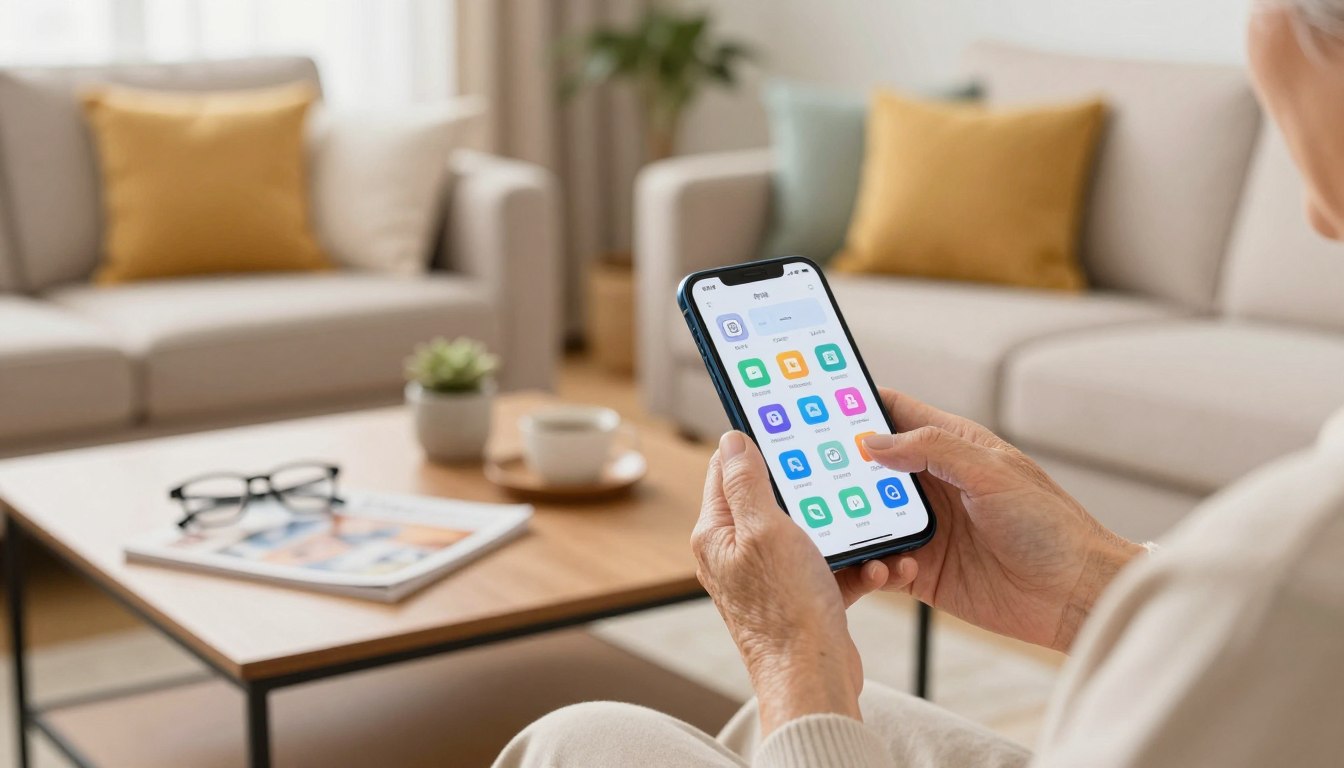
How to Replace Confusing Stock Apps on a Senior’s Phone Without Them Noticing the Difference
This short guide explains how to swap out cluttered, duplicate system apps so the device feels familiar to older adults. The goal is simple: remove what they never use and add clear, friendly alternatives without changing placement or names.
Bloatware often shows up as multiple email clients, browsers, or photo tools. That creates daily friction and wastes storage. Clearing those extras improves privacy and reduces security risks by cutting unused software.
If you are an adult child or caregiver, you are not teaching tech basics. You are narrowing choices and making the right option obvious. Keep emergency calls and texting unchanged and secure any logins first.
The step-by-step plan covers iPhone and Android: remove what can go, hide or disable what cannot, then install senior-friendly replacements and put them where people already tap.
Why simplifying a smartphone matters for older adults (and why preinstalled software can get in the way)
With smartphone ownership rising among people 65 and older, usability matters more than ever. As of 2025, 78% of U.S. adults ages 65+ own a smartphone, so small issues scale into daily frustration for many older adults.
How clutter and duplicate software create real problems
Preinstalled programs often create duplicates: two browsers, multiple email clients, or overlapping photo tools. That makes choices harder and raises the chance of mistakes.
Unneeded items also use storage and CPU time. Slower performance and crowded home screens lead to more mis-taps and longer time to complete simple tasks.
Health, safety, and independence benefits
When the right app is easy to find, older adults handle meds, appointments, and calls with fewer barriers. Technology use among older adults links to better health and lower depression rates.
| Issue | Effect | Simple fix |
|---|---|---|
| Duplicate software | Decision fatigue, errors | Keep one familiar option |
| Bloatware | Wasted storage, slower system | Disable or hide unused items |
| Complex icons | Hard to recognize quickly | Use larger, labeled shortcuts |
Think of simplification as a safety and health step, not a makeover. The next section shows how to plan a swap that keeps familiarity while cutting pointless choices.
Plan the swap so it feels familiar, not “new”
Start with a simple goal: make the main screen predictable so daily tasks take fewer steps.
Choose one home base and limit choices to essentials. This reduces confusion and builds muscle memory.
- Pick one primary screen for calling, messages, photos, and video calls so the device feels stable.
- Keep familiar names and similar icons where possible to preserve recognition and ease of use.
- Place any replacement in the exact same location the old app occupied to lock in muscle memory.
Decide whether to remove or hide/disable an app. On android phones, disabling often avoids system problems.
Prepare account access before changing anything. Verify Apple ID or Google account logins and record passwords.
Share recovery details with a trusted family member and keep a short list of changes for quick undo steps.
| Action | Why it helps | Quick tip |
|---|---|---|
| One home base | Makes tasks predictable | Keep only essentials on the main screen |
| Match name & icon | Preserves recognition | Choose replacements with similar icons |
| Disable vs. uninstall | Reduces risk on android phone | Disable if unsure, uninstall later |
| Document access | Speeds recovery and support | List passwords and account details for family members |
Finally, pick senior-friendly options from the App Store or Google Play Store. Look for large UI elements, clear labels, and minimal ads.
How to replace confusing stock apps senior phone on iPhone without disrupting their routine
Keep the familiar layout and swap only what causes clutter so daily use stays effortless. Start with low-risk edits that do not move core communication tools.
Remove Apple stock apps the simple way (and what can’t be removed)
For most removable items, long-press an icon, tap “Delete App,” and confirm. Immediately place the new app in the same spot so muscle memory stays intact.
Some built-ins cannot be removed, such as Safari and Messages. Useful removables include Calculator, Podcasts, Stocks, Tips, and Voice Memos. Deleted items can be re-downloaded from the App Store.
Use iPhone accessibility features to simplify the phone interface
Increase text size and icon size, enable Reduce Motion, and use Assistive Access to show only essential apps. These settings ease navigation for iphone users and keep the phone interface calm.
Reinstall only what’s needed later via the App Store
Reassure the user: nothing is gone forever. If a feature still works through iOS after deletion, leave it. Do a quick post-swap test: call, text, open camera, check volume and brightness.
How to remove or disable bloatware on an Android phone and swap in simpler apps
Cleaning extra preinstalled items on an android phone makes the main screen faster and easier to use. Follow safe on-device steps before trying advanced tools.
Uninstall vs. Disable — the safest way to declutter without breaking anything
Uninstall removes an app completely. Disable hides an app and stops it from running. For caregivers, disabling is usually the safer way when the system may rely on that app.
Find app controls
Open Settings → Apps and notifications → See all apps → select the app → choose Uninstall or Disable. This path works on most android phones and avoids riskier methods like ADB or rooting.
Disabling reduces background activity, removes duplicates from the home screen, and lowers the chance users tap the wrong item. Common clutter includes carrier utilities, duplicate messaging tools, extra galleries, and multiple store apps.
Make the interface friendlier with a launcher
Instead of teaching the device, use a senior-friendly launcher as a new skin. Options such as BaldPhone, Elder Launcher, or Big Launcher create large icons, clear labels, and fewer screens. They let users tap with confidence and keep core tasks visible.
| Problem | Safer action | Benefit |
|---|---|---|
| Cannot uninstall | Disable | Stops background use |
| Duplicate tools | Disable extra or set defaults | Reduces mistakes |
| Complex layout | Install launcher | Larger icons, easier taps |
Best easy-to-learn replacement apps by need (health, safety, passwords, and entertainment)
Here’s a practical menu of simple replacements to cover health, safety, passwords, and light entertainment.
Medication and health tools: pick one reliable tool so older adults have one place for reminders, refills, and safety checks. MediSafe supports custom medication schedules, refill nudges, and interaction alerts. It can share adherence info with family members and notify them if a dose is missed. Premium runs about $4.99/month or $39.99/year.
Cost savings and visit follow-up: GoodRx compares drug prices at local pharmacies and provides coupons; the free version usually suffices, while Gold is optional at $9.99/month. Abridge records doctor visits, produces transcripts, and highlights medical terms so details can be reviewed later.
| Need | Recommended option | Key benefit | Notes |
|---|---|---|---|
| Medications & adherence | MediSafe | Timed reminders, refill nudges, family access | Premium ≈ $4.99/month |
| Lower drug prices | GoodRx | Coupons, local price comparisons | Free version often enough |
| Doctor visit notes | Abridge | Recordings, transcripts, medical term highlights | Helps reduce after-visit confusion |
| Passwords & sign-ins | LastPass / 1Password | Secure storage, autofill across devices | 1Password ≈ $2.99/month billed yearly |
Security and recovery: use LastPass or 1Password to cut repeated typing and reduce lockouts. Set up Find My on iphone and Google Find My Device on android phones to show a map, make a device beep, and add AirTags for extra tracking on iPhone devices.
Daily lists and calls: Todoist handles shared lists like groceries and appointments so family can help without long calls. Keep video calling to one option—FaceTime for iphone users or Google Duo on android phones—to avoid duplicate tools.
Low-friction entertainment: Spotify makes music easy to start for memory care routines. Audible offers audiobooks and podcasts for users with low vision; it has a free trial then a monthly plan. For gentle mental exercise, Words With Friends provides Scrabble-like play that feels familiar and social.
Conclusion
A clear, calm interface helps people use their device faster and with less stress.
This guide shows a simple workflow: identify confusing items, safely remove or disable extras, install replacements from the app store, and pin each item in the same home place. Use Assistive Access on iPhone or a senior-friendly launcher on Android to tidy the phone interface.
Less is more for seniors. Keep calls, messages, Find My, and medical tools like MediSafe or GoodRx first. Pick options specifically designed for older adults, avoid heavy ads, and choose services with solid support and updates.
Keep changes reversible and document them for family. Revisit the device every few months to clear new clutter, update versions, and confirm subscriptions still match needs.

Noah Carter is a mobile tech writer focused on Android performance, minimalist phone setups, and lightweight app alternatives. He has spent years testing budget and mid-range devices to find practical tweaks that make everyday smartphones faster, simpler, and easier to use — without rooting, without bloat, and without unnecessary complexity. His work on News Mobile covers everything from battery optimization to accessibility setups for seniors.