
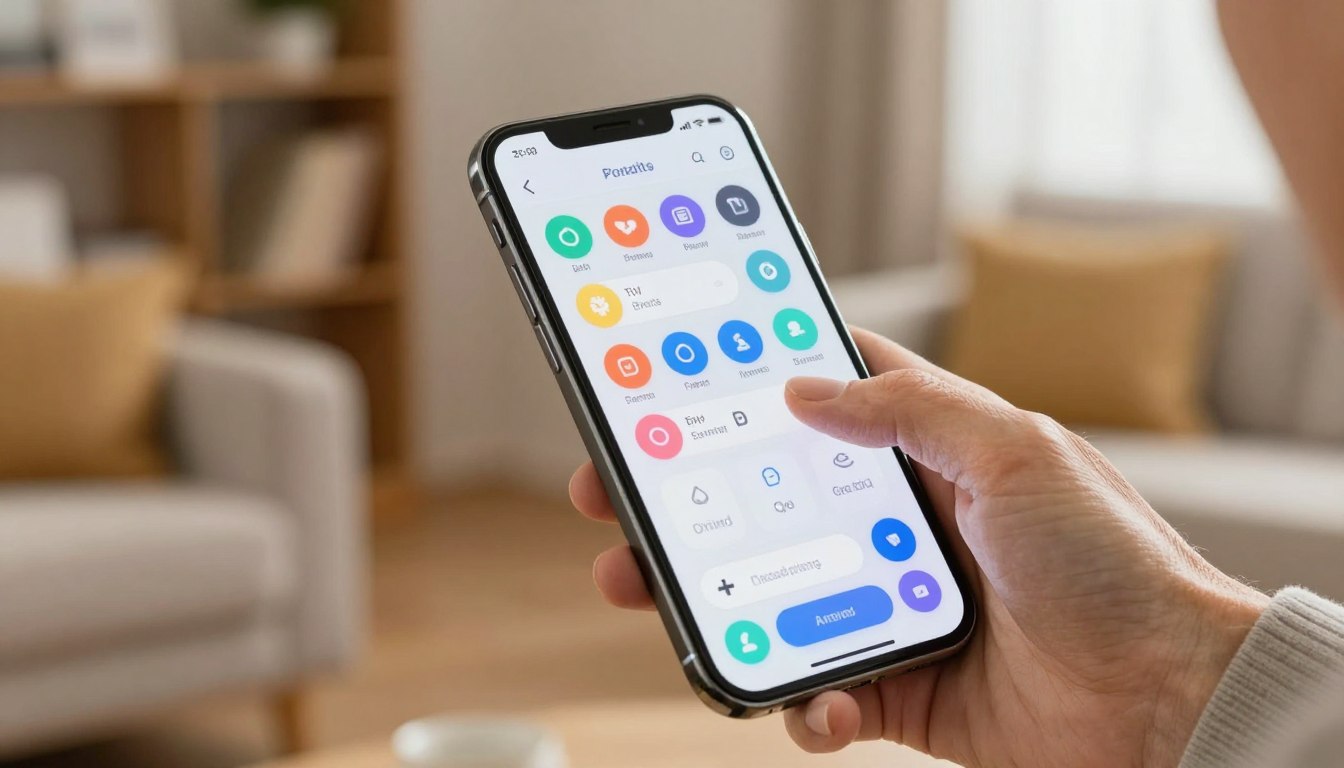
Large Text Is Not Enough: The Full Accessibility Setup That Makes a Phone Genuinely Easy for Seniors
Making a phone calmer for an older user is more than big type. Confusion often comes from accidental taps, hidden gestures, crowded home screens, and sudden security pop-ups.
This guide shows a repeatable, step-by-step approach for an effective accessibility setup on android phones. It covers display and text, touch guards, home layouts, safer installs, SOS shortcuts, and remote help so caregivers can assist without stress.
The promise is simple: fewer mistakes, fewer “where did my screen go?” moments, and quicker access to calls and emergency help. The article explains the idea first, then gives concrete examples for common brands like Samsung and OnePlus.
This chapter aims at caregivers setting up a device for a parent, and at older users who want their smartphones to feel calmer and more predictable. Expect clear steps, plain language, and practical tips you can repeat on most devices.
Start With the Goal: What “Senior-Friendly” Really Means on Android Phones
Define the goal: make the phone predictable, readable, and forgiving. A clear goal keeps changes simple and reversible for you and the person who will use the device.
“Senior-friendly” means: predictable navigation, readable text, fewer choices per screen, and easy recovery when something goes wrong. Caregivers report common friction points: tiny text, low contrast, icons that look alike, accidental swipes, accidental long-press edits, and app overload that makes the device feel busy.
Pick the right approach
There are three practical options: a built-in simple mode (fast, limited), Android accessibility settings (powerful, can overwhelm), or a senior launcher (big UI change, best for high-support needs). Each has trade-offs in control and complexity.
Quick decision rule: if size is the main issue, try simple mode first. If mis-taps and getting lost are the problem, add accessibility plus layout controls. If you need strong guardrails, consider a launcher like BaldPhone.
The real target is not maximum features; it is minimum confusion for the specific users. This guide starts with evaluation, then applies changes in a safe order: reversible tweaks first, deeper changes later.
Before You Change Settings, Do a Quick Senior Usability Check
Before changing a phone, run a quick, five-minute check to see how the user actually interacts with the device. This short test shows what matters: readability, motor control, memory load, and safety. Use what you learn to guide small, reversible changes.
Vision needs
Can they read Messages and Settings without squinting? Test the screen under kitchen lights and outdoors. Check font size and contrast so labels and icons never vanish when lighting shifts.
Motor needs
Watch for mis-taps: hitting the wrong icon, dragging apps by accident, or triggering gestures that move pages. Note if a quick double-tap or a long press is hard to perform. That tells you which touch and button timing to adjust.
Memory needs
Less is more: too many apps and multiple home pages cause anxiety. One stable home screen with essential apps reduces searching and makes daily use predictable. Ask the user: list or big tiles?
Safety needs
Confirm emergency contacts are set and location sharing works when needed. Put simple guardrails in place to limit risky installs and protect important information. Involve the person in choices so the final design fits their habits.
Turn On Your Phone’s Built-In Simple Mode If It Has One
If the person you’re helping gets lost in menus, try the phone’s built-in simple mode first. It’s often a one‑tap change that makes the device easier to read and use.
What simple mode usually changes
Simple modes typically enlarge icons and text, declutter the home screen, and offer a clear favorites contacts panel. Some models add a magnifier or a dedicated contact page for quick calls.
How to enable Samsung Easy Mode
On Samsung phones follow this path: Settings > Display > Easy Mode > toggle On. That quick route gives bigger elements and a calmer layout without extra apps.
OnePlus and other brands
OnePlus calls it “Simple Mode,” but the idea is the same: larger icons and simpler navigation. If you don’t have a Samsung phone, search for “simple mode” or “easy mode” in settings.
When simple mode is enough — and when it isn’t
Enough: the person reads text comfortably and mainly needs a steady home screen for calls and messages.
Not enough: they still swipe away pages, tap the wrong icons, or install risky apps. If that happens, move on to the next checklist for a more robust setup.
Full accessibility setup seniors android: the complete checklist before you hand over the device
Before you hand the phone over, run a quick one‑page checklist so nothing vital is missed. This puts comfort first, then stops mistakes, simplifies the home, and locks in emergency and security options.
Display and text
Increase text size and enable bold font in Settings > Display > Font size and style. Check contrast in Messages and Phone so labels stay readable in different light.
Touch and interaction
Turn on accidental touch protection (where available) and slow down gesture speeds. Test taps: open and close apps, long press icons, and try back/home actions to avoid surprises.
Home screen and apps
Keep one clean home screen with only essentials: Phone, Messages, Camera, Maps, and Contacts. Add a Contacts widget for speed dial (Home screen > Widgets > Contacts).
Emergency, security, and remote support
Add emergency contacts (Settings > Safety and Emergencies), enable Auto Blocker or similar security features, and set up a remote-help option so you can step in without stress.
Spend 10 minutes now. The next sections walk through each bucket with step‑by‑step examples for Samsung, launcher choices, and remote tools so you can finish confidently.
Make Text Actually Readable Across the Whole Screen
Make sure text is easy to read without leaning in or squinting. The aim is consistent legibility across menus, messages, and calls so the person doesn’t need special tricks per app.
Increase font size in Display settings
Start in Display > Font size and style. On Samsung, slide the font size until the person can read labels at arm’s length, not only when the phone is inches from their face.
Pick the biggest readable option that still keeps buttons visible on the screen. If choices vanish off-screen, step one notch down.
Use bold font for clarity on small screens
Enable bold font as a clarity boost. Bold often improves legibility more than just a larger font.
On small screens, this change can cut reading errors and make numbers and names clearer in a single glance.
Test readability inside key apps like Messages, Phone, and Settings
Try this quick script: open a text thread, open call history, and open any Settings page. Ask the user to read three items out loud without zooming.
Different apps sometimes scale text differently. The goal is one comfortable text size and style that works across the whole screen and every app on the phone.
Make Icons Bigger and the Home Screen Easier to Scan
A tidy home screen reduces guessing and makes tapping reliable. Start with one short change: enlarge the visible targets so a single finger hit works more often.
Adjust icon size and spacing for fewer mis-taps
On many phones long-press the home area, choose Edit or Customize, and pick a larger grid or icon option. Fewer icons per row means more space between targets and fewer accidental presses.
Pin only the essentials
Keep just Phone, Messages, Camera, Maps, and Contacts on the main screen. These five apps handle most daily tasks without diving into a menu.
Reserve the top row for calls and messages so they appear first. A stable layout builds muscle memory and confidence.
Finally, remove distracting apps and preinstalled games from view. The phone should feel like a tool, not a trap, and a clean screen helps the user focus on what matters.
Reduce Accidental Touches and “Random Taps” That Cause Confusion
Small, accidental touches can turn a calm phone into a mystery in seconds. Edge presses, pocket taps, and quick swipes often trigger unexpected screens. That erodes confidence faster than any new feature ever could.
Quick Samsung fix
On Samsung phones, flip this option: Settings > Display > Accidental touch protection > On. This simple change blocks edge and pocket taps and stops many surprise actions.
Layout choices that reduce errors
Keep one home screen with large icons and no hidden drawers. Fewer pages means fewer accidental swipes and less hunting for apps.
Replace swipe-only menus with visible buttons when possible. Buttons are easier to describe over the phone and easier for a user to relearn.
Stop edit surprises
Lock the launcher layout or turn off long-press-to-edit where the launcher offers that option. That avoids accidental icon moves and deleted shortcuts.
For high‑support needs, apps like BaldPhone include an Accidental Touch Guard and a touch delay at medium or high levels. Those features add a tiny pause so the phone ignores fleeting taps.
Preventing mistakes is often more valuable than adding features. A predictable interface builds trust and makes daily use calmer for everyone.
Choose a Senior-Friendly Navigation Style and Stick With It
Pick one clear navigation method and teach it like a habit—consistency beats clever tricks. Users learn by repetition: when the path to go Home or Back never changes, confidence grows fast.
Buttons vs gestures: why consistent navigation matters
On‑screen buttons are visible and predictable: a single button press returns you to the home. Gestures can be quick, but they hide actions behind swipes and timing.
Choose one option and keep it. If you pick a button, leave that button active. If you choose gestures, teach the gesture the same way every time.
Home screen organization that prevents getting “lost”
Keep one primary home screen with essential apps: Phone, Contacts, and emergency info should be front and center for easy access.
Allow one secondary page for occasional apps. No extra panels, no hidden menus. This simple layout reduces guessing and keeps the interface predictable.
Teach a short rescue phrase like: “Press Home to reset.” Demonstrate it several times during setup so it becomes a reflex.
Make Calling Simple With Favorites, Widgets, and Big Buttons
When a call matters, the path to dial must be short and predictable. Give calling top priority on the home screen so reaching someone is one clear action.
Put these items in place: large contact tiles, an obvious dial button, and a dedicated favorites page with the fewest taps needed to connect.
Create speed dial using a Contacts widget (Samsung method)
On Samsung: pinch the home screen, choose Widgets, find the Contacts widget, drag it where you want, then pick the person. That creates a one‑tap speed dial tile.
Widgets let you place multiple people on one page so a single tap starts a call without searching through apps.
Build a “favorite contacts” home screen for one-tap calling
Make a page with 4–8 labeled people: Daughter, Doctor, Neighbor, etc. Use clear labels and big tiles so the user sees names at a glance.
Keep that page first in the home screen order so it appears immediately after unlocking.
Keep call actions obvious: answer, speaker, mute, keypad
Review in-call buttons with the user: how to answer or hang up, turn on speaker, mute the mic, and open the keypad. These are the moments that cause panic, so rehearse them once.
Do a short voice practice: place a test call, switch to speaker, then end the call. Repeat until the steps feel natural. If the default dialer is too small, later sections show launchers and add-on dialers with larger buttons.
Set Up SOS and Emergency Contacts So Help Is One Button Away
Start by turning the phone into a reliable lifeline—emergency contacts and SOS must come first. This change makes the device a safety tool before you add extras like widgets or themes.
Add emergency contacts in Settings
On Samsung: go to Settings > Safety and Emergencies > Emergency Contacts > Add Member. Pick real people who will answer: family, a neighbor, or a trusted friend.
Show essential information on the lock screen
Enable the toggle to Show on Lock screen so first responders can see medical information and a listed contact without the passcode. That gives quick access to important information and speeds help.
Practice the power-button SOS shortcut
Samsung’s SOS can trigger by pressing the power button three times. It can send alerts to emergency contacts and share a short audio clip, photos, and an approximate location to help responders find them.
Do one low-stress drill together: press the sequence, confirm the message goes to the right contacts, then stop. Practice once builds muscle memory so nobody has to invent steps in a real emergency.
Finally, revisit these settings after major updates or when you change devices. Toggles and permissions sometimes reset, so a quick check keeps the emergency plan working.
Lock Down Security to Reduce Scam Risk and Bad Installs
Preventing scam apps starts with a quiet, one-time security check that protects everyday use. The goal is fewer scary pop-ups and fewer surprises after a wrong tap.
Enable Samsung Auto Blocker
On Samsung phones turn this on: Settings > Security and Privacy > Auto Blocker > On. It blocks installs from unknown sources, stops risky USB commands, and can filter malicious images sent in messages.
Limit installs to trusted stores
Keep a simple rule: only install from the Play Store or Galaxy Store. Avoid links in texts that say an app “needs an update.” That single habit prevents most scam installs and confusing content.
Keep security unobtrusive and review monthly
Set protections once, then confirm normal apps still work. Don’t pile on extra antivirus apps that spam notifications.
Caregivers should scan the app list monthly and remove unfamiliar names. Good security helps the person stay independent: fewer rescue calls after a bad tap and more calm confidence using their device.
When Built-In Settings Aren’t Enough, Use a Senior Launcher
Swapping the default launcher can turn a crowded, hard-to-read home screen into a calm, predictable place.
A launcher is the app that draws the home screen, icons, and app drawer. It can also replace the dialer or message shortcut so reaching a contact is simpler, without buying new devices or phones.
When a launcher is the right option
Choose a launcher when mis-taps are constant, pages confuse the user, or vision and motor limits make the default interface unreliable.
What to evaluate before installing
Check permissions: does the app ask for broad device control to work? Read prompts and prefer minimal access when possible.
Test the dialer and messaging: are buttons large and labeled clearly? Can a caregiver make changes without breaking the layout?
Assess setup complexity: will a caregiver need extra time to configure widgets, favorites, and emergency tiles?
A gentle warning and next steps
Some launchers like BaldPhone need more permissions to offer advanced safety features; others like Elder Launcher keep requests low. Pick reputable apps with good reviews and clear privacy notes.
Expect a noticeable UI change: do a practice hand-off so the user learns the new flow. The next sections compare top choices by support level and caregiver control.
BaldPhone for High-Support Needs: Accessibility Levels That Prevent Mis-Taps
For people who need stronger guardrails, BaldPhone turns hidden gestures into clear, repeatable actions. It is the high‑support choice when accidental taps keep breaking routines and patience runs out.
Three practical levels and what they change
Regular feels close to stock: no touch delay and swipe scrolling still works.
Medium adds a short touch delay and swaps swipes for visible arrow buttons. That forces deliberate presses.
High extends the delay and uses arrow-only scrolling to block most accidental input.
Guard features that make a real difference
BaldPhone includes an Accidental Touch Guard so brief brushes are ignored. Arrow buttons replace mystery swipes, which helps people who struggle with fine motor control.
Daily helpers: SOS, keyboard, and pill reminders
A bright emergency button sits on the main screen so help is obvious. The large keyboard and a pill reminder widget cut daily friction and lower error rates. Video tutorials explain each feature during setup.
Install reality and permissions
The app is free and open source, delivered via F‑Droid or by sideloading the APK. It may ask many permissions: treat prompts as part of the process, not a failure. Caregivers will find the install option manageable for most devices.
Big Launcher and Elder Launcher for a More Familiar, Lightweight Setup
If the default screen still feels cluttered, these two launchers offer a simpler path: one customizable, one very light. Big Launcher sits between stock and heavy guardrails, while Elder Launcher keeps permissions low and setup quick.
Big Launcher: customizable look and optional dialer/messaging
Big Launcher lets you change fonts, layout, and create multiple home screens. It’s a good middle ground: cleaner icons and large tiles, without BaldPhone’s touch delays.
There are paid add-ons like Big Dialer and Big Messaging. If the person needs huge dialing and texting, these add-ons are worth considering. Test calling and messaging end-to-end before you commit: some features are locked behind paid versions.
Elder Launcher: minimal permissions and fast setup
Elder Launcher is the “keep it simple” option. It installs fast, asks for few permissions, and gives a lightweight home screen for favorite apps and contacts.
The trade-off: it doesn’t remake the default dialer or message menu. Pick this option when the user can already handle basic calling and texting, and you want a quick, low-risk change.
Quick evaluation routine: install, set as the default launcher, place core buttons on the first screen, then watch the user complete three tasks without coaching. That short test shows if the option really works.
Nova Launcher for Caregivers Who Want Maximum Control Without a New UI
Nova Launcher gives caregivers precise control over the home screen without forcing a new, unfamiliar interface on the user.
Make icons bigger, lock the layout, and reduce accidental changes
Use Nova to enlarge icons, set a clean grid (3–5 rows and columns), and disable the dock so the main page stays simple. Then lock the home layout to stop long‑press moves from scrambling the screen.
Build one stable page with essentials only: Phone, Messages, Contacts, Camera, and Maps. This option cuts visual clutter and makes daily tasks obvious.
Pair Nova with native settings for best results
Nova manages layout and stability while the phone’s settings handle readability and interaction comfort. Enable larger text, magnification, and slowed gestures in the device settings to complement Nova’s layout controls.
Change one thing at a time: try bigger icons first, then lock the layout. Consistency beats tinkering—once it works, leave it alone.
Support From Anywhere: Remotely Help a Senior Adjust Settings Without Frustration
Watching the screen live removes the “tap the three dots” guessing game for both of you. Many help calls fail because the person can’t describe what they see in Settings, so fixes take too long.
How DeskIn remote control works for Android-to-Android setup help
DeskIn lets you view and control another device from Android, Mac, or iPhone. It supports Android‑to‑Android control, low latency, 1080p30fps video, and no session time limit in the free version.
Quick, safe connection steps
Install DeskIn on both devices and log in with the same account. The senior toggles “Allow remote control,” then you pick their device from your list and tap Connect.
Safety tips and helpful features
Limit access to the same account and use manual verification when possible. DeskIn offers built‑in voice calls and on‑screen annotations so you can point to buttons while you talk.
Create a simple maintenance routine
Schedule a monthly check: confirm emergency contacts, verify key contacts, and review security settings like blocking unknown installs. Short remote sessions reduce repeat calls and build confidence.
Hand-Off Day: A Quick Practice Run That Makes the Setup Stick
.
A short practice session turns unfamiliar features into easy habits for the person using the phone. Keep it to 15–20 minutes and let the caregiver watch quietly unless help is needed.
Run a three‑core‑task drill: place a call to a favorite contact, read and reply to a message, and return to the home screen. Repeat each task until it feels natural.
Do a screen confidence check: can they spot time, battery, the Phone icon, and where to tap to go Home or Back at a glance? Then rehearse one calm emergency drill: show where emergency info lives, confirm the emergency contact list, and practice the shortcut once.
Verify settings stayed put and show the one recovery move: press Home to reset. Finally, clean up apps—remove or hide distracting games—and write a short paper script with 3–5 daily tasks and one step to take when confused.

Noah Carter is a mobile tech writer focused on Android performance, minimalist phone setups, and lightweight app alternatives. He has spent years testing budget and mid-range devices to find practical tweaks that make everyday smartphones faster, simpler, and easier to use — without rooting, without bloat, and without unnecessary complexity. His work on News Mobile covers everything from battery optimization to accessibility setups for seniors.