
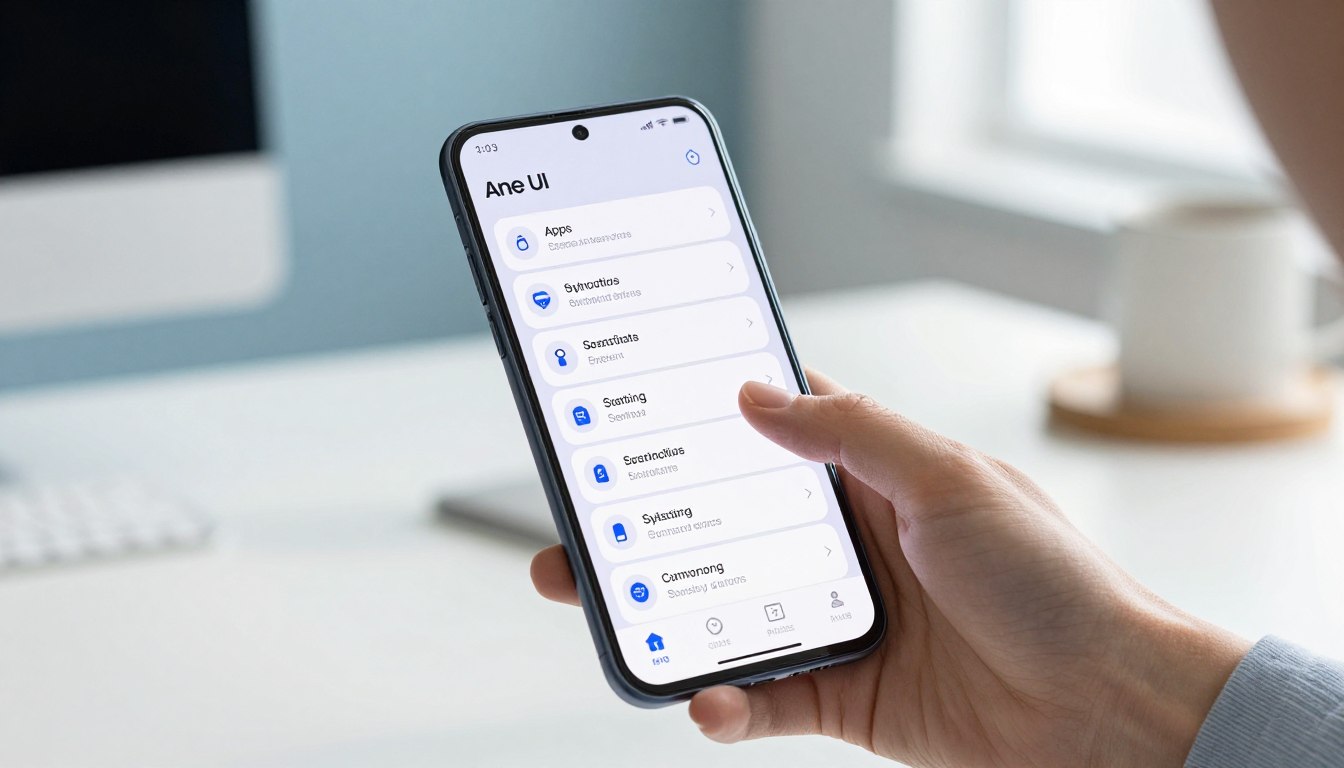
The 10 System Apps You Can Safely Disable on Samsung One UI Without Breaking Anything
This short guide helps you trim preinstalled clutter on a new samsung phone without risking core features. It focuses on common system-style apps that are usually safe to disable so calls, texts, camera, and updates keep working.
Removing extra apps can free storage space, cut background processes, and clear the home screen. That means fewer nags, less chance of seeing unwanted content, and a smoother daily experience on a budget device.
What “safe” means here: avoid anything that could stop the device from booting or force a factory reset. Preinstalled software varies by model, carrier, and region, so your list might look different.
Read on for quick checks, the ten items many people can turn off, tips to stop carrier bloatware, and simple steps to keep the phone running well. No special tools needed—just the Settings app and a bit of caution.
Before You Disable Anything in One UI, Do These Safety Checks
Before you touch any preinstalled software, run a few quick checks so you don’t break features you rely on.
Uninstall vs disable vs hide
Uninstall removes an app completely. Disable pauses it and hides it from the apps screen. Hide keeps the app installed but out of sight.
Rule of thumb: if you’re unsure, disable first. It’s reversible and stops background activity without permanent loss.
Where to find the button and why it may be grayed out
Open Settings menu → Apps → pick the app → look for Disable or Uninstall. Some items only show Disable; others let you uninstall.
If Disable is grayed out, that app ties to core services or required features, so the device blocks changes to avoid faults.
Fixes, accounts and testing
To recover: Settings → Apps → filter to disabled apps → Enable. Reinstall from Google Play Store or Galaxy Store if removed.
Confirm which Google or Samsung account you use for backups before changes. Disable one app at a time and use the phone for a day.
If the device acts oddly, open the Samsung Members app and submit an error report for guided help.
samsung one ui disable system apps safely: Ten Apps You Can Turn Off Without Breaking Core Features
For a tidier home screen and fewer background tasks, consider turning off these ten preinstalled items. Each mini-template below says what it does, why you might stop it, what you’ll lose, and where to find it: Settings → Apps.
Samsung Free
What: content feed on the left-most home screen.
Why stop: removes ads-like news panels and declutters the home screen.
Loss: curated news/cards you might glance at.
Game Launcher
What: a hub that groups game titles.
Why stop: reduces extra icons and streamlines the app drawer.
Loss: game tools and performance profiles you won’t use.
Samsung Kids
What: parental controls and a kid-friendly mode.
Why stop: safe if you never hand the phone to children.
Loss: child profiles and supervised activity reports.
Samsung Global Goals
What: donation and ads-style content.
Why stop: removes charity promos and helps remove ads from your list.
Loss: in-app ways to donate.
Stop Carrier Bloatware Installs That Hurt Storage Space and Battery Life
Some background carrier tools keep adding unwanted software to your phone without asking. That hidden installer acts like an app installer in the background, which is why bloatware returns after you remove icons.
Mobile Services Manager on AT&T, Verizon, and T‑Mobile: what it does and why to remove it
Mobile Services Manager (MSM) is common on phones sold by AT&T, Verizon, and T‑Mobile. It can download and install carrier-branded services and promotions silently.
Those extra installs reduce storage space, shorten battery life, and slow overall performance. You may also see more ads and promotional shortcuts appear on the home screen.
How to check your apps list for carrier services and prevent silent installs
Go to Settings → Apps and search for “Mobile Services Manager” or names like App Installer, App Selector, or any carrier-branded service. Try Uninstall first.
If Uninstall is blocked, use Disable when possible. If neither is available, remove the carrier installer entries you find, then monitor the apps list weekly. If icons come back, MSM or a similar service is reinstalling them.
This targets carrier add-ons, not core Google apps or essential phone functions. If you change your mind, restore removed apps through the Play Store or Google Play Store like any other app.
Keep Your One UI Experience Smooth After Removing Apps
With extra clutter gone, a few routine steps will help your new Samsung feel snappier and more reliable.
Post-cleanup checklist: restart the phone once, watch battery use for 24 hours, and confirm calls, texts, camera, and Bluetooth work normally.
Keep the home screen tidy by grouping rarely used apps into one folder. If you share the device, this avoids constant rearranging.
Not ready to delete? Archive an app to free space but keep your data so you can restore it later without hassle.
Once a month, open Settings → Apps and sort by Most used or Last used to find things you no longer touch. Use Samsung Members to run diagnostics, read FAQs, or submit a report if something acts up.
Don’t over-optimize: change one thing at a time. When done right, a new Samsung or samsung phone will feel cleaner, faster, and easier to use.

Noah Carter is a mobile tech writer focused on Android performance, minimalist phone setups, and lightweight app alternatives. He has spent years testing budget and mid-range devices to find practical tweaks that make everyday smartphones faster, simpler, and easier to use — without rooting, without bloat, and without unnecessary complexity. His work on News Mobile covers everything from battery optimization to accessibility setups for seniors.