
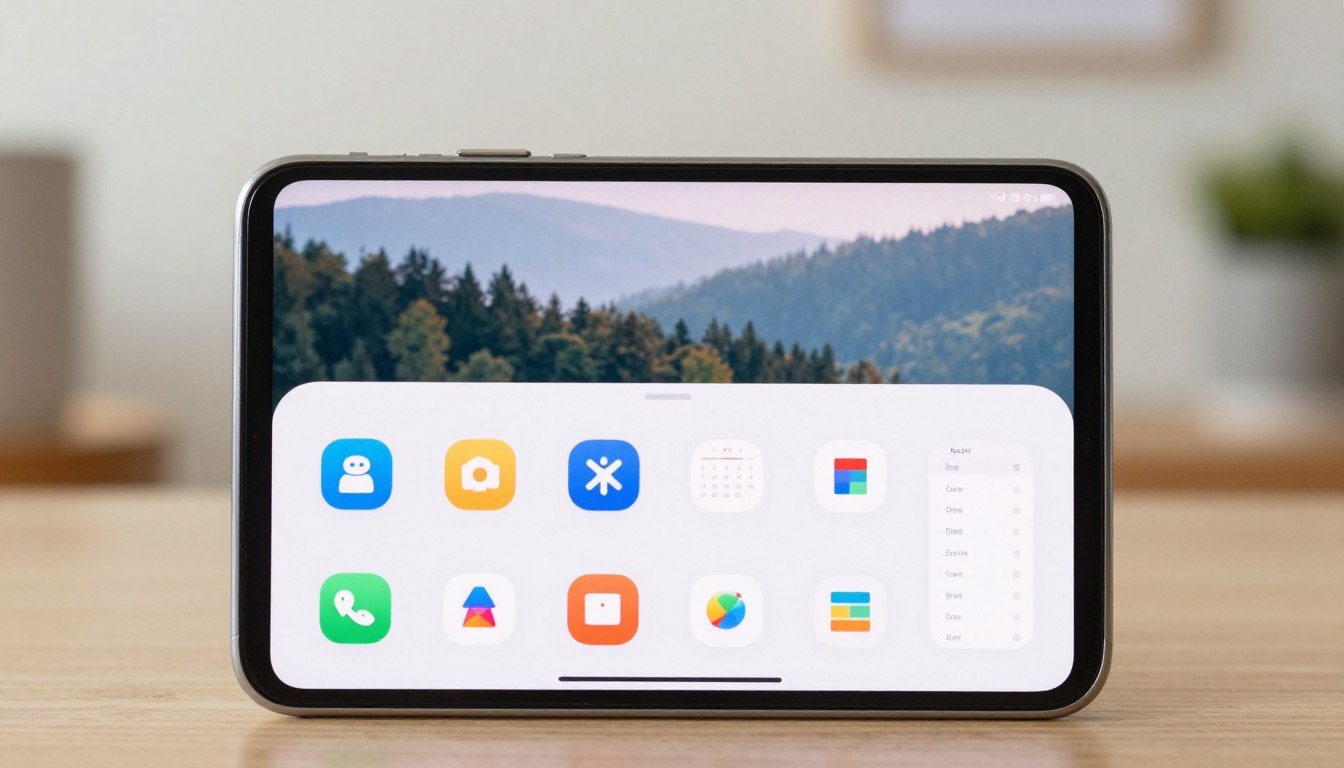
The Exact Homescreen Setup I Use on a Pixel 7a to Get Through a Full Day Without Distraction
This intro promises a practical, repeatable pixel 7a minimal homescreen setup that shrinks the urge to “tap to check.” It shows a clear goal: make your phone useful for calls, messages, and directions without being a shortcut to endless apps.
Think of your home screen like a kitchen counter: clutter leads to snacking, and a cluttered screen leads to scrolling. The guide defines minimal as fewer icons, fewer widgets, fewer panels, and fewer visual triggers on the screen.
The plan is simple: step-by-step changes in Settings so you don’t need new tools or themes. You’ll get a clean layout, a short widget list, and a few built-in google pixel features that cut distraction.
This is for beginners and intermediate users who unlock their device for the time and end up on social media. The aim is realistic: not perfect, but calmer defaults so your attention isn’t taxed all day. Expect clear tips and actionable information ahead.
Start with a distraction-free game plan for your Google Pixel home screen
Start by choosing one clear job for your home screen so it stops asking for attention. Decide whether that job is quick communication, a calendar glance, or navigation. Then move everything else into the Apps tray.
Begin the fix: from the home panel, swipe up from the center to open the Apps tray. Drag only 3–6 icons back to the main screen—those that earn their spot.
Pick a single purpose and clear the default panel
If you can’t explain why an app sits on the default panel, move it. Long-press empty space to open Widgets, Wallpaper & style, and Home settings. Enable Smart Space (At a Glance) to surface time and key information without extra widgets.
Keep only essential info
Essential means: time, a sense of battery, and notifications you’ll act on—calls, texts, calendar alerts. Avoid live wallpapers; they look nice but can raise battery drain.
pixel 7a minimal homescreen setup using Wallpaper & Style, layout, and icons
A calm wallpaper and a tidy icon grid cut visual noise faster than any app blocker. Start with Wallpaper & style: long-press empty space, tap Wallpaper & style, then open Layout to change rows and columns. The path in Settings is easy and repeatable.
Choose a still image or a low-motion wallpaper style. High-motion live wallpapers look nice but can hurt battery and draw your eye. A static wallpaper gives the display a softer background and keeps focus on useful items.
Adjust icon size like a volume knob: slightly smaller icons reduce noise. Limit app rows to three or four and leave empty space around key apps. That makes the default home feel like a calm dashboard, not an app catalog.
Create folders by dragging one app over another. Place low-priority apps inside so they’re available but out of sight. If you need larger icons for accessibility, keep the count low and colors muted to preserve focus.
Widgets that help you focus without pulling you in
Widgets can feel helpful, but too many turn your phone into a distraction machine. Choose one purposeful widget for your home screen and keep other information tucked away.
Enable At a Glance for useful, low-effort info
Turn on Smart Space (At a Glance) in Home settings → At a Glance → Turn on. Use Customize to keep only time, commute, or calendar items that matter.
One widget rule and quick management
Place one widget max on the main screen: calendar, tasks, or weather if you act on it. To add or move a widget: long-press empty space → Widgets → drag into place. Long-press a widget to remove it.
Optional clean customization
If you want design control, KWGT or KWGT Pro can make a tidy single widget. Try Pastel UI IDs PUI 02, PUI 21, or PUI 06 as starters, but avoid turning this into a weekend project.
Panels as rooms
Think of panels like rooms: if a panel tempts you to wander, clear its apps to remove the room. Drag an app to an empty home to add a panel; remove all apps to delete it.
Lock down distractions with notifications, Quick Settings, and Pixel gestures
Start by turning your lock screen and notification shade into helpers, not traps. A tidy shade reduces reflexive taps and keeps focus on real tasks.
Edit Quick Settings so your most-used toggles are one swipe away
Swipe down from the top, tap the pen icon, and remove rarely used tiles. Keep only weekly toggles: flashlight, Do Not Disturb, and mobile data.
Turn on Notification History and learn to snooze
Open Settings → Notifications and enable Notification History. Dismiss noisy alerts now and find them later if needed.
When you can’t act, swipe a notification and pick Snooze to park it for a better moment.
Pick navigation and set Quick Tap for an intentional action
Choose Settings → System → Navigation mode: gestures or buttons based on which reduces your fidgeting. What stops your habit is the right choice.
Set Quick Tap at Settings → System → Gestures → Start an action with a quick tap. Use it for a screenshot or to pause media instead of adding more icons to the home screen.
Think of these changes as a simple lock on the cookie jar: still reachable, but not begging for attention. Small edits in settings keep your display calmer all day—a practical set of tips you can apply now.
Make it last all day, then keep it minimal going forward
Turn today’s tidy screen into a habit with a quick end-of-day reset: remove any app icon you added unless it earned a permanent spot.
Use the lock screen settings so you see only useful alerts without unlocking: Settings → Display → Advanced → Lock screen. Limit sensitive notification content to avoid tempting taps.
Avoid live wallpaper and keep a boring wallpaper and muted icons on the home. That helps battery and keeps the display calm all day.
Try a weekly check: prune notification sources, uninstall repeat offenders, and follow a one-in, one-out rule for new apps. Minimal is a light habit, not a one-time chore. Keep it simple and steady.

Noah Carter is a mobile tech writer focused on Android performance, minimalist phone setups, and lightweight app alternatives. He has spent years testing budget and mid-range devices to find practical tweaks that make everyday smartphones faster, simpler, and easier to use — without rooting, without bloat, and without unnecessary complexity. His work on News Mobile covers everything from battery optimization to accessibility setups for seniors.