
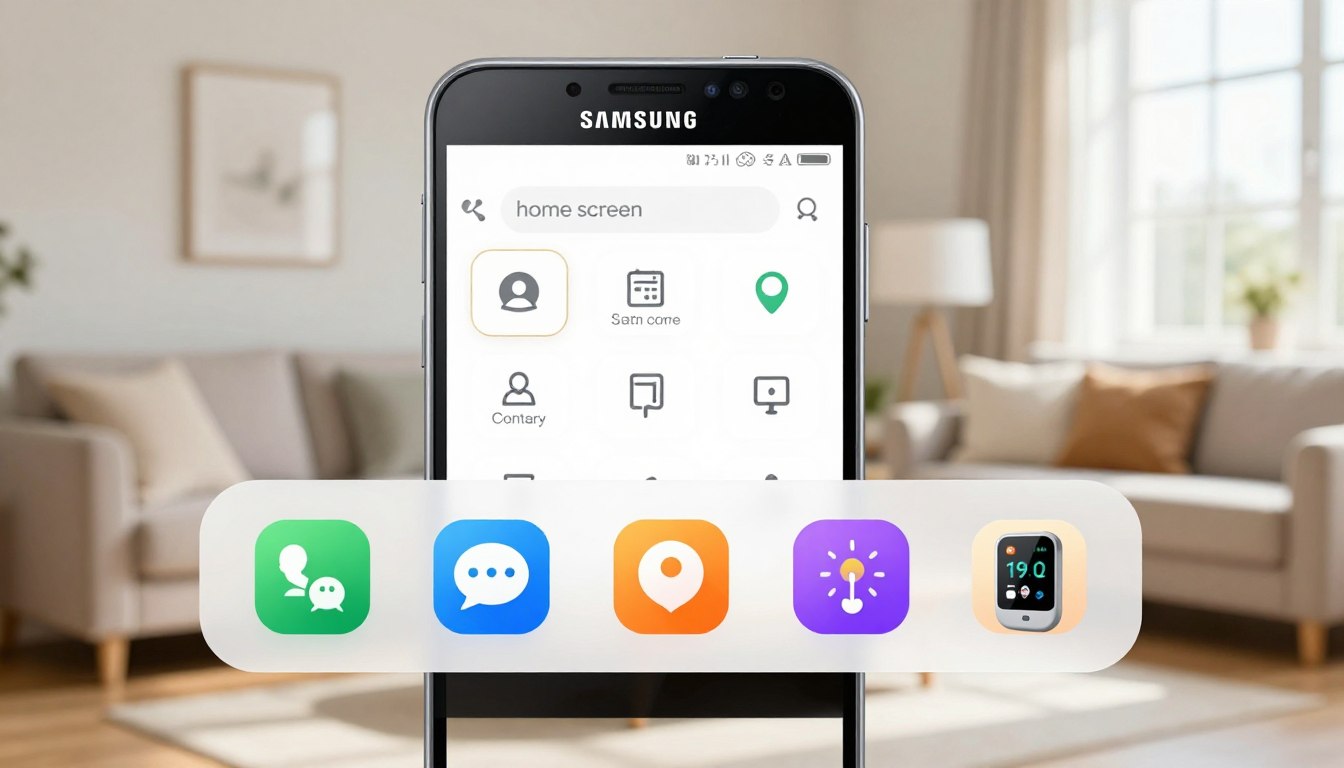
We Tested 5 Senior-Friendly Launchers on a Galaxy A Series Phone — Here’s the Honest Ranking
This hands-on roundup is for anyone who wants a simpler phone without wasting hours installing random apps. The focus: Galaxy A Series devices common in the United States, so the results fit many Android phone users.
A launcher changes the home screen, app drawer and the feel of the interface. It does not touch your carrier or phone number. In plain terms: it makes icons bigger and taps less stressful.
We tried five launchers and ranked them by ease of setup: easiest out of the box first, then options that trade simplicity for more customization. Real-world needs matter here: bigger buttons and fewer mis-taps beat fancy widgets when setting up for seniors or for you if you want less clutter.
Along the way we note Samsung’s built-in Easy Mode as a no-download option to try first. By the end you’ll have a clear recommendation and quick setup tips to keep the phone easy tomorrow, not just on day one.
How we tested senior launchers on a Samsung Galaxy A Series phone
We set up and used each phone interface the way a typical older user would, timing how long it took to do simple tasks. Tests ran on a Galaxy A Series handset with default settings, so results reflect real-world performance on a midrange device.
What “senior-friendly” meant in real use
We defined clear, testable criteria: bigger icons, readable text, high-contrast elements, and big buttons that don’t require perfect aim. The ideal home screen shows core apps at a glance and limits tiny shortcuts that cause confusion.
Stress tests that matter
Practical checks included tapping near the edge of a button, scrolling with shaky hands, and finding Contacts without digging through a deep menu. We timed calling and messaging tasks to see how many taps users need.
What we didn’t ignore
We tracked ads and paid upsells, and noted whether an app is on the Play Store or needs sideloading. Distribution, required settings changes, and extra permissions can make or break adoption for many users.
Quick baseline before downloading anything: Samsung Easy Mode in One UI
Before adding apps, try the built-in easy mode to give the phone a simpler, clearer home screen. It’s the quickest way to check whether you need a different interface or if the default device setup already does the job.
Where to find it
Open Settings > Display > Easy Mode, then toggle it on and confirm the home screen changes. This path works on many phones with One UI and takes less than a minute.
Why Easy Mode helps
Easy mode enlarges text and icons, reduces clutter, and shows a simple layout that’s easier to scan. The magnifier tool helps when small UI elements strain the eyes.
There’s also a dedicated contacts screen so users can place a call with fewer taps. Set 3–6 favorite contacts first, then hand the device to the person and watch if they can call back without help.
Treat easy mode as a baseline option: if it solves the needs, you keep the default setup and avoid extra apps, extra ads, and extra maintenance.
Honest ranking results: the best senior friendly launcher samsung galaxy (from easiest to most customizable)
D for clarity: this quick list helps you match personality to interface—choose “just make it easy” or “I want to tweak everything for Mom or Dad.”
Winner: BaldPhone
BaldPhone wins for accessibility first, not just big icons. It offers three accessibility levels: touch delay, reduced gestures, and arrow-button scrolling.
It includes SOS tools, emergency contacts, pill reminders, and a built-in big keyboard. Note: it needs extra permissions and is installed via F‑Droid/APK, not the Play Store.
Runner-up: BIG Launcher
BIG Launcher is colorful and familiar. Large tiles make the home screen easy to scan.
For real phone and message use, the paid Big Dialer/Big Messaging add-ons improve the experience.
Simple and lightweight: Elder Launcher
Elder Launcher is the clean Play Store choice. It’s quick to set as default and asks for minimal permissions.
Distraction-free: Senior Home
Senior Home focuses on calm: time, battery, and three big shortcuts first. Its text-based app drawer reduces mis-taps compared with icon grids.
For caregivers and tinkerers: Nova Launcher
Nova Launcher isn’t aimed at older users out of the box, but it’s highly customizable. Caregivers can lock layouts, enlarge icons, and combine it with Android accessibility settings for a tailored setup.
Next: detailed deep dives with setup tips, gotchas, and which option fits a Samsung Galaxy A Series phone best.
BaldPhone on a Galaxy A Series: the most thoughtfully designed option for seniors
If tiny icons and fast swipes cause frustration, BaldPhone aims to make the screen predictable and clear.
BaldPhone is built for seniors and other users with vision or motor challenges. It is free, open source, and ad-free, so there’s no surprise billing or distracting ads while you learn the device.
Three accessibility levels
Choose regular for swipe scrolling if the user is confident. Pick medium to add a touch delay and disable swipe gestures. Select high for the longest touch delay and arrow-button scrolling only.
Why arrow buttons matter
Arrow controls turn unpredictable swipes into simple up/down taps. That helps when swipes jump screens or scroll too fast.
SOS, emergency contacts, and quick toggles
The quick toggle bar puts emergency, flashlight, battery, volume, and notifications within reach. You can add emergency contacts and services so a call or alert takes one tap in a panic.
Built-in essentials and typing help
BaldPhone bundles a dialer, contacts, notifications area, and pill reminders to cut down on app-hopping. Swap to the big keyboard in one tap and adjust font size and font for easier reading and faster typing.
Important drawback
It’s not on the Play Store: installation requires F‑Droid or APK sideloading and careful permission setup. Still, many caregivers prefer it because the app is open source and offers privacy-conscious access without ads.
BIG Launcher: big icons and a familiar layout—if you can live with add-ons
This interface keeps the traditional home screen feel, but with much bigger icons and clearer fonts. It looks familiar, so someone moving from a basic phone spends less time learning where things are.
What it does well
Big Launcher uses a colorful, easy-to-read interface with adjustable font and layout options. Multiple home screens let you place core apps up front. The larger icon size and bold font make scanning the screen faster and easier use more reliable.
Dialer and messaging reality check
The app works with the default phone and messaging tools, but the free companion dialer has limits: keypad or call log access can be restricted. For real calling and texting, the paid Big Dialer/Big SMS add-ons usually make the experience complete.
Setup tip and small design nit
Replace any placeholder shortcuts that act like ads by reassigning those buttons to your default Phone and Messages apps in settings. Also check scaled icons: some look odd when enlarged, so pick built-in icon choices if available.
Best fit
Big Launcher is the “looks familiar, feels bigger” choice. It suits users who want a standard layout, larger buttons, and don’t mind deciding on a paid add-on to improve calls and texts.
Elder Launcher: the simplest Play Store download for calls, contacts, and a clean home screen
For a no-drama setup that puts calls and contacts front and center, try Elder Launcher from the Play Store.
Why it’s appealing
Elder Launcher is lightweight and fast to install on a midrange device. It asks for minimal permissions, so privacy-conscious users feel safer during setup.
Set it as the default home and the phone shows a clean home screen with obvious paths to call and contacts. That makes the app useful right away without extra tweaks.
Trade-offs to expect
This option keeps things simple at the cost of advanced accessibility features. You won’t find built-in pill reminders, special keyboards, or a dedicated dialer/messaging suite.
Expect to keep using the device’s regular phone and messaging apps for some tasks. Choose Elder Launcher when the goal is “simpler, not different.”
Senior Home: a clutter-free home screen that also works as a digital detox
Senior Home turns an Android display into a calm dashboard with only the essentials: clear time, big battery, and three large shortcuts so you don’t hunt through tiny icons.
What you see first
The top shows time and date, plus a prominent battery icon. Below that are three large buttons: flashlight, screen lock, and the app drawer. That layout keeps the main home area distraction-free.
Text-based app drawer
Instead of an icon grid, the drawer lists apps in searchable text. This reduces mis-taps when finger accuracy is shaky and makes finding an app faster for many users.
Pin-only approach and notifications
Only pinned apps open from the home screen, so accidental launches and doom-scrolling drop sharply. Notifications still appear in the swipe-down shade, so you won’t miss alerts.
Cost and limits
The core experience is free; a $0.99 one-time upgrade unlocks header text changes, extra themes, and more fonts. Note: text size adjustment can behave inconsistently on some smartphones, so test readability after install.
Picking the right launcher for seniors on Samsung—so the phone stays easy tomorrow, not just today
Focus on the five daily actions — calls, messages, photos, contacts and weather — and make sure they live on one clear home screen.
Run the “tomorrow test”: choose a setup that survives updates, accidental taps, and habit drift. Prioritize a locked layout, simple menu paths, and steady buttons so the phone stays reliable.
For caregivers: set the launcher as default, pin only needed apps home, place favorites up front, and hide anything confusing. Also increase text size, enable magnification, and reduce animations in device settings before adding extra apps.
Match choices to needs: BaldPhone for deep accessibility and emergency access; BIG Launcher for a familiar layout with add-ons; Elder Launcher for a quick Play Store install; Senior Home for a calm dashboard; Nova if a tech-savvy person will manage tweaks.
Try one option for 24 hours. Note where the person gets stuck, tweak once, and keep the interface stable for tomorrow.

Noah Carter is a mobile tech writer focused on Android performance, minimalist phone setups, and lightweight app alternatives. He has spent years testing budget and mid-range devices to find practical tweaks that make everyday smartphones faster, simpler, and easier to use — without rooting, without bloat, and without unnecessary complexity. His work on News Mobile covers everything from battery optimization to accessibility setups for seniors.