
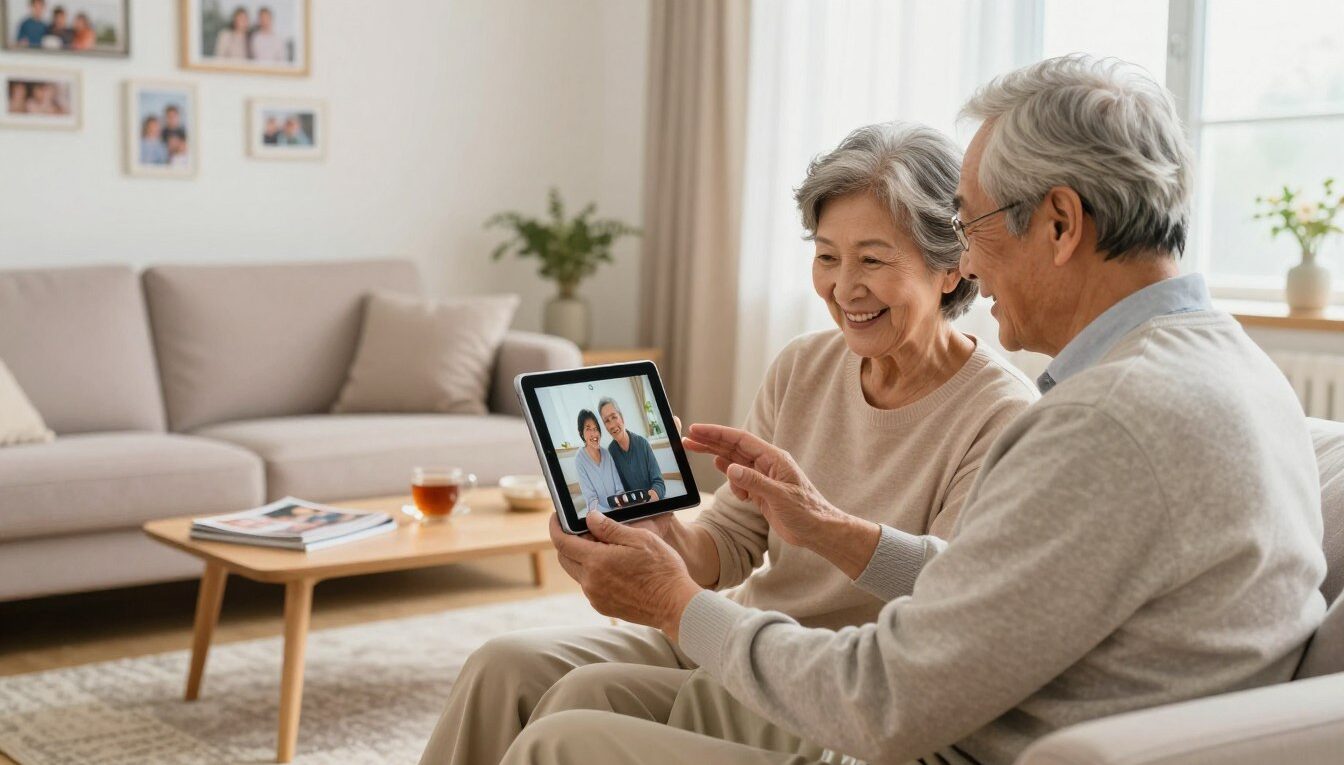
Video Calling for Seniors: We Tested FaceTime, WhatsApp, Google Meet, and Duo on a Basic Android
This guide helps U.S. families pick the most practical video calling setup for an older loved one using a basic Android phone. We tested FaceTime, WhatsApp, Google Meet, and Meet’s Duo-style option because these are the real-world contenders people already use for everyday video calls.
Our buyer’s‑guide focus is simple: ease of setup, clear answering, and controls that don’t confuse people with memory or dexterity issues. “Best” here means the option a senior can use reliably, not the one with the most meeting features.
Expect a straightforward scoring system covering setup time, contact management, starting and answering calls, audio/video clarity, and behavior on weak Wi‑Fi or cellular service. We also explain the FaceTime reality for Android households up front so families avoid wasted effort planning around an Apple-only workflow.
Finally, this intro previews caregiver takeaways: recommended defaults, approved‑contacts strategies, and settings to reduce scam risk and accidental calls. Use these notes to match an app to what your family already uses—or to decide if a dedicated device would be a better, simpler choice.
What seniors and families should look for in a video calling app in the United States
The best choice balances clear controls, reliable audio, and privacy tailored to loved ones. Start by listing the senior’s core needs: answering, hanging up, and predictable behavior when the phone is tapped or bumped.
Simplicity and dementia-friendly workflows
Simplicity means unlock → call → hang up with minimal pop-ups or app switching. Favor apps that let you restrict incoming contacts so only approved people can reach the user.
Big-screen visibility and loud audio
A larger screen or TV connection makes faces and text easier to see and reduces listening strain. Test speaker volume and camera framing before relying on the setup for regular check-ins.
Touch-friendly controls and privacy
Look for high-contrast UIs, large buttons, and clear mute/camera toggles. Demand encryption where available and settings to limit access to known contacts.
Cross-device compatibility and network realities
Choose technology that works across iPhone, Android, tablets, and computers with minimal setup. Define “reliable” as stable audio first, then video; weak internet or router placement often causes dropouts.
- Quick test: volume, answer steps, what happens on accidental taps, and contact access.
- Prefer apps with predictable updates and simple, routine workflows for users.
| Priority | What to check | Why it matters |
|---|---|---|
| 1 | Audio stability | Ensures conversations are usable even on slower networks |
| 2 | Simple controls | Reduces accidental hangs or missed calls |
| 3 | Approved contacts | Limits unknown access and scam risk |
Our basic Android test setup and how we judged each video call option
We set up a low-end Android phone and tested each option the way a family caregiver would in real life.
What “basic Android” means
We used modest devices with small storage, slower processors, and limited background optimizations. The screen felt cramped compared with a tablet or newer phones.
Scoring criteria focused on older adults
We measured install friction, account steps, and permission prompts (camera, mic, contacts). We timed how many taps it took to start a call and how obvious the answer control was.
- Contact management: ease of favoriting members, reducing clutter, and blocking unknowns.
- Recovery: how simple it is to get back when the user gets lost in the app.
- Audio-first dependability: does voice hold up when video drops on a weak network?
Real-life use cases
Tests matched quick check-ins, weekly family group calls, and caregiver support from a computer. We did not assume perfect Wi‑Fi or tech-savvy users to keep results realistic.
| Test | Why it matters | Outcome |
|---|---|---|
| Setup taps | Less confusion | Lower score if >6 taps |
| Answer clarity | Prevents missed calls | Large buttons scored higher |
| Contact control | Limits accidental chat | Favorites and blocks preferred |
video calling seniors facetime whatsapp google meet: Android compatibility snapshot
Matching an older adult’s basic Android to the family’s devices reduces friction for regular check-ins.
FaceTime is easy on Apple gear but does not run natively on Android. That Apple-only reality can force a family to install extra apps or swap devices just to connect.
WhatsApp pairs messaging with secure video chat. If the senior already reads family messages on that app, adding a face-to-face call usually feels natural.
Google Meet works across phones, tablets, and browsers. It is strong for scheduled group calls and link-based invites, but account sign-ins and meeting prompts can confuse some users.
- Contact-based calling (phone/app contact list): simpler for day-to-day use.
- Link-based joining (calendar or browser): useful for groups, riskier for confusion.
- Keep one consistent workflow so family members always start calls the same way.
| Option | Best when | Watch for |
|---|---|---|
| FaceTime | Household of Apple users | Not native on Android |
| Messaging already in use | Requires contact list setup | |
| Google Meet (incl. Duo) | Group calls, browser joins | Account prompts, link confusion |
Compatibility matters, but the next test is whether the senior can answer reliably and only see approved contacts. That is what decides day-to-day success.
App-by-app results on a basic Android for seniors
We tested each app from install to the first successful call and noted prompts, tap counts, and confusion points.
WhatsApp: easiest path for families already texting
When the senior already recognized messages from family, install and the first call were fastest. Permissions showed two prompts: contacts and camera/mic.
The call button sits inside a contact thread and is easy to find. Incoming screens have a large accept/decline layout, though accidental declines can happen with small thumbs.
Google Meet: best for scheduled group sessions
This app works well for planned group calls and for joining from phones, tablets, or computers. Calendar links make recurring catch-ups simple.
Meeting language and link joins can confuse some family members who expect a contact-based workflow. Caregivers should text links and walk through one test join first.
Duo-style experience inside Meet: simple, secure one-to-one
The Duo-style flow feels like a contact call, with a preview that reduces anxiety about answering. It keeps encryption and a minimal UI for one-to-one use.
| Option | Quick install | Best for |
|---|---|---|
| Low prompts | Familiar messaging and fast setup | |
| Google Meet | More prompts | Scheduled multi-device group calls |
| Duo-style (Meet) | Medium | Secure, simple one-to-one calls |
Best for takeaways: WhatsApp for family chat, Meet for planned multi-device meetups, and the Duo-style flow for secure, low-stress one-to-one calls.
Ease-of-use and accessibility features that matter most for seniors
A simple setup with clear feedback reduces missed calls and panic for both users and caregivers.
Contact lists, favorites, and avoiding unknown callers
Keep the contact list short and obvious. Favor core family and close friends so each name is easy to find.
Use favorites or speed‑dial placement so approved contacts appear at the top. Disable automatic imports when the app tries to add every contact.
Answering without stress
Preview-style calling (like Duo’s “Knock Knock”) helps users see who’s at the door before they answer. Hands-free concepts such as Drop-In let trusted people connect without a tap.
- Tap-to-answer: simple and familiar.
- Preview: visual confirmation reduces accidental picks.
- Auto-answer/Drop-In: useful for routine check-ins with consent.
Captions, hearing support, and clear controls
Enable live captions when hearing is impaired or rooms are noisy. Keep the screen uncluttered with large mute, camera, and end-call buttons.
Make touch targets big and use high contrast so users find controls without help.
Reduce isolation with lightweight chat and reminders
Photo messages and short chat updates lower barriers between calls and cut isolation. Scheduled reminders and sticky notes nudge loved ones without asking them to learn a new app.
| Feature | Why it helps | Caregiver tip |
|---|---|---|
| Favorites | Faster access | Limit to core family and friends |
| Preview/Drop-In | Less anxiety | Use for trusted contacts only |
| Captions | Better comprehension | Turn on for noisy rooms |
Privacy, security, and account setup: what family caregivers should configure
A clear privacy plan and simple account steps make tech use safer for older family members. Start by treating the phone like a shared tool: one signed‑in account, documented recovery info, and a named family backup person.
End-to-end encryption basics
End‑to‑end encryption means only the people on the call can hear or see the content. That protects health and financial talk from interception on the network.
In common use, FaceTime, WhatsApp, and Duo‑style one‑to‑one flows offer end‑to‑end encryption. Note that UI changes can hide or rename controls, so test after updates.
Ecosystem tradeoffs and smart‑home concerns
Amazon and Google devices add convenience like Drop‑In access, but they can require multiple apps and raise privacy questions tied to ad models and cloud services. Weigh convenience against complexity before enabling always‑on features.
- Keep account sign‑ins simple: single account, documented passwords, and a family recovery plan.
- Restrict contacts to approved people and disable invites from unknown sources.
- Prefer contact‑based calls over link joins to reduce scam risk.
- Hide nonessential tabs and features to minimize confusion.
| Priority | Action | Why |
|---|---|---|
| 1 | Approved contacts only | Blocks unknown callers and scams |
| 2 | Document recovery | Prevents lockouts and password resets |
| 3 | Quarterly audit | Removes outdated numbers and verifies the call screen |
When a dedicated device beats an app for video calling seniors
When everyday apps fail to reach a loved one reliably, a dedicated device can remove friction and anxiety.
Smart displays often win when hands-free operation matters. The Amazon Echo Show supports voice-driven calls and Drop-In for quick check-ins. Sizes range from budget to large, but setup and extra features can overwhelm some users.
Big-screen smart displays and setup trade-offs
The Echo Show’s larger screen helps with visibility and audio. Place it at eye level and test the camera angle for seated users.
The Nest Hub Max offers Meet/Duo support and strong hardware, but the Google Home app and account steps add setup friction and privacy choices.
TV, frames, and ultra-simple options
TV-based systems like ONSCREEN Moment and JubileeTV put faces on the largest screen, improving comprehension. They may need HDMI‑CEC or complex installs.
Picture-frame devices such as ViewClix combine photos, reminders, and auto-answer modes. GrandPad is a managed tablet option with support, while Komp and CallGenie nail auto-answer simplicity but have limited US availability.
| Device type | Pros | Caregiver caution |
|---|---|---|
| Smart display | Voice, Drop-In, large screen | Complex setup, many features |
| TV-based | Largest screen, better audio | Installation, HDMI requirements |
| Frame/tablet | Auto-answer, photos, reminders | Subscription costs, placement |
Caregiver checklist: confirm strong Wi‑Fi where the device sits, pick the largest usable screen, lock the network to approved callers, and schedule a week‑one supervised onboarding.
Conclusion
Pick the option that gets your loved one on the line reliably, even with a basic phone and imperfect internet. The best practical takeaway is simple: reliability beats features.
For most U.S. families, WhatsApp is easiest when messaging is already in use; Meet is strongest for scheduled, link-based group calls; and the Duo-style flow keeps one-to-one calling calm with a preview. FaceTime stays the best video path only inside Apple-only households.
Decision rule: use an app when the person can unlock and tap reliably. Choose a dedicated device when answering and navigation fail repeatedly. Prioritize one primary workflow, pin it, favorite core family members, and practice the steps until routine.
Reduce risk by limiting contacts, cutting extra notifications, and simplifying on-screen choices. Weekend setup, test calls from multiple family members, and confirm volume and camera framing where calls happen most often.

Noah Carter is a mobile tech writer focused on Android performance, minimalist phone setups, and lightweight app alternatives. He has spent years testing budget and mid-range devices to find practical tweaks that make everyday smartphones faster, simpler, and easier to use — without rooting, without bloat, and without unnecessary complexity. His work on News Mobile covers everything from battery optimization to accessibility setups for seniors.