
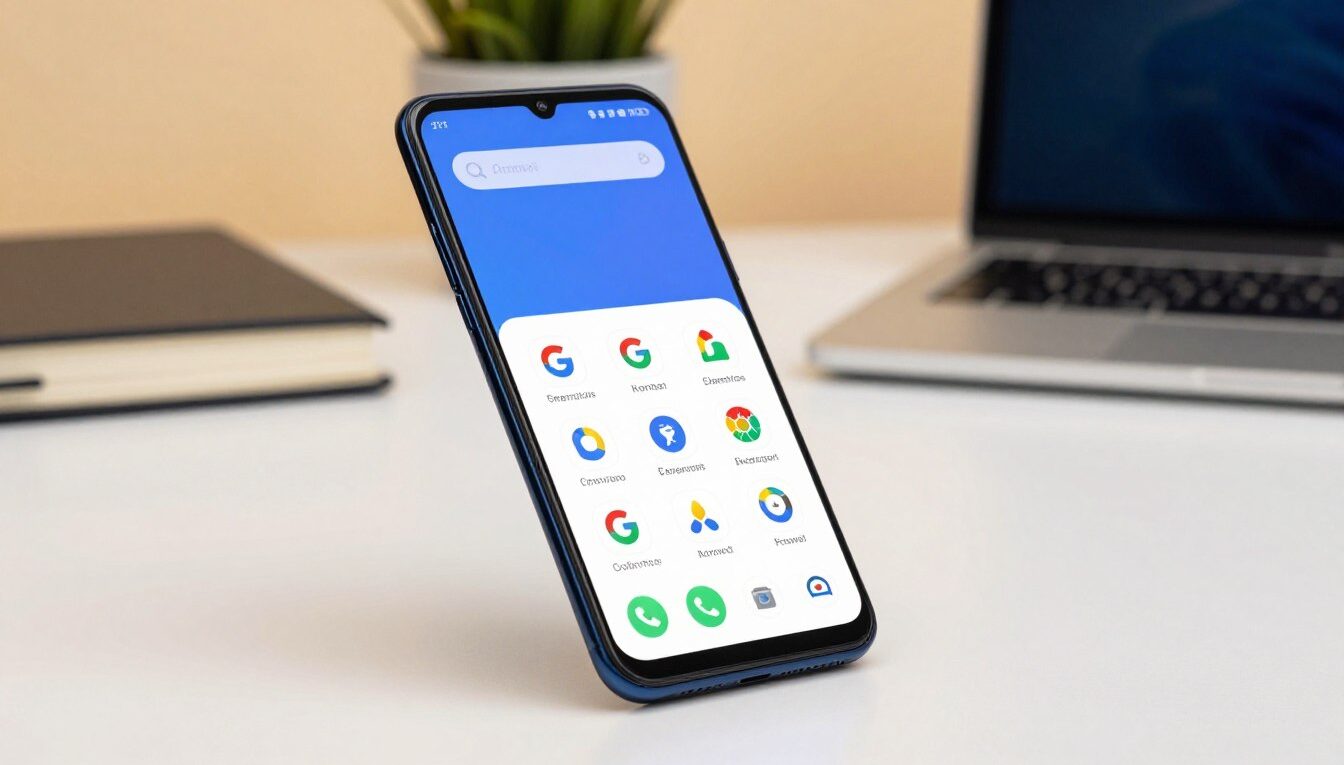
Replacing Google Photos on a 32GB Phone: 5 Alternatives Tested for Space, Speed, and Backup
Running a 32GB phone fills up fast when media, caches, and background uploads pile up. This intro frames the core problem and explains why many users seek a lighter photo workflow that frees device storage and keeps backups reliable.
We tested five realistic options for small-storage phones, measuring device space impact, upload speed, and whether backups protect you after loss or reset. The roundup focuses on practical results, not lab-only numbers.
“Replacing” here means more than moving files. It means changing how your photos back up, how the app runs in the background, and whether the phone stays responsive.
Decision drivers for U.S. users include reducing storage pressure, avoiding subscription hurdles, and boosting privacy without losing convenience. Headline picks include IDrive, Flickr, pCloud, Adobe CC Photography, plus a section for specific needs. We also note Amazon Photos, OneDrive, NordLocker, Ente, and SmugMug for niche cases.
Evaluation uses three lenses: device and cloud space savings, upload and access speed, and backup integrity. By the end, readers can pick an option that fits a small phone today and scales as their library grows.
Why 32GB Android phones outgrow Google Photos fast in 2026
By 2026, modest phones struggle as camera and app data balloon beyond the storage they shipped with.
Most users assume the app has separate free storage. In reality, the free tier sits inside a shared 15GB cap used by Drive and Gmail. That means attachments and mail can quietly reduce backup headroom.
What fills a small device first
- High-resolution camera rolls and long video clips.
- Messaging media and cached images from social apps.
- Offline files and backup queues that briefly duplicate content.
Low free space hurts performance. Galleries lag, background sync stalls, and apps can feel sluggish. Those issues often prompt users to consider switching services.
When people act
Triggers include hitting the cap, being pushed into a paid subscription, noticing battery or data drain from constant sync, or wanting tighter privacy controls. Paid tiers can be fair, but many prefer predictable costs or lifetime plans.
This article then tests alternatives that target four pain points: space management, speed, privacy, and cost transparency.
Testing methodology: how we measured space savings, speed, and photo backup reliability
We tested each service by measuring three practical outcomes: how much device storage it frees, the speed of uploads and cross-device access, and the reliability of restores after data loss.
Tests used a typical small-phone library mix: 2,000 photos and ten short videos to model real use. We compared free tiers, monthly and annual plans, and any claimed unlimited storage to translate limits into real library capacity.
Space and storage math
We converted plan sizes into estimated months of use for average shooters. The math shows what a “1 TB” or “unlimited” plan means in practical storage and how local deletion after upload affects free space.
Speed checks
Speed tests tracked initial Wi‑Fi upload, background sync stability, and time until an image was viewable on a second device or web access.
Backup standards and security
Reliability checks include file versioning, rewind windows, and the restore flow when a phone is lost. We also checked end-to-end encryption, MFA support, and sharing controls.
Compatibility
We validated Android app behavior, browser access, and desktop tools for bulk restores and library management.
- Measured on-device cache growth and local-delete workflows.
- Logged upload success, typical delay patterns, and cross-device retrieval time.
- Verified versioning and rewind where available (pCloud, IDrive notes).
| Criterion | What we measured | Why it matters |
|---|---|---|
| Storage math | Free tier vs paid plans and practical library capacity | Shows how many months a plan lasts for typical use |
| Speed | Initial upload, background sync, cross-device access time | Impacts how fast a user can rely on off-device copies |
| Backup reliability | Versioning, rewind windows, restore flow after device loss | Determines data safety and recovery effort |
| Security & compatibility | End-to-end encryption, MFA, app and desktop support | Protects content and ensures practical management |
replace google photos 32gb android alternatives: what to prioritize before you move
Choosing a new backup path starts with clear priorities about search, sharing, and storage. List the tasks you use most so you pick the right option.
Pick between general cloud storage and photo-first platforms
General cloud storage solutions like IDrive and pCloud work well if you store documents and mixed files. Photo-first platforms such as Flickr, Adobe CC Photography, Amazon Photos, and SmugMug focus on galleries, edits, and community features.
Decide which features you actually need
Make a quick checklist: backups, search, shareable links, light edits, or social display. Prioritize auto-upload and low local cache if your phone stays near full.
Import, social imports, and format handling
Moving libraries often needs desktop steps, Google Takeout, or exports from Drive, Dropbox, and OneDrive. If you use Facebook or Instagram, pick platforms that can import social accounts.
Confirm RAW and mixed-media handling before you migrate. Verify originals are preserved and that files won’t be converted or excluded.
- Run a new option in parallel for a week.
- Check backups on a second device.
- Then remove local copies to reclaim space.
| Category | Best for | Note |
|---|---|---|
| General cloud | IDrive, pCloud | Handles many file types and drive imports |
| Photo-first | Flickr, Adobe, SmugMug | Better galleries and editing tools |
| Social import | pCloud, Amazon Photos | Connects with Facebook/Instagram backups |
Best overall alternative for small-storage phones: IDrive
IDrive is a full backup service that protects photos and other device data without extra setup. It behaves like a true backup, not just a gallery, so restores after a wipe or theft are straightforward.
Why it’s a top pick beyond photos
IDrive covers contacts, app data, and files in addition to photo backups. That breadth makes the service useful for users who want one account to protect multiple devices.
Auto Camera backup on Android
The Auto Camera feature uploads new photos and video automatically in the background. Once enabled, you reduce the risk of losing recent images before you can free local storage.
Storage options and recovery edge cases
IDrive starts with a free 5GB tier and scales to multi-terabyte plans (for example, 5TB and 10TB). You can move from light use to large libraries without changing services.
A notable recovery option is IDrive Express, which ships a physical drive for fast restores if bandwidth is limited.
- Cross-device sync: one account can protect phones, tablets, and PCs.
- Set-and-forget: automatic uploads minimize manual steps.
- Tradeoff: not a social platform, but strong for long-term backup needs.
| Feature | Benefit | Notes |
|---|---|---|
| Auto Camera Backup | Continuous photo and video upload | Runs in background to save local storage |
| Tiered Storage | From 5GB free to multi-TB paid plans | Scale as your library grows |
| IDrive Express | Physical-drive restore option | Useful for large restores or limited bandwidth |
| Multi-device support | Protect phones, tablets, and PCs | One account for household backups |
Best for sharing and community: Flickr
A social-first service turns image backup into an opportunity for engagement and discovery.
Free plan reality check
Flickr’s free tier supports up to 1,000 photos and videos and displays ads. For casual shooters this may last months.
Frequent users or burst shooters will hit the cap fast. Near-duplicates and many small edits accelerate filling the free storage.
Simple upgrade path to unlimited
Flickr Pro is one straightforward subscription option that unlocks unlimited photo storage. Plans are offered monthly, yearly, or bi-annual, and include creator analytics.
The analytics help users track what images get views and engagement, a useful feature for anyone sharing work publicly.
Organizing and sharing tools
Tags, albums, and a photostream make it easy to sort and present galleries. Privacy controls let you keep a library private while sharing single links.
Community features support comments, follows, and groups—making Flickr an attractive option for social sharing and exposure.
File-type limitations
Flickr accepts common formats like JPG and PNG and non-animated GIFs. RAW and other uncommon formats may be converted to JPEG or excluded, so originals may not always be preserved.
- Best when sharing and community matter more than blind backup.
- Free storage is useful but temporary for active libraries.
- Pro plan suits creators who want analytics and unlimited storage.
| Item | Free tier | Pro subscription | Format notes |
|---|---|---|---|
| Storage limit | Up to 1,000 photos/videos | Unlimited | JPEG/PNG supported; RAW may be converted |
| Sharing features | Basic links, comments, groups | Advanced analytics, ad-free browsing | Link-based visibility and privacy controls |
| Best for | Casual sharers | Active creators and small pros | Not ideal if you need original RAW preservation |
Choose Flickr if presentation, community feedback, and easy sharing are priorities. For users seeking strict archival backup of originals, consider a supplementary storage option.
Best for long-term value: pCloud (including lifetime plans)
If you plan to keep a growing photo and file library for years, pCloud’s lifetime pricing can change the cost equation.
Lifetime vs annual subscription: when the upfront fee makes sense
pCloud offers 10GB free storage and paid lifetime tiers (for example, 500GB around $175–$199 and 2TB near $350–$399). A lifetime plan is smart if you expect multi-year use and want to avoid recurring subscription fees.
Choose an annual plan instead when you need to test the service or expect changing needs.
Automatic uploads and multi-device sync
Automatic photo and video uploads reduce local space pressure on small phones. Sync keeps the same files and images available across devices without manual transfers.
Account rewind and file versioning
Versioning and a 30-day account rewind help recover accidental deletes or bad edits. This lowers the risk when you clean storage on a constrained device.
Security baseline and migration
pCloud uses 256-bit encryption and offers controls for sensitive data. It can back up content from Dropbox, OneDrive, Google Drive, and social accounts to ease migration.
| Feature | Benefit | Who it fits |
|---|---|---|
| Lifetime plans | One-time fee vs recurring subscription | Long-term users |
| Auto-upload & sync | Frees local storage, syncs devices | Phone-first users |
| Rewind/versioning | Undo deletes and edits | People who manage many files |
Best for photographers who need editing tools: Adobe Creative Cloud Photography
Serious creators often need more than a gallery; they need precise editing tools and synced originals.
The Adobe Creative Cloud Photography plan bundles Lightroom and Photoshop with cloud sync. The workflow centers on capture, edit, and save back to cloud storage so files stay consistent across devices.
Lightroom + Photoshop workflow
Capture on mobile or import from your camera into Lightroom. Use professional sliders and presets for exposure, color, and detail.
For deeper work, open an image in Photoshop for retouching and layered edits. Save the finished file and let Lightroom sync the result to the cloud.
How much cloud space you really get and who it fits
The standard plan includes 20GB of cloud storage. Adobe estimates that equals roughly 4,000 JPEG photos for a curated working set.
That size suits photographers who keep a focused portfolio or edit daily. It is less suited to heavy video users or those with large archives.
When this replaces a casual gallery—and when it’s overkill
Choose Adobe when editing quality, color control, and a professional workflow are daily needs. It functions as an editing-first solution rather than a simple backup tool.
Skip the subscription if your priority is freeing device space and automated backups. In that case, a backup-first service with larger included storage is the better match.
| Aspect | What it offers | Who benefits |
|---|---|---|
| Editing tools | Lightroom (mobile/desktop/web) + Photoshop | Advanced hobbyists and pros |
| Cloud storage | 20GB (≈4,000 JPEGs) | Curated working sets, not huge archives |
| Workflow | Capture → edit → sync back to cloud | Users who need consistent edits across devices |
| Tradeoffs | Subscription cost and limited storage vs pro-grade tools | Pick if editing and presentation matter most |
Best alternatives for specific needs: unlimited storage, privacy, and ecosystem fit
Not every photo service fits every user; pick by storage need, privacy, or the broader app ecosystem. Below are focused options that map to common priorities for small‑storage phones.
Amazon Photos
Amazon Photos gives Prime members unlimited photo storage and Family Vault sharing. That makes it a simple backup layer for households that already pay for Prime.
Non‑Prime accounts get 5GB, so check membership status before relying on it as primary storage.
NordLocker
NordLocker focuses on end‑to‑end encryption and secure sharing. It includes a small free tier (about 3GB) and strong access controls.
Verify current mobile support and sharing limits on your device before committing.
Microsoft OneDrive
Microsoft OneDrive is a general‑purpose option that adds photo backup to document sync. Free accounts get 5GB, while Microsoft 365 bundles raise that to 100GB or 1TB depending on the plan.
Ente
Ente blends privacy with convenience: end‑to‑end encryption plus on‑device AI search, curated stories, and family sharing. A 10GB free tier helps you test workflows before upgrading.
SmugMug
SmugMug offers unlimited full‑resolution storage and RAW support via SmugMug Source. It’s aimed at working creatives and includes selling and portfolio tools starting near $11/month.
- Pick by priority: unlimited storage — Amazon Photos or SmugMug.
- Pick privacy-first: NordLocker or Ente for encryption and controlled sharing.
- Pick ecosystem value: Microsoft OneDrive when Office apps and mixed file storage matter.
| Service | Free tier | Strength | Best for |
|---|---|---|---|
| Amazon Photos | Prime: unlimited; Non‑Prime: 5GB | Household sharing | Prime families |
| NordLocker | 3GB | End‑to‑end encryption | Privacy‑first users |
| Microsoft OneDrive | 5GB | Office + storage | Ecosystem and documents |
| Ente | 10GB | On‑device AI search + encryption | Families wanting privacy |
| SmugMug | No free unlimited | Unlimited full‑res & selling tools | Working creatives |
Conclusion
When phone storage runs thin, picking the right photo and backup path saves time and avoids surprises.
IDrive gives reliable backup coverage; Flickr excels for sharing; pCloud offers strong lifetime value; Adobe suits editing workflows; the other services match privacy, unlimited storage, or ecosystem needs.
Remember what google photos offers many users: simple automatic uploads, cross‑device access, and easy organization. Its shared storage cap and subscription tiers can nudge you to switch.
Quick way to switch: export or takeout, import to the new service, confirm copies on a second device, then delete local files only after verification.
Self‑hosting cuts platform reliance but in 2026 costs more than expected—large drives rose sharply and upkeep uses time, electricity, and backups.
Rule of thumb: pick a plan that matches how fast your photo library grows so your phone stays fast and backups stay dependable.

Noah Carter is a mobile tech writer focused on Android performance, minimalist phone setups, and lightweight app alternatives. He has spent years testing budget and mid-range devices to find practical tweaks that make everyday smartphones faster, simpler, and easier to use — without rooting, without bloat, and without unnecessary complexity. His work on News Mobile covers everything from battery optimization to accessibility setups for seniors.