
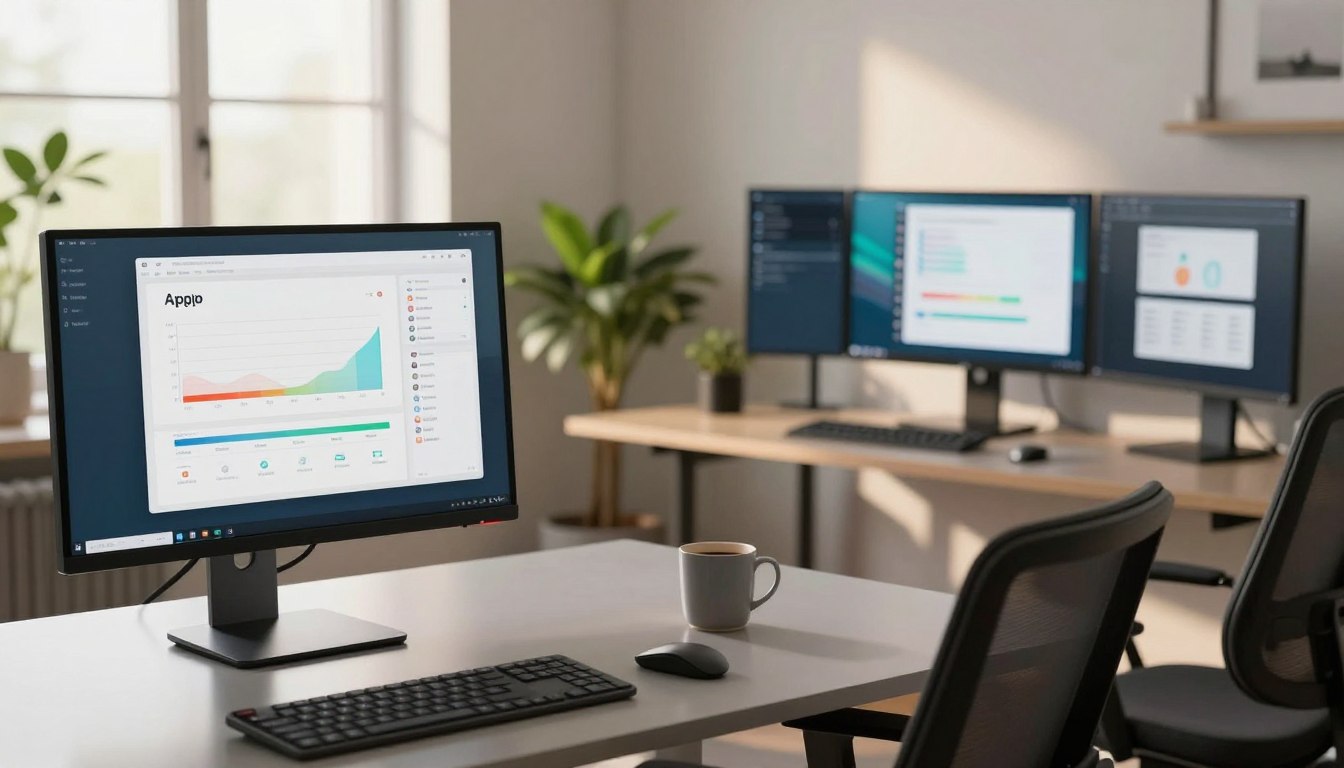
One Screen vs Multiple Screens: We Tracked App Opens Over Two Weeks With Both Setups
This short test aimed to turn opinions into data. The team ran a simple two-week A/B method to log app opens and switches. The goal: spot friction, distraction loops, and true task flow.
Think of it less as right versus wrong and more as: what kind of day are you having? For some tasks, a single monitor brings calm. For others, side-by-side displays speed comparisons and reference work.
We also define phone productivity here as the habit of opening messaging, mail, and research apps that mirror desktop habits. Tracking those opens helps show when attention jumps or stays steady.
Expect clear takeaways: rules you can try today like full-screen modes, notification control, window “homes,” and reference-app discipline. The article follows this order: method, single-display wins, multi-display wins, research, ergonomics, and cost/space tradeoffs.
If you’ve ever felt busy but not productive, your workspace real estate is often part of the story. This piece is written for everyday smartphone and laptop users, especially readers 40+, with plain examples and practical tradeoffs.
Why screen setup still changes how you work in a multitasking, app-heavy day
Your monitor layout does more than hold windows — it nudges how you tackle tasks. Layout choices shape whether you move through work in long stretches or in short bursts of checking and switching.
Focus vs flexibility: the real tradeoff behind screen real estate
Focus vs flexibility
More real estate gives room to keep references visible. That can cut repeat searching and help complex comparisons.
But extra visible apps also give your attention more places to go. In an app-heavy day the real cost is not opening an app — it is re-orienting your brain after each switch.
When “looking busy” becomes a productivity leak
A wall of displays can signal importance and encourage keeping windows alive “just in case.” That habit increases micro-distractions: chat, mail, news, and dashboards all pull small amounts of attention.
If you check your phone a lot while working, ask: is your setup quietly training you to switch contexts nonstop? Our experiment tracks app opens to show whether layout encourages intentional work or reactive checking.
How we tracked productivity over two weeks using one screen and multiple screens
We logged every app open and app switch to see how layout shapes daily flow. The goal was simple: count opens, note switches, and pair that with time-on-task signals to find patterns.
What we measured
We tracked applications opened, context switching, and how long participants stayed in an active window before moving on.
Context switches meant changing the active application or desktop window, not scrolling inside the same app.
What stayed the same
To keep the test fair, participants used the same tasks, the same tools and software, and matched work hours and communication expectations.
How we defined each setup
Setups were clear: single monitor (one display), second monitor (two displays), and multi-screen workflows (three or more displays).
We also tracked laptop reconnects — moving locations often adds hidden time rearranging windows.
Limits and what this can show
This method cannot prove causation for every user or measure deep thinking quality. It can show patterns: more app opens, window shuffling, or longer uninterrupted work streaks.
Try it yourself for a week: you don’t need fancy tools to spot switching habits and test small changes.
One screen setup: where it feels faster, calmer, and easier to maintain
A simpler display setup often trims the small hassles that add up across a workday. For many people, fewer elements to manage means fewer interruptions and clearer intent when you sit down to work.
Fewer windows to manage after reboots and location changes
Maintenance is a clear win: a reboot or moving a laptop between rooms rarely scatters your layout. With one monitor the habit of re-tiling and hunting for tabs fades away.
Why a single display can encourage deep work and disciplined tasking
Fewer visible apps reduces temptation. You can commit to a writing or editing mode and schedule checking mail later. That helps you keep focus and spend less time reorganizing during the day.
Practical upgrades matter: a good mouse and simple window shortcuts make it easy to use one efficiently. The payoff is subtle: cleaner desk, fewer cables to reset when docking, and a calmer view that feels immersive rather than chaotic.
Still, this setup works best when you use full‑screen modes and treat your workspace as an active task area, not a dashboard to monitor everything at once.
Multiple screens setup: where extra monitors clearly reduce friction
For many knowledge workers, extra monitors remove the need to hunt for content mid-task. That simple change cuts the small interruptions that break a flow: fewer alt-tab loops, fewer hidden windows, and fewer lost tabs to chase.
Less alt-tab and fewer window shuffles
Having two adjacent displays means you can keep a source file and a draft side by side. Copying and pasting, comparing versions, or checking numbers becomes a visual, low-friction action.
Always-visible reference apps
Keep email, chat, logs, or search results on a spare monitor so they do not interrupt your main task. That visible information prevents stalls while you wait for a reply or watch a process run.
Why some roles push beyond two displays
Sysadmins, developers, analysts, and designers often rely on extra display space: dashboards, remote desktops, and live logs can live on a third or fourth monitor. More monitors can mean fewer mistakes because key information stays visible.
Downsides exist: bezels break up wide tables and mixed resolutions can slow you down. For most users, two screens or a single large display gives most benefits without turning a desk into a cockpit—use the space intentionally and the gains follow.
one screen vs multiple screens phone productivity: what our app-open patterns suggested
App-open counts gave us a window into distraction loops and useful stalls during research. They show not just how often people check, but why: whether the check was needed or habitual.
Which setup triggered more frequent app switching during research-heavy tasks
When participants hunted sources, extra displays cut switching. Browser tabs and notes stayed visible side by side, so copying, comparing, and citing took less time. That matched industry findings that visible parallel information speeds complex work.
When fewer screens reduced “just checking” behavior and distraction loops
With fewer visible windows, checks for mail and chat dropped. Out of sight meant fewer accidental opens and longer uninterrupted focus. Longer stretches of deep work showed up in time-on-task measures.
When extra screens prevented task stalls caused by hiding key information
Conversely, hiding a reference doc on a single display caused short stalls—people paused to reopen files and re-orient. Those micro-stalls add up, even if app opens themselves are not “bad.”
Quick diagnostic: are you switching apps because you need information, or because the layout makes checking easy? Aim to cut unnecessary loops so returning to a main task takes less time and effort.
What research and real-world data say about productivity gains from multiple monitors
Across lab reports and office surveys, a clear mechanism keeps showing up: more visible information means fewer context switches and less time hunting windows.
University of Utah findings
The university study rated dual setups as significantly more usable and comfortable. Ninety‑eight percent of participants preferred multiple monitors, and one analysis found about 33% fewer errors when using dual displays.
Microsoft’s range of task-time savings
Microsoft reported a wide range of gains depending on the task: small boosts for simple chores and much larger savings for complex workflows. Reported improvements run roughly from 9% up to 50% in task time.
Dell and Wichita State practical office results
The SURL/Dell research found people with dual monitors were about 18% more efficient and switched windows 15% less often. Ninety‑one percent said their daily work felt easier.
Jon Peddie Research and the pixel point
JPR surveys reported about a 42% self‑reported productivity lift with multiple displays. The takeaway: pixels and layout matter—two smaller monitors can beat a single very large display for flexibility and less scrolling.
Quick caveat: some studies have vendor ties, so treat exact numbers as directional. If your job needs frequent cross‑referencing, these studies suggest a second monitor often saves you measurable time.
Focus and cognitive load: does more screen real estate help or hurt?
More visible app tiles can feel like getting ahead, but they also raise the mental cost of jumping between tasks. Think of that cost as a tiny restart fee each time your attention moves: even brief switches add up.
Why multiple screens can invite multitasking that feels productive but isn’t
Having chat, mail, and work visible at once tempts quick checks. Those checks often interrupt deep thinking and make you reorient more often.
When each pane calls for a glance, the feeling of doing more can mask lost time and reduced quality.
How a single display can reduce distractions and improve immersion
A single display limits visible options. That reduces urge to flit between items and helps you stay with one tough problem longer.
Practical tactics: full-screen modes, notification control, and “one task per window” rules
Try full‑screen for writing or reviewing to cut visual noise. Mute noncritical alerts and batch-check messages twice a day.
Use the rule: one task per window, close tabs you don’t need, and keep a reference area open only when it truly helps the task.
These small steps help focus and boost overall productivity on any desktop setup.
Ergonomics and comfort: neck strain, eye movement, and monitor placement
Small posture habits add up: the way your displays sit can shape aches more than you expect.
The hidden cost of constant head‑turning
Extra visible work areas can force repeated turning. That adds muscle load to your neck and invites chronic strain.
Even small twists feel fine short term. Over weeks, they create tightness and slow, nagging pain.
How to position a large monitor versus two monitors for less strain
Baseline: keep the primary monitor centered at eye level. Your most active app belongs in the middle of your view.
If you use two monitors, angle them in a shallow V so you rotate your eyes more than your head. A large monitor can cut head turns, but it may raise eye movement across a wider field.
Laptop screen pitfalls and simple upgrades that matter
Working flat on a laptop often tilts your head down and loads the neck. The fix: a stand plus an external keyboard and mouse.
Monitor arms help tune height and distance, but they add cost. Small comfort gains compound: less strain means more comfortable hours at your desk.
Cost, desk space, and aesthetics: what your home setup can realistically support
Deciding what fits on your desk often comes down to money, mood, and how much space you actually have. Pick a setup that fits daily life, not just a photo-op.
Budget reality: a large monitor or multiple monitors
Buying more displays adds up fast. Two cheap monitors can cost less than a single high-end large monitor, but don’t forget docks, cables, and adapters.
Accessory creep is real: monitor arms, a docking station, and tidy cable kits all add cost and time to set up.
Desk space wins and easier resets
Fewer parts means more clear space for notes, a cup, and a comfortable arm position. That empty area reduces friction during long work sessions.
A simpler setup also saves time when you move or re-dock: fewer things to reconnect, fewer windows to re-tile, less lost time getting back to work.
The video-call problem: webcam placement
Closing your laptop often hides the built-in camera. If you want a straight-on view, plan for an external webcam or position the monitor at eye level.
Good camera placement keeps faces natural in meetings and avoids awkward angles that hurt content quality.
Energy use and environmental impact
Fewer devices typically mean lower power draw and fewer replacements over time. That cuts both bills and e-waste without asking you to compromise daily use.
Practical rule: choose the simplest setup you will actually keep using. A clean, comfortable desk often beats a complex array that sits unused most days.
Choosing the setup that matches your tasks, not your preferences
Start with what your tasks actually require, then pick a setup that helps you finish them faster.
If your day is side‑by‑side heavy — research with notes, spreadsheet work, or design plus reference — a second monitor can save time by keeping information visible. If you need deep focus, a single monitor with strict alerts and full‑screen modes can beat a cluttered desk.
Begin with a good external monitor and add a second only when you can name the exact application that will live there. Use simple tools: window snapping, virtual desktops, and consistent places for core software and applications.
Quick stress test: if you open the same two apps all day, try two screens. If you check apps out of habit, simplify first. The promise: less window chaos, fewer distraction loops, and more actual work time.

Noah Carter is a mobile tech writer focused on Android performance, minimalist phone setups, and lightweight app alternatives. He has spent years testing budget and mid-range devices to find practical tweaks that make everyday smartphones faster, simpler, and easier to use — without rooting, without bloat, and without unnecessary complexity. His work on News Mobile covers everything from battery optimization to accessibility setups for seniors.