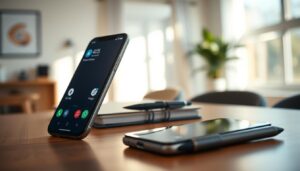
This friendly guide shows an easy way to turn a modern smartphone into a focused calling tool. It uses a budget Android like the Moto G (2025) with a large 6.7-inch screen and long battery life.
We describe a free TextNow plan on T‑Mobile’s network that needs only a one-time $5 SIM and offers talk and text at $0/month. You’ll get one‑tap Direct Dial widgets with big pictures and enlarged tiles to simplify access to loved ones.
Practical tips cover turning off Wi‑Fi when not needed, enabling parental controls to avoid accidental purchases, and adding a Tile Sticker to help find the device if misplaced. Safety steps include emergency access, location finding, and basic spam protection without clutter.
The result is a calm, dependable way to stay in touch that respects pace and keeps support simple for everyone.
Start here: a minimalist plan for seniors’ smartphones
Start with a clear plan that turns a smartphone into a simple, reliable calling tool. This guide focuses on one device and a no-frills service so daily use stays calm and predictable.
What “simple, clear, efficient” looks like in practice
Simple means a tidy home and home screen with only calling essentials visible. Clear means big contact photos, larger text, and high-contrast visuals on the 6.7-inch display. Efficient means one-tap Direct Dial tiles sized 2×2 so calls start without hunting through apps.
Essential steps you’ll take in this guide
We’ll pick a reliable device such as the Moto G (2025) and a low-cost plan like TextNow with a one-time $5 SIM. You’ll map Direct Dial widgets to the default calling app and adjust settings to enlarge touch targets.
We’ll also disable Wi‑Fi when unused, enable parental controls to prevent accidental purchases, add basic physical safeguards, enable Find My Device, and set a light support routine so help stays easy.
Picking the right device without the fuss
Pick a straightforward device that balances clarity, durability, and value. A well-chosen device keeps daily use calm and cuts down on accidental complexity.
Why a budget Android model like the Moto G works well
The Moto G (2025) commonly retails around $199 and often drops on sale. Its 6.7-inch screen makes names and photos easier to see. Long battery life reduces charge anxiety and keeps the handset dependable between visits.
What to notice: size, battery, and real-world features
Choose a sturdy, inexpensive device you can replace if misplaced. A Moto G-class android phone offers the performance to run Direct Dial and large tiles that mimic big-button ones.
Specialized models like RAZ Mobility (~$349) or the Jitterbug Flip2 focus on simplicity but may cost more or limit customization. A budget device gives durability, strong battery life, and the flexibility to build a clear calling experience.
Tip: add a grippy case and pick a size and weight that feel secure in hand to reduce drops and make daily carry easier.
Keeping costs down with the right cell service
Choose a low-cost service plan that keeps monthly bills near zero while covering basic voice needs. A focused plan removes billing surprises and keeps the device easy to use.
Free and low-cost options such as TextNow on T‑Mobile’s network
TextNow offers free talk and text on T‑Mobile’s network after a one-time $5 SIM purchase. The free tier includes limited data access for select apps like maps and email, and paid data plans are optional if usage grows.
Map the default calling app to the free service so calls route correctly without extra taps. This makes the initial setup quick: insert the SIM, check signal, and place a test call before handing the device off.
When a landline alternative makes sense
If the user only needs reliable voice and has strong home reception, a traditional landline or bundled voice plan can still be sensible. Watch out for bundles that force internet or TV you don’t need, which raise monthly costs.
Before deciding, verify coverage at the home or care facility. Reassess occasionally; you can add data or switch services later without replacing devices.
Add simple safeguards to the phone itself
A few simple accessories improve grip, findability, and the overall user experience. These small changes cut down on lost time and stress while keeping daily use straightforward.
Case, lanyard, and a tracker like Tile to help locate the device
Use a grippy case that makes the device easier to hold and gives light drop protection without bulk. Add a wrist lanyard to stop slips and make lifting the handset steadier for hands that need more touch stability.
Affix a Tile Sticker to the back and pair it with a trusted helper’s account. That lets someone nearby ring the tracker to locate the unit quickly around an apartment or care facility.
Turn off Wi‑Fi when it’s not needed to avoid accidental network switches that cause connection issues. Enable basic parental controls to block unintended purchases and confusing app installs.
Keep accessories minimal: one protective case, one lanyard, one tracker. Label the charger and the outlet area clearly so the charger button and plug are easy to find at day’s end.
phone for seniors setup
Turn the device into a single-task calling companion that anyone can use without fuss.
Start with a short checklist: insert the TextNow SIM, confirm service on T‑Mobile, and set the time and date. Enlarge labels and icons so the main calling tiles are visible at a glance.
Keep the home area minimal. Add only the essentials: large contact photos, a Messages app shortcut, and one camera icon for quick pictures.
Map Direct Dial widgets to the default call app and resize them to 2×2 so taps land where they should. Turn off Wi‑Fi when unused and enable parental controls to block accidental purchases.
Attach a Tile Sticker and pair it with a helper’s account for quick findability. Write a short, step-by-step guide that tells the user how to answer and place a call.
Finally, test everything: place and receive calls, check ringtone volume, and confirm the screen wakes reliably. These quick steps save time and reduce confusion on daily use.
First power-on and essential settings
Powering on a new device is the moment to lock in a calm, predictable experience. Take a few minutes now and the daily routine will stay simple.
Insert SIM, set time and verify signal
Power the handset off, insert the one-time $5 TextNow SIM, then boot it. Wait until the carrier name and signal bars appear so the devices have registered on T‑Mobile’s network.
Open settings and set the correct time and date. Accurate time keeps call logs and reminders reliable.
Turn off non-essentials and pick defaults
Choose the TextNow app as the default phone app so one-tap call tiles place calls without extra prompts.
Disable Wi‑Fi if the user will not use it. Keeping cellular-only avoids network pop-ups and accidental sign-ins that create confusion.
Set a simple ringtone, raise the volume, and increase screen timeout slightly so the display does not shut off mid-action. Place the charger in a visible spot and show how to connect it once.
Organize the home screen for clarity
Design the main display so every tap points straight to people and key services. A clean home makes daily actions faster and reduces mistakes.
Declutter to the core apps
Keep only four apps visible: Phone, Messages, Contacts, and Camera. Place them in the dock or top row so they are always on the main panel.
Place family and key services front and center
Add large Direct Dial widgets for family members and essential services like a doctor or transportation desk. Use full‑screen contact photos so recognition is instant.
Move these tiles to the primary home panel so they appear when unlocking. Avoid folders; single, large icons are easier to see and tap.
Leave breathing room around important tiles to reduce mis‑taps. With one clear home panel and thoughtfully placed widgets, daily calling and messaging become calm and reliable.
Create one-tap calling with Android’s Direct Dial widget
Make calling immediate by turning a contact into a large, one-tap tile on the home screen. This keeps the main action simple and reduces steps to reach help or family.
Add the Contacts Direct Dial widget and map it to the default calling app
Long-press the home screen, choose Widgets, then pick Contacts > Direct Dial (1×1). Tap the person you want and place the new tile on the main panel.
When prompted, set your calling service—like TextNow—as the default app so every tap places a real call without extra prompts.
Resize to 2×2 or larger so the button fills the screen
Press and hold the new tile, then drag the resize handles to make it 2×2. A larger button is easier to hit, even with shaky hands.
Move the tile to the top row of the primary panel. Add multiple widgets for family, a neighbor, and the facility front desk. Test each contact: tap the tile, confirm it dials the correct number, and check that the contact photo appears.
Make text and touch easier to see and use
Make the screen easier to read and the touch targets larger so daily tasks feel natural.
Increase the system font and display size in Settings > Display > Display size and text. Drag the Font size slider to the right until labels and menus look clear at arm’s length. This raises the OS font size so messages and app labels are easier to scan.
Boost keyboard height in Gboard or SwiftKey
In Gboard tap the menu (four squares) then Resize to make the keyboard taller. In SwiftKey go to Layout & keys > Resize and expand the height so keys act like larger buttons. Larger keys reduce mis-taps and make typing calmer.
Try bold text and high-contrast or dark modes if glare is a problem. Keep icon and tile spacing generous so touch targets stay forgiving. Re-test Direct Dial tiles and incoming call screens to confirm names and photos remain large and readable.
Practice briefly: open Messages, type a short note, and make a test call. Small adjustments build confidence and steady use on the smartphone every day.
Simplify navigation so nothing gets lost
Make navigation predictable by replacing swipe gestures with clear on-screen controls. This small change keeps the main screen and core apps easy to reach.
Switch to the 3-button navigation bar
On Android 10 or later, open Settings and go to Accessibility > System controls > System navigation. Some devices list this under Display > Navigation bar > Navigation type.
Select the classic 3-button mode so Back, Home, and Overview stay visible at the bottom of the screen. Buttons give reliable access without learning swipes that feel finicky.
Show the user how to tap Home to return to the main screen where large call tiles live. Use the square Overview button to reveal recent items without accidental side swipes.
If the device offers an easy mode or a larger icon option, enable it to make labels and icons bolder. Remind the user: if they feel lost, a single Home tap brings them back to comfort.
Turn on Easy Mode on Samsung devices
If you have a Samsung device, Easy Mode quickly turns the interface into a larger, simpler display.
Open Settings > Display > Easy mode and toggle it on. The mode enlarges icons and text, increases contrast, and simplifies layout so the main actions stand out.
Easy Mode improves readability on the device screen and reduces visual clutter. Pair Easy Mode with large Direct Dial tiles to create a near “big‑button” experience that is easy to use.
Walk through the new layout together. Point out the bigger icons, the clear labels, and where favorite contacts live on the display. This short tour helps the user recognize what changed.
Keep the experience consistent by avoiding switching modes later. A steady mode lets muscle memory form and makes daily use calmer for seniors.
Try senior-friendly Android launchers for an even cleaner interface
Try a launcher that turns a cluttered display into a clear, one-panel command center. A tailored launcher can make the main contacts and actions visible as soon as the device wakes.
Elder Launcher lets you place large icons and a dedicated contacts section on the home screen. It hides unused apps so choices stay obvious, and it lets you edit layout and font size to suit the display size.
BIG-style launchers focus on oversized tiles and simplified menus. These layouts mimic a big‑button device without extra hardware and use tappable contact photos as direct call tiles.
Elder Launcher and BIG-style layouts with large icons and contact tiles
Install a senior-friendly launcher like Elder Launcher to get large icons and a simple home screen with favorite contacts at the top. Limit visible apps to essentials so the user sees only what matters.
Use built-in features to resize icons, increase spacing, and tweak font size. Compare Easy Mode and a third-party launcher; pick the clearest option and keep it steady.
After installation, test calls and navigation to confirm the flow feels simpler on your smartphone and android phone.
Trim distractions by removing or disabling unwanted apps
Remove clutter from the home screen so calls and messages are the only things that demand attention.
Open Settings > Apps and scan the list. Uninstall apps the user never touches or disable preinstalled bloatware to stop it from showing on every screen.
Keep just the essentials: Phone, Messages, Contacts, Camera and the Direct Dial tiles you created. A tidy app drawer prevents accidental swipes that reveal a sea of icons.
Fewer visible apps means fewer notifications, pop-ups, and confusing prompts. It also reduces background activity and may prevent stability issues over time.
After cleanup, confirm quick access to calling and messaging from the main panel. Reassure the user that anything removed can be reinstalled if needed, so this change is reversible and low risk.
Set up speed dial, call shortcuts, and emergency contacts
Set up one-tap shortcuts and lock-screen emergency info so help is always a single action away. A small list of trusted people reduces confusion when seconds matter.
Use Direct Dial widgets and Samsung speed assignments
On most Android phones, add Direct Dial widgets to the main panel to create large, one-tap tiles that call loved ones instantly. Resize them so each button fills a clear area of the screen.
On Samsung devices you can also long-press a number on the keypad to assign speed dial. That lets a long-press place a call without opening the full contacts list.
Add ICE info accessible from the lock screen
Add emergency contacts and brief medical notes to the lock screen so first responders or nearby members can reach family without unlocking. Keep the list short and prioritized.
Check that calls ring through clearly and that names and photos appear large and readable. Review the emergency contacts list together so everyone knows the primary ones to call first.
Privacy, safety, and spam protection
Tuning security and call controls helps the device stay useful and interruption-free. A few clear choices in settings protect personal data and cut down nuisance calls.
Default app, call screening, and blocking unknown numbers
Make your chosen calling service the default app so links and tiles route there automatically. Turn on built-in spam filtering and enable call screening where available.
Block unknown or private numbers if the user prefers fewer interruptions. Test an incoming junk call to confirm the filter works and that important calls still reach the home screen.
Parental controls and permission limits
Enable parental controls to restrict app installs and in-app purchases. This prevents accidental spending and keeps the experience simple.
Limit permissions to only what is needed: contacts for calling and the microphone for voice. Avoid granting broad location or background access unless required by a trusted service.
Show the user how to answer or decline calls with the large on-screen buttons. Revisit these settings after major updates so access and features stay correct and private.
Find My Device and location sharing for peace of mind
Turn on location tools so misplaced devices are quick to find and worry fades fast. A short setup step gives trusted helpers a clear way to locate the unit without calls. This keeps daily checks calm and unobtrusive.
Enable Android Find My Device or iPhone Find My
On Android, open Settings > Security > Find My Device and toggle it on. On iPhone use Settings > Apple ID > Find My. Both services show the last known location if the device goes missing.
Share real-time location with trusted family members
Open Google Maps, tap your profile, and choose Location sharing. Pick trusted family members and grant temporary access so they can check welfare without calling. This helps helpers respond fast if travel or a missed call raises concern.
Practice a quick find drill: have a helper locate the smartphone from another device. If you use a Tile Sticker, ring it to locate the device near the house. Make sure account access and the display controls are easy to reach in a pinch.
Keep it going: support, practice, and small, steady improvements
A little practice and steady support make this way of using devices stick. Schedule short check-ins to repeat the same simple steps so muscle memory grows over time.
Keep the home layout unchanged. Let favorite contacts and large tiles stay where they are so daily actions feel natural. Add one new feature at a time and test it together.
Encourage a brief daily call with a trusted family member to rehearse calling and answering. Keep a printed two‑step guide by the charger as a quick reference. If more help is needed, look for local classes that teach basic use with patient instruction.
Celebrate small wins, reassess every few months, and keep support gentle. This steady, small‑step way keeps confidence high and the device useful long term.