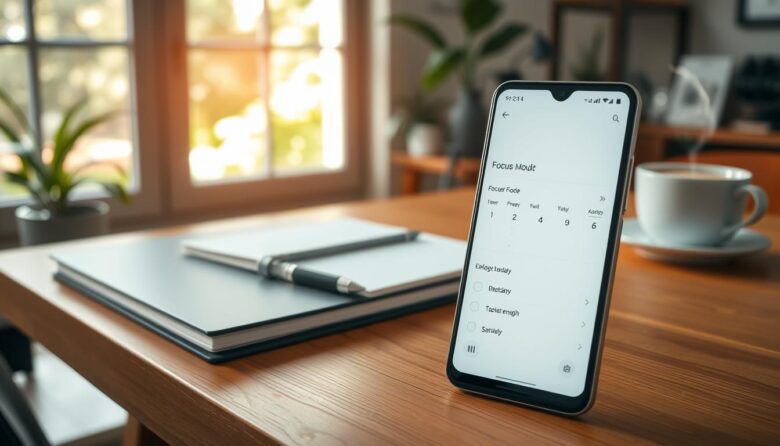
Focus mode is a built-in productivity feature on modern android phones that pauses selected distractions so you can concentrate on meaningful work. This guide focuses on practical steps to get you set up quickly and use the feature during your workday.
Unlike global silencing tools, focus mode stops specific apps and their notifications while leaving essential communication available. You can schedule sessions, add a quick settings tile, or pause apps manually to match your routine.
Combine focus mode with Digital Wellbeing tools for deeper gains. Dashboard shows time spent and unlocks, app timers cap daily use, and Work Profile separates work from personal apps. On Pixels, you pick apps to pause; some manufacturers offer Modes and Routines for more customization.
Expect grayed-out icons and blocked alerts for paused apps. These settings are reversible and flexible, so experiment until you find the balance that reduces friction and helps your phone support productivity rather than undermine it.
Why Focus Mode matters right now for cutting distractions on Android
When notifications and social feeds crowd your day, targeted app pauses can reclaim minutes and mental energy.
Focus mode blocks access to chosen apps and quiets their notifications so you can reclaim attention. This is more precise than muting the whole phone because essentials remain available.
Digital Wellbeing’s Dashboard gives hard numbers — time in apps, notification counts, and unlock frequency — so you can see where attention leaks occur. Use those metrics to pick the apps that cause the most interruptions.
These built-in tools on many devices toggle instantly or run on a schedule, letting you slot a short session into work sprints or study blocks without extra planning. Small, daily focus sessions compound into better habits and stronger time boundaries.
For remote and hybrid workers, this setup reduces context switching and boosts deep work. Pair focus mode with app timers and Work Profile to make wellbeing a practical part of your routine and get immediate payoff: fewer interruptions and more productive minutes.
Focus Mode explained: How it differs from Do Not Disturb and when to use it
Targeted app pauses give you precise control over what you can open and when. This feature pauses selected apps, grays out their icons, and stops their notifications while leaving other services active. You can run it manually or set a schedule that fits your routine.
App-level pauses versus system-wide silencing
App-level control blocks access to chosen apps and halts their alerts, so the temptation to open them drops. By contrast, Do Not Disturb mutes calls and alerts across the whole device but does not prevent you from launching apps.
When to use each option
Choose this app-based approach to curb compulsive checking of social or gaming apps during work sprints or study blocks. Use Do Not Disturb when you need to silence calls and ambient interruptions, such as during sleep or meetings.
Practical cues and pairing tips
During a session you’ll see grayed-out icons and prompts if you try to open a paused app. For many workflows, running this tool alongside Do Not Disturb is ideal: block tempting apps while also silencing incoming calls and alerts.
Review the Dashboard to identify top distractors, then set a short schedule and keep manual activation handy. Clear goals for each session make it easier to pick which controls to apply and to stick with the habit daily.
Step-by-step: Enable and use Focus Mode on your Android device
You can enable Focus Mode in minutes by navigating a few Settings screens and choosing which apps to pause. Start by opening Settings and finding Digital Wellbeing & Parental Controls.
Open Settings > Digital Wellbeing & Parental Controls > Focus Mode. Tap Select apps and pick the apps that pull your attention—social, video, or chat tools—while leaving essentials like Phone and Settings available.
Tap Turn on now for an instant session. Or set a schedule with start and end times and chosen days to automate blocks. Paused apps appear grayed out on the home screen and app drawer, and their notifications will not show while the session runs.
If you need a temporary override, the screen offers “Use app for 5 minutes.” The app will close after that interval to keep you on task. Use the persistent Digital Wellbeing notification to Take a break or turn the session off when you’re done.
Quick tip: review time in specific apps later to refine which ones to pause. Add a Quick Settings tile for faster control so you don’t have to swipe top and hunt through settings each time.
android focus mode configurations to tailor your workflow
Create automatic work sessions that start and end on days and times you choose to protect focused hours. Use the schedule feature to set start and end times and select the specific days that match your workweek or class roster.
Set a recurring schedule so the device turns controls on without extra steps. Build separate schedules for mornings and afternoons so different apps pause when you need uninterrupted time.
Create schedules by time and day for automatic activation
Pick exact start/end times and the days to run each schedule. This helps enforce routine deep-work blocks with no decision fatigue.
Use “Take a break” and “Use app for 5 minutes” without losing momentum
When a short break is needed, tap Take a break from the Digital Wellbeing notification rather than turning the session off. Allow Use app for 5 minutes for quick check-ins; controls return automatically afterward.
Decide which essential apps remain available
Keep Phone, Settings, calendar, and messaging available if they support your tasks. Deliberately block non-essential feeds so apps pause only where they hurt productivity.
Review and tweak these controls weekly. Document the setup so you can replicate the schedule on another device or share it with teammates who need the same boundaries.
Pixel versus Samsung: Configure Focus Mode differently by device
Different phone makers implement app-pausing tools in distinct ways, so setup steps can vary by device.
Google Pixel and most phones
On Pixels and many devices go to Settings > Digital Wellbeing & Parental Controls > Focus Mode. Select the apps you want to pause, then tap Turn on now or Set a schedule.
Add a Quick Settings tile for one-tap control so sessions start faster. This approach makes it simple to pause distracting apps without changing other system settings.
Samsung Galaxy approach
Samsung uses Modes and Routines instead. Create or pick a Mode, toggle Restrict App Usage, and choose which apps to allow. That flips the logic: everything is blocked except the apps you permit.
You can also enable Do Not Disturb, change wallpaper, or tweak system settings when the mode runs to create clear cues for work time.
Scheduling and alerts
Both platforms let you start sessions immediately or schedule them to match commutes, meetings, or deep-work blocks. Pair Samsung’s mode with Do Not Disturb to consolidate alert management and reduce stray notifications.
Keep a short list of allowed apps for collaborative roles and audit notifications periodically so the setup stays effective across devices.
Faster access: Add Focus Mode to your Quick Settings panel
Putting a dedicated tile in your quick-access panel turns a multi-step task into one simple tap. This saves time and keeps the control visible on the top of the screen when you need it most.
Swipe down, edit tiles, and place the tile in the first row
Swipe down from the top of the screen to open the notification panel. Tap the edit icon, find focus mode among available toggles, and drag it into your active tile set.
Tap to toggle on-the-fly without diving into Settings
Prioritize placement in the first row so the tile appears in the compact shade for one-tap access. Tap the icon to start or end a session instantly instead of opening the settings menu.
Reorganize pages if you use multiple screens so the tile stays easy to reach with a single swipe top. Pair this tile with Do Not Disturb and other productivity icons to streamline your pre-work ritual. Check the tile’s visual feedback when a session begins so you know controls are active.
Layer Focus Mode with Digital Wellbeing tools for deeper control
Combining dashboard metrics with timers and profiles gives you practical levers to guard attention every day. Use data, not guesswork, to decide which apps to restrict and when to run blocks.
Dashboard insights: time spent, unlocks, and notification volume
Open the Dashboard to see which apps consume the most time and which send the most notifications. Review unlock frequency to spot impulse checks that break concentration.
App timers to cap usage outside Focus Mode sessions
Set app timers to enforce daily limits. When a timer ends, the app pauses and notifications quiet so your schedule stays intact, even when you forget to start a session.
Work Profile separation for personal versus work boundaries
Turn the Work Profile off to hide work apps and alerts, or schedule it to match your workday. Combine a profile schedule with regular session blocks to keep professional and personal time distinct.
Practical tips:
- Use the Dashboard to target the top offenders, then apply both a timer and a restriction for layered control.
- Track weekly trends to confirm reduced screen time and fewer interruptions.
- Adjust notification categories inside apps to lower noise without losing essentials.
Help kids build better habits with Digital Wellbeing & Parental Controls
Parents can use built-in wellbeing tools to guide kids toward healthier screen habits. Family Link pairs a child’s device with a parent’s so you can set daily rules without constant negotiation.
From the Digital Wellbeing & Parental Controls screen or the Family Link app you can approve apps, hide inappropriate ones, and manage purchases. Set daily time limits and a consistent bedtime to protect sleep and routines.
Use remote lock to pause a device for school, homework, or family time. When needed, grant a short extra minute or two so kids can finish an assignment or a game level without stress.
Family Link: screen time limits, app management, and device lock
Key actions to take:
- Set daily time limits and approve which apps appear on the device.
- Lock a device remotely for focused activities or family moments.
- Configure a bedtime schedule and add a small break when appropriate.
- Hide distracting apps and control in-app purchases to keep content age-appropriate.
Set a device bedtime and add extra minutes when needed
Review weekly usage reports to see where time goes and adjust limits. Keep critical notification access for safety while reducing non-essential alerts.
Finally, teach kids why boundaries matter. Share Dashboard insights, discuss habits, and loosen controls as they prove responsibility. This builds trust and supports long-term balance.
Troubleshooting and pro tips to stay productive
A few practical tips make it easier to keep work flowing and reduce interruptions. Use this checklist when the tool acts up or when you want to tighten your routine.
If the control doesn’t appear: check OS version and Settings naming
Search your settings for Digital Wellbeing on Pixels and most phones. Samsung users should look under Settings > Modes and Routines.
Confirm the device runs a recent OS and update system apps if the option is missing. These quick steps often restore the missing control and clear false notifications.
Avoid over-blocking: keep calls and critical messaging available
Don’t block every app. Leave Phone, calendar, and essential messaging unlocked so you won’t miss urgent items.
This approach limits distractions without cutting vital communication or creating new problems.
Combine the tool with scheduled routines for consistent habits
Create a schedule that starts sessions automatically so you avoid decision fatigue. Add the Quick Settings tile near the top for one-tap toggles.
Pair the feature with Do Not Disturb or reduce app notification categories when lingering distractions persist. Test setups for a week, document what works, and use Dashboard trends to confirm the result for apps and time use.
Put your plan into action and stay focused today
Begin by arranging quick access to the controls you’ll use most so starting a session is frictionless. Add the Focus Mode Quick Settings tile by editing the notification panel and place that icon in the first row for instant taps.
Select apps that distract you, save the setup, and set a daily schedule to automate start and end times on your android device. Configure “Use app for 5 minutes” and “Take a break” so short check-ins won’t derail longer work blocks.
Start with a 45–90 minute block, keep essential phone communication available, and swipe top screen to toggle the tool when you sit down. Reassess after a week using Dashboard time metrics and tweak which apps pause so the system grows with your projects.