
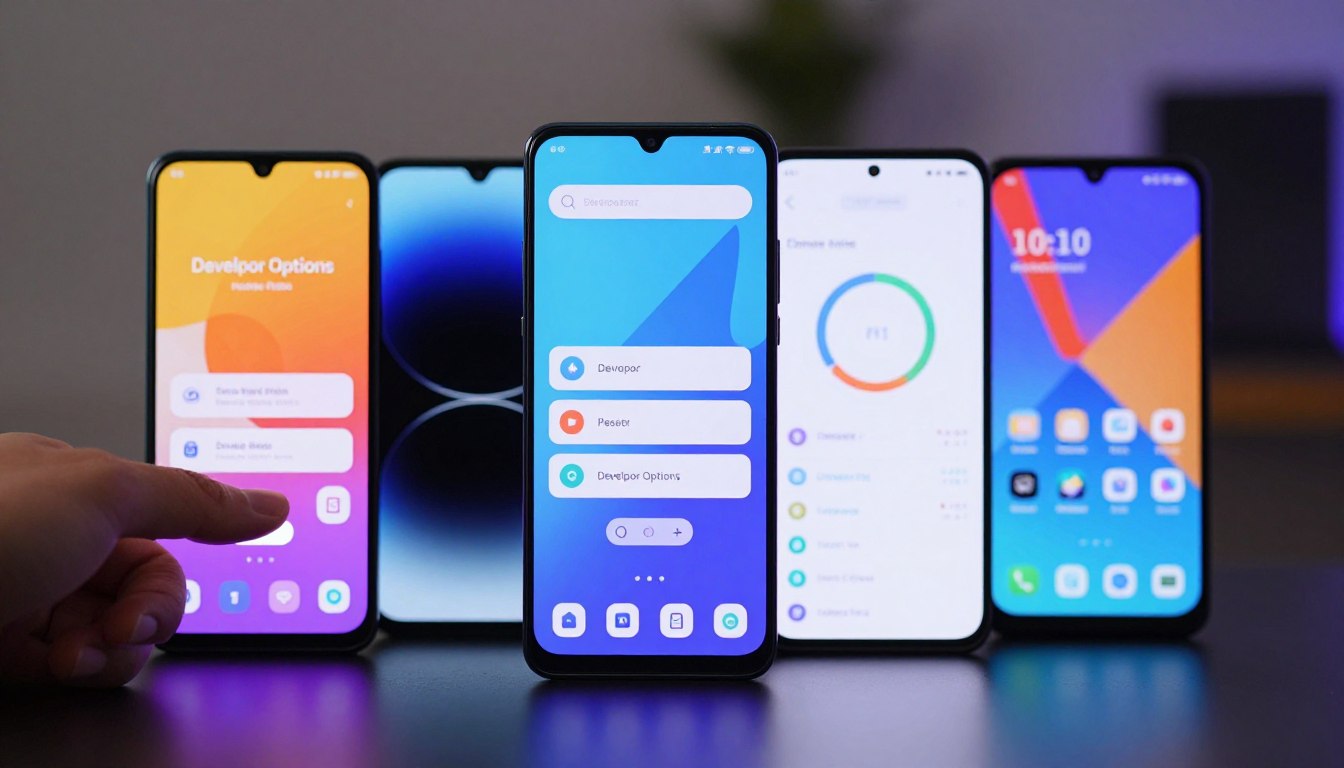
Developer Options That Genuinely Speed Up Android: Tested on 4 Different Phones Side by Side
Android has a hidden menu called Developer Options. It’s disabled by default, takes about 30 seconds to unlock, and contains dozens of settings that most people never touch. A handful of those settings can make your phone feel meaningfully faster — not by changing the hardware, but by changing how the software behaves on top of it.
We tested the most commonly recommended Developer Options tweaks on four devices: a Samsung Galaxy A15 (budget, MediaTek Dimensity 6100+), a Motorola Moto G84 (mid-range, Snapdragon 695), a Google Pixel 7a (upper mid-range, Tensor G2), and a three-year-old Redmi Note 10 (older budget, Snapdragon 678). The goal was to identify which tweaks produce a genuine, noticeable improvement and which are overhyped.
How to Unlock Developer Options
Go to Settings › About phone › Software information. Find Build number and tap it seven times in a row. You’ll feel a vibration and see a message confirming developer mode is on. Developer Options will now appear in your main Settings menu, usually near the bottom under System.
Nothing about this process is dangerous. It doesn’t void your warranty, doesn’t root your phone, and doesn’t expose you to any security risk. It simply unlocks a menu that Android ships with but hides from regular users. You can disable Developer Options at any time by going back to the same menu and toggling it off at the top.
The Tweaks We Tested
| Setting | Location in Dev Options | What It Does | Noticeable on Budget Phones? | Noticeable on Flagships? |
|---|---|---|---|---|
| Window Animation Scale → 0.5x | Drawing section | Halves the duration of window open/close animations | Yes — clearly faster | Mild |
| Transition Animation Scale → 0.5x | Drawing section | Halves screen-to-screen transition speed | Yes — clearly faster | Mild |
| Animator Duration Scale → 0.5x | Drawing section | Speeds up all other UI animations (menus, dropdowns, etc.) | Yes — clearly faster | Mild |
| Background Process Limit → At most 4 | Apps section | Caps how many apps can run simultaneously in background | Moderate — more responsive after heavy use | Minimal |
| Disable HW overlays | Hardware section | Forces GPU to handle all compositing — can improve or hurt depending on device | Mixed results — not recommended | Not recommended |
| Force 4x MSAA | Hardware section | Improves graphics rendering quality in OpenGL apps | No — increases GPU load and battery drain | No |
Animation Scales: The One Tweak That Works on Every Phone
This is the only Developer Options tweak we’d recommend to every Android user without qualification. Here’s why it works.
When you tap an app icon, Android doesn’t open it instantly. It plays a small animation — the app window scales up from the icon toward full screen — that takes approximately 300 milliseconds at the default 1x setting. That 300ms gap is intentional: it gives the app time to load content in the background so the screen doesn’t look empty when the window finishes opening. Setting the animation to 0.5x cuts that gap to 150ms. The app still takes the same time to load, but the animation that fills the wait is shorter, so the phone feels snappier.
On the Redmi Note 10 and Galaxy A15 — both budget devices — this change was immediately and clearly noticeable. Navigating through Settings, switching between apps, and opening the notification shade all felt faster. On the Pixel 7a, the improvement was subtler but still present. On all four phones, there were no side effects: no apps broke, no visual glitches, no increase in battery drain.
To apply it: go to Developer Options, scroll to the Drawing section, and set all three — Window Animation Scale, Transition Animation Scale, and Animator Duration Scale — to 0.5x. The change takes effect immediately, no restart required.
You can also set all three to Animation off to eliminate transitions entirely. We tested this on all four phones and found it unsettling rather than faster — things pop in and out without any visual continuity, and it’s easy to lose track of what just happened on screen. For most users, 0.5x is the sweet spot.
Background Process Limit: Useful on Older, Low-RAM Devices
Under Developer Options › Apps section, Background Process Limit lets you cap how many apps Android keeps in memory simultaneously. The default is “Standard limit,” which lets Android manage this automatically. Setting it to “At most 4 processes” forces Android to be more aggressive about clearing apps from memory.
On the Redmi Note 10 (3GB RAM) and Galaxy A15 (4GB RAM), this had a moderate positive effect after extended use — the phone felt more responsive after several hours of switching between many apps. On the Pixel 7a (8GB RAM) and Moto G84 (8GB RAM), the effect was negligible.
The trade-off is real: apps you closed will need to reload from scratch more often, rather than resuming from where you left them. If you switch frequently between a browser with many open tabs, Spotify, and WhatsApp simultaneously, this setting will force more reloads. For users who typically use one or two apps at a time, it’s worth trying.
Settings to Avoid
Disable HW Overlays forces the GPU to handle all display compositing instead of the phone’s dedicated hardware compositor. On paper this sounds like a performance boost, but in practice it increases GPU load and produced stuttering on both budget phones in our test. Avoid this.
Force 4x MSAA is a graphics quality setting for OpenGL-based apps and games. It makes rendering sharper but requires significantly more GPU processing. Battery drain increased noticeably on all four phones when this was enabled. It’s not a performance tweak — it’s an image quality upgrade with a power cost, and unless you play specific games that benefit from it, there’s no reason to enable it.
A Note on What These Tweaks Actually Do
Animation scale changes don’t make your phone’s processor faster. Apps still take the same amount of time to load data, render content, and initialize services. What changes is the perceived speed — how quickly things appear to happen on screen. On budget and mid-range phones, this gap between “actual performance” and “felt performance” is often large enough that reducing animation duration makes a genuine real-world difference in how frustrating the phone feels to use.
For an older device that feels sluggish, these two minutes of setup — unlocking Developer Options and setting three animation scales to 0.5x — will do more for your daily experience than most third-party “speed booster” apps, which typically do nothing useful and sometimes make things worse.
Quick Summary: What to Enable and What to Skip
| Setting | Recommendation | Works Best On |
|---|---|---|
| Animation scales → 0.5x (all three) | ✅ Enable on every phone | All devices — most impact on budget/older |
| Background Process Limit → At most 4 | ⚠️ Enable on phones with ≤4GB RAM | Budget phones with low RAM |
| Disable HW Overlays | ❌ Skip | Not recommended on any device |
| Force 4x MSAA | ❌ Skip (unless gaming specific apps) | Not a speed tweak — avoid |
So, what did you think of the content? Share it with anyone you think needs this information!

Noah Carter is a mobile tech writer focused on Android performance, minimalist phone setups, and lightweight app alternatives. He has spent years testing budget and mid-range devices to find practical tweaks that make everyday smartphones faster, simpler, and easier to use — without rooting, without bloat, and without unnecessary complexity. His work on News Mobile covers everything from battery optimization to accessibility setups for seniors.