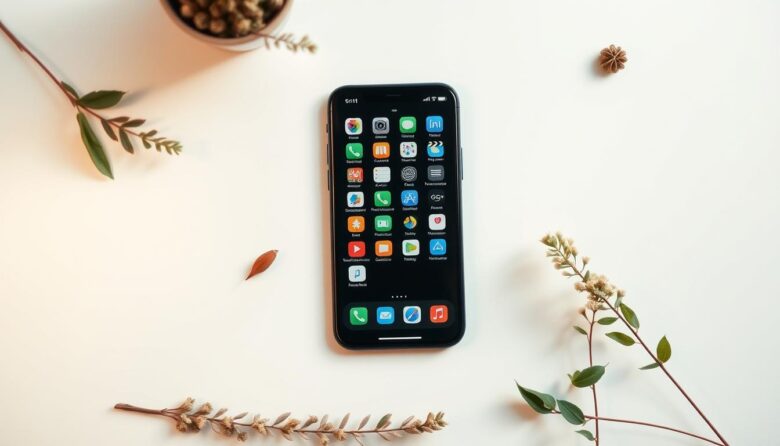
Ready for a calmer digital home? Start with a quick audit: remove apps you haven’t used in a month, group similar apps into folders like social or productivity, and keep only the essentials on your first home screen. Work in 15–30 minute bursts so the job never feels overwhelming and you get instant wins.
Trim photo clutter by deleting blurry shots and duplicates, then back up important photos to Google Photos or iCloud and remove them from your phone. On Messages, turn on auto-delete for old threads and clear large attachments to free space fast.
Use Files by Google on Android or the Files app on iOS to tidy downloads. Mute nonessential notifications, use Do Not Disturb during focus or sleep, and update apps regularly. These small steps save time, restore space, and make your phones feel snappier right away.
Why a cleaner phone matters right now
When your apps and settings match your needs, your phone becomes a tool, not a distraction. A tidy home screen gives you a clear path to the app you need for the task at hand. That saves time and reduces visual clutter each time you unlock the device.
User intent and what “declutter smartphone” really means
People searching this want quick clarity: fewer icons to scan and instant access to essentials. That means hiding or removing rarely used apps, grouping related apps into folders, and keeping one or two work and personal apps on the front page.
Speed, space, and sanity: benefits you’ll notice today
Expect faster app launches, a bit more storage when you clear cached data, and fewer interruptions if you mute nonessential notifications or enable Do Not Disturb. Use Battery or Settings usage views to see which app you open least; if it sits idle for days, move it out of sight or off the phone.
How to declutter smartphone home screens, apps, and widgets
Start by trimming your home screens so every tap reaches a purpose. Run a quick audit: on iPhone long-press an icon to delete, and on Android drag an app to Uninstall. Check recent usage via iPhone Battery or Android Settings, or try QualityTime to spot unused tools fast.
Audit and remove unused apps
Delete duplicates, trial apps you never used, and single-use tools. If you’re unsure, move apps into a “Review Later” folder and set a reminder. If you don’t open them in a week, uninstall to free space and speed up your phone.
Group by task and create folders
Drag one app onto another to make folders like Work, Personal, Travel, and Finance. Name folders clearly and add an emoji on iPhone for quicker visual scanning. This way you find the right app with one tap.
Home-screen essentials: iPhone vs Android
On iPhone, keep 6–9 essentials on the first screen and four in the dock (Phone, Messages, Mail, Calendar/Notes). On Android, use the app tray to store extras and maintain one or two minimal home screens.
Hide low-use apps and control social media
Move time-eating social media into a folder or off the main page. Android users can hide apps with launchers like Apex to reduce temptation. Use widgets sparingly—choose a compact calendar and a small weather glance, and avoid stacking many widgets that add visual clutter.
Tame photos, files, and storage without losing what matters
Free up space and keep the photos and files you actually need with a quick, focused cleanup. Start with a fast pass through your camera roll to remove screenshots kept “just for now,” burst shot near-duplicates, and obvious blurry photos.
Sort, back up, and create simple albums
Create straightforward albums like Family, Trips, Receipts, and Projects so your best photos are easy to find. Confirm backups finish before you delete local copies.
Use cloud options and centralize files
Enable iCloud Photos or Google Photos for automatic backup and pick one cloud storage service for documents. Move PDFs and spreadsheets to Google Drive, OneDrive, or Dropbox so your phone isn’t holding every file.
Clean downloads and watch storage
Empty the Downloads folder monthly and use Files by Google or the iOS Files app to spot large or old installers. Check your storage dashboard to see which apps and categories use the most space, clear cache where allowed, and offload rarely used apps.
Stream music with Spotify, Apple Music, or Pandora to avoid local MP3 bloat. Do a quick backup check after trips so important memories stay safe and your phone runs smoothly.
Fix notification overload and reclaim your focus
Too many pings and banners can wreck your focus; tame them with a few simple settings. A short pass through notification controls gives you immediate calm and fewer interruptions during work, family time, and sleep.
Choose who can buzz you
Open Settings and review notifications app by app. Allow only the handful that need instant attention—calendar, calls, and a few messages from key contacts.
Turn off badges, banners, and sounds for low-priority apps. That keeps the phone quiet while still letting important alerts come through.
Auto-delete messages and manage media
Enable auto-delete for old messages so threads vanish after a set number of days. This saves space and cuts clutter without manual work.
Regularly clear large photos and videos from group chats. Moving time-sucking social media into a folder adds a small hurdle and reduces reflex taps.
Make a weekly notification check. Keep a short list of allowed apps and silence the rest so your phone supports focus, not distraction.
Your simple, ongoing plan to keep clutter away
A steady, short routine keeps your home screens tidy and your files under control.
Do a weekly 10-minute check: remove stray apps from the front page, tighten folder names, and skim notifications so your phone stays useful without big projects.
Once a month, review storage and downloads. Move large files to cloud storage, archive older photos, and delete duplicates to free space fast.
Every quarter, sort apps by last used and clear ones you no longer need. Use the “picture first” trick: snap a screenshot of a messy layout, decide what to keep, then act.
Share screenshots if you’re organizing with family, set Focus/Do Not Disturb seasonally, and stick with one main cloud and photo service. Small, regular steps make lasting change.