Want sharper results from a budget phone without paying for pro gear? This short guide shows clear choices that add real manual control and faster performance. You’ll see options that boost image quality and keep storage use light.
Open Camera is an open‑source, no‑ads solution that offers manual lens selection, timers, touch focus, manual zoom, an auto stabilizer, and multiple photo modes like HDR, DRO and panoramic. It also controls resolution, JPG/PNG/WebP output, and EXIF metadata, while staying tiny compared with many alternatives.
For quick point‑and‑shoot power, DSLR HD Camera brings burst, face detection, scene presets and a Blur Editor for fast post edits. Native HD Camera App covers video, panorama, white balance presets, exposure tweaks, smart panorama and encrypted data transit, with a VIP no‑ads choice reported by users.
Ready to download trusted builds and start better mobile photography in minutes? Follow safe install steps and match features to how you shoot for fast wins.
Why Budget Android Phones Deserve Pro‑Level Camera Controls
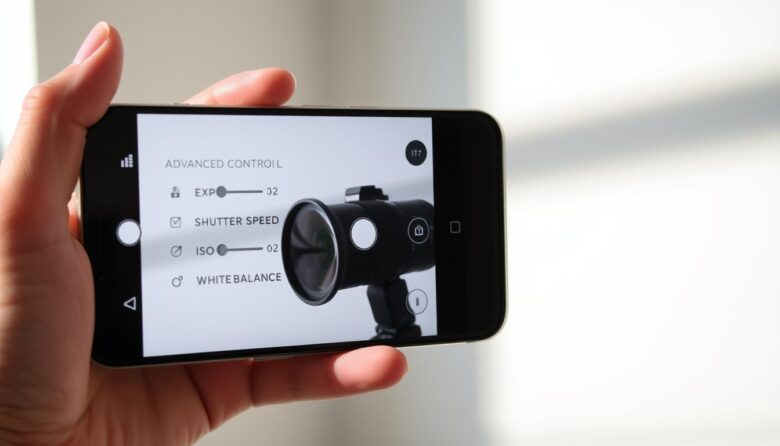
Even low-cost Android handsets can capture standout shots when you unlock their manual controls. A friendly, well-built camera app brings exposure, white balance, and focus options that tame over‑aggressive automation and improve everyday photography.
Pro modes like HDR, DRO, and noise reduction balance highlights and shadows. They make simple scenes look more natural and rescue detail from cheap sensors. Stabilizers and touch focus reduce blur in low light so your photos stay sharp.
Manual lens selection lets you pick the best module for a scene—wide for landscapes, standard for portraits—rather than trusting a guess. Timers, panorama, and burst speed change how you use the phone in real life, from family shots to quick street moments.
Good apps also protect privacy by controlling metadata and keep builds lightweight to reduce lag. With the right tool, your budget phone will produce cleaner, more intentional images without needing pricier hardware.
Camera apps APK
Sideloading a specific package can unlock features missing from your phone’s stock photo tool. Manual installs let you test builds with exposure, HDR, and lens selection before they reach the store.
What “APK” means and when to use it on Android
An APK is the Android Package file used to install an app or program android manually. Use it when the Play Store version lags or when you need a precise build that adds HDR, Panorama, or manual lens choice.
Open Camera’s APK brings manual lens selection, HDR/DRO/NR modes, timers, and metadata controls. DSLR HD Camera’s package adds burst, face detection, quick zoom, scene presets, white balance and a Blur Editor. Native HD Camera App offers video, panorama, pinch‑to‑zoom, timer, exposure, and encrypted location tagging in transit.
Trusted sources and safe downloads for the United States
Before installing, confirm the source, check checksums, and review permissions. Follow local laws in your country and disable unknown sources after install.
Prefer verified repositories with signature history. Match the download to your processor and Android version, keep backups, and run a malware scan on every file.
Top Picks to Download Now: Manual-Control Camera Apps for Android
Small installs can deliver big upgrades: these picks add manual options without slowing your phone. Each choice focuses on practical controls, quick results, and a light storage footprint that suits budget devices.
Open Camera — open-source, no ads, manual lens choice, HDR/DRO/NR
Open Camera is our top free app pick for deep manual control. It’s open-source and ad‑free, lets you pick the exact rear lens, and offers HDR, DRO, noise reduction, panorama, stabilizer, and touch focus.
You can set resolution, choose JPG/PNG/WebP, and strip or keep EXIF data—useful when sharing photos online.
DSLR HD Camera Ultra Blue Effect — DSLR-like modes, blur editor, fast shoots
This program favors speed and simple pro-style tools. It delivers burst, face detection, quick zoom, scene presets, white balance, and a Blur Editor for post-shot background separation.
Native HD Camera App — lightweight system-style controls and panorama
Prefer a familiar, fast interface? Native HD Camera App offers camera, video, and smart panorama modes, pinch-to-zoom, timers, white balance presets, and configurable keys. Its encrypted-in-transit option and VIP no-ads upgrade make it a solid daily driver.
Pick the download that matches your workflow—deep manual control, quick point-and-shoot edits, or a native-feeling alternative for everyday photos.
Manual Controls That Matter on Budget Phones
A few deliberate controls make the difference between a snapshot and a polished shot.
Focus, exposure compensation, and white balance options
Dial in exposure compensation to brighten or darken a photo on demand. This helps balance harsh daylight or dim interiors on modest sensors.
Use touch focus to lock onto faces, products, or text. White balance presets stop strange color casts under tungsten, fluorescent, or cloudy light.
Lenses and perspectives: choosing the rear camera module in Open Camera
Open Camera lets you pick the rear module manually. Choose standard for portraits or wide for landscapes so the phone uses the best lens, not a guess.
HDR, DRO, NR, and panoramic modes for tricky lighting
Enable HDR, DRO, or NR to recover shadow detail and lower noise without heavy edits. Use panorama modes for sweeping vistas with either Open Camera or the Native HD Camera App.
File formats and quality: JPG, PNG, WebP on Open Camera
Pick JPG for sharing, PNG or WebP for specific workflows, and lower resolution when storage is tight. Small tweaks up front reduce time in the editor and keep your images consistent.
Feature Deep Dive from Our Sources
Here’s a focused look at the practical tools each program brings to everyday photo work. Read the short summaries to pick features that match how you shoot.
Open Camera: timers, touch focus, stabilizer, resolution, metadata control
Open Camera is open-source software and a freea free option for serious control. Timers and the automatic stabilizer help reduce blur on handheld shots.
Touch focus and manual zoom speed up composition. You can set resolution, choose JPG/PNG/WebP, pick rear modules, and strip EXIF for privacy.
DSLR HD Camera: burst, face detection, quick zoom, scene presets
DSLR HD Camera focuses on fast results. Burst shooting and face detection lock the moment, while scene presets and quick zoom simplify framing.
The built-in Blur Editor helps separate subjects without a desktop editor. Note this program lacks full pro controls like direct shutter or ISO tuning.
Native HD Camera: timer, pinch-to-zoom, screen modes, exposure & location
Native HD Camera mirrors a system tool with pinch-to-zoom, countdown timers, and screen modes for Night, Action, and Sunset. Exposure and location tagging are configurable and data is encrypted in transit.
Check each version’s changelog before you install to confirm stability and feature updates, then match your choice to the scenes you most often use.
Performance & Compatibility on Budget Devices
Not every feature will work on every handset; compatibility shapes what you can actually use with a budget camera for the best results.
Hardware-dependent limits
Expect multi‑lens switching, HDR, and stabilization to rely on your phone’s sensors and Android camera APIs. If the sensor or ISP lacks support, features may be disabled rather than unstable.
Try a free program android or an app android build to see which functions your handset enables.
Storage footprint and speed
Open Camera keeps installs very small—about ten times lighter than many competing products. That saves space for image libraries and video clips.
Smaller installs also make the viewfinder open faster and reduce lag during bursts or long shoots.
Front vs rear support
DSLR HD Camera can use both front and rear lenses where hardware allows, so selfies and group shots get the same tools when supported.
System‑style tools often feel smoother on modest phones. Test HDR/DRO/NR modes and clear background tasks to help any app sustain steady frame rates.
Editing & Post-Processing Essentials
Post-shoot edits often turn a good frame into a great one with just a few focused adjustments. These steps keep work fast and help budget sensors read cleaner data.
Using the built-in Blur Editor for background separation
Use the Blur Editor in DSLR HD Camera to simulate shallow depth of field after capture. The editor lets you soften backgrounds and keep subjects sharp for portraits and product shots.
Apply blur subtly. Too much creates halos; light, layered blur looks natural and keeps skin and edges intact.
Export quality considerations for sharing and gallery use
Pick JPG when compatibility matters—it’s the easiest choice for social sharing and phone gallery tools. Use PNG or WebP when you need better detail or smaller files for specific workflows.
Keep a high-quality master and a compressed share copy. Adjust image quality sliders to balance detail and file size so sharing is quick and storage remains tidy.
Keep white balance right in-camera, then make light editing tweaks. Organize shots into albums in your gallery to compare versions and restore originals when needed.
Gentle sharpening and modest noise reduction help without creating artifacts. Crop with intent, save a master, and shoot HDR/DRO when you want fewer post steps.
Pricing, Ads, and Versions
Deciding between a no‑ads build and a paid tier affects daily shooting. Costs, pop‑ups, and locked features change how quickly you frame and share photos.
No‑ads open‑source pick vs. VIP/no‑ads upgrades
Open Camera is our clear free app choice. It is open‑source, ad‑free, and stays free program forever. That means no subscriptions and a stable version that focuses on control, not ads.
Native HD Camera App uses ads by default but offers a VIP no‑ads upgrade. Users report pop‑ups on some builds, yet recent updates improved filters and viewfinder speed. DSLR HD Camera is also free and fast, with burst and a built‑in Blur Editor for quick editing without a separate editor.
Recent updates and performance improvements
Always check change logs before updating. New releases often fix autofocus, HDR processing, or stabilization—critical on budget hardware.
Consider total cost of ownership: a one‑time upgrade can remove ads and add features, while open options remain freea free app choices. Back up your current version so you can roll back if a new release causes issues in your gallery or breaks an important workflow.
Privacy, Data, and Permissions
Privacy choices matter as much as image settings when you use third‑party photo software on a phone.
Developer-stated data practices and encryption in transit
Read each developer’s privacy notes to learn what the program collects and for how long it’s stored. Native HD Camera App states device IDs may be collected and that data is encrypted in transit, with no sharing to third parties in the snippet provided.
In the United States, platform rules and local laws shape how permission prompts appear for camera, microphone, location, and storage. Confirm disclosures and retention windows before you grant access.
Controlling EXIF and location metadata in Open Camera
Open Camera gives explicit controls to add or remove EXIF and location tags. Disable location if you don’t want coordinates embedded in a photo before sharing it.
Limit permissions to essentials, prefer open-source software for transparency, and recheck settings after updates since new features may request extra rights. For family devices, restrict installs to trusted sources and block background data for programs that don’t need it.
Remember: sharing platforms can also strip or alter metadata, so controlling data starts in the app and continues where you upload images.
How to Download and Install Safely in the U.S.
A safe install process makes sure new features don’t cost you stability or privacy. Follow these steps to add manual controls while protecting your device and data.
.
Step-by-step install: enabling unknown sources responsibly
Download only from trusted repositories and check the developer signature or checksum first. Temporarily enable unknown sources on your app android device, install, then disable that setting again.
After install, open the app and take a few test shots to confirm touch focus and basic functions work on your hardware.
Verifying APK integrity and app permissions before first use
Use a file hash tool to verify integrity so you avoid tampered packages. Review permissions at first launch and allow only camera, microphone (for video), and storage when needed; deny unrelated requests.
Updating to the latest version without losing settings
Back up preferences like exposure compensation, white balance presets, and touch focus behavior. When possible, install the new free program over the current build to retain settings.
If an update breaks workflow, roll back to your saved version or switch to Open Camera as a stable free app baseline. Keep enough free storage to prevent install errors.
Quick Comparison: Which App Fits Your Photography Style?
Choose the workflow that fits your habits — speed, control, or a middle ground — and shoot confidently.
Point-and-shoot users gain the fastest results with DSLR HD Camera. Its burst, face detection, and quick zoom lock moments and speed up sharing. The built-in Blur Editor helps with quick photo editing for portrait-style looks.
Point-and-shoot speed vs. granular control
For granular control, pick Open Camera. It is an open-source, no‑ads free app android that offers manual lens selection, HDR/DRO/NR, multiple formats, and metadata control. That suits users who tweak exposure and white balance.
Low-light, night sky, and action scenarios
Use Open Camera’s stabilizer and HDR/DRO modes for low light and night sky detail. For action and fast-moving subjects, DSLR HD Camera’s burst and quick zoom deliver better hit rates.
Storage, ads, and battery impact trade-offs
Open Camera keeps installs tiny, which helps storage and speed. Native HD Camera App feels familiar and offers a VIP no-ads option if pop-ups bother you. HDR and heavy NR processing will use more battery than quick point-and-shoot modes.
Test these alternatives side by side by shooting the same photos to judge color, exposure, and editing needs. Pick the product that matches your privacy and everyday subjects.
Ready to Shoot Better Photos on a Budget
Make every shot count on a tight budget by choosing the right tool.
Pick a program that fits how you shoot: Open Camera for granular control and privacy, DSLR HD Camera for speed and a Blur Editor, or Native HD Camera App for a familiar interface and optional VIP no‑ads. Each freea free app choice trims compromises while boosting capture options.
Test your pick on portraits, landscapes, and low light. Adjust exposure and enable HDR/DRO to cut down later editing. Keep permissions tight to protect users in the United States and update carefully after backups.
Download one free program android, practice a simple workflow, and enjoy sharper, more consistent photo results.