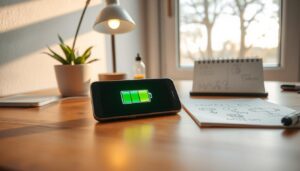
This short guide shows quick steps that make an affordable phone feel faster and easier to use.
Start with small changes: lower brightness, enable power-saving mode, and close unused apps. Restart the system weekly to clear memory and reduce stutters.
Adjust display and magnification in Android Accessibility or turn on Assistive Access on iPhone for Rows or Grid layouts. Samsung Easy Mode enlarges icons and offers Accidental Touch protection.
Set one-tap Contacts widgets and SOS via a triple-press so family can call fast. Trim animations and free storage with cloud backups or microSD to help apps open sooner.
This guide covers basic settings and platform features, plus security tips and remote support options so caregivers can help without slowing the device down.
Why quick phone tweaks help seniors use smartphones with confidence
Changing a handful of simple settings helps older users navigate a smartphone with more confidence and less strain. Small tweaks reduce visual clutter and make the screen more predictable, so daily tasks feel easier.
Increasing text and enlarging on-screen icons lowers errors and speeds up selection. Simplified layouts like Assistive Access or Samsung Easy Mode limit choices and make core features easier to find.
Lowering display brightness and turning on power‑saving stabilizes battery life and limits background tasks. Closing unused apps and cutting notifications reduces confusion and keeps the system responsive during normal usage.
Built-in accessibility tools such as TalkBack and magnification provide immediate support and clear feedback. Weekly restarts clear temporary processes, which helps the screen respond consistently and builds trust in the device.
As confidence grows, users are more likely to try additional security and SOS options. These small steps form a reliable foundation for safer, more independent access to calls, messages, and daily features.
Start here: Simple settings to speed up your phone in minutes
Start with a few fast settings that cut background activity and make the screen respond more reliably. These steps take only minutes and are standard on both Android and iPhone.
Turn on power-saving or low power mode for instant stability
Open settings and enable Low Power Mode on iPhone or Power Saving Mode on Android. That mode stops many background tasks, extends battery life, and helps the screen stay steady during the day.
Reduce background app activity to free up system resources
Limit background refresh for apps that don’t need constant updates. Disable unnecessary notifications so fewer apps wake the device and redraw the screen.
- Toggle off background location and always-on syncing for apps that don’t need it.
- Use auto-brightness to balance visibility and energy use without manual changes.
- Close heavy apps like games or streaming when not in use and consider restricting background data on Android.
- Turn off live wallpapers if scrolling feels sluggish; simple wallpapers reduce GPU load.
These simple steps create a quick baseline so the system and screen behave predictably. After this, you can move on to display access tweaks and other features that add clarity without extra support or effort.
Improve phone performance seniors
Routine care makes a noticeable difference in daily use. Small steps free memory and keep the screen responsive. These actions work on both budget and premium devices.
Close unused apps and limit notifications to boost speed
Swipe away unused apps so fewer programs compete for memory. When fewer apps run, the screen reacts faster to taps and swipes.
Limit alerts to calls and messages. Fewer wake-ups mean apps open more quickly and background tasks do not slow scrolling.
Force stop a sluggish app and relaunch it to reclaim stuck memory. Turn off auto-play video in news or social features to cut CPU and data use.
Restart weekly to clear memory and refresh the system
Restarting once a week clears cached processes and refreshes the system. This simple step restores consistent behavior with almost no time lost.
Remove rarely used widgets that constantly refresh and update apps on Wi‑Fi at a convenient time. A short routine—close apps after tasks, silence noncritical alerts, and do a weekly restart—keeps access simple for seniors and family helpers.
Make the home screen easier to use without slowing the phone
Simple changes to the home layout let essential features sit front and center. A clear setup reduces taps and makes daily tasks more predictable.
Declutter apps and create folders for faster access
Start by removing rarely used icons from the primary page so the main screen shows only essentials. Group related apps into clearly named folders to cut search time.
Keep the dock and first row for Phone, Messages, Camera, and a preferred browser. Limit the home area to no more than two pages for easier navigation.
Add Contacts widgets for one-tap calling of family members
On Android long-press the home area to add a Contacts widget for one-tap calling. iPhone users can add similar widgets or pin favorite contacts to the home view.
Disable live widgets that refresh constantly to preserve access speed. After arranging, test the layout with the user and adjust monthly to match habits and support needs.
Android Accessibility essentials that enhance speed and usability
Small adjustments in Accessibility can make the device easier to read and faster to use. These steps help people find apps, read text, and tap targets with less effort.
Find Accessibility and enable the shortcut menu
Open Settings and look under Additional settings for Accessibility. Turn on the Accessibility shortcut so key tools are one tap away from any screen.
Adjust Display size and font size for clearer navigation
Change Display size to Large to enlarge icons and touch targets. Then set Font size in Display > Font settings so text is easier to read across apps.
Use Magnification and TalkBack when vision support is needed
Enable Magnification for a floating zoom tool that enlarges text and images instantly. Turn on TalkBack to hear menus read aloud and learn its main gestures: two-finger scroll and tap-then-double-tap to activate.
Keep only the access features you need and test the changes by reading messages and dialing contacts. Note the chosen settings so family helpers can restore them after updates or resets.
iPhone Assistive Access for a simple, focused experience
Assistive Access turns an iPhone into a calm, single-task workspace that reduces clutter and makes the screen easier to read.
Open Settings > Accessibility > Assistive Access > Set Up. Choose Rows for a text-first list or Grid for larger icons. These steps put core features and a few apps on a clean main view.
Pick only the apps needed for daily routines and place the most used items at the top of the Rows list or in the first Grid row. Limiting choices keeps the experience predictable and fast to scan on the screen.
Set an Assistive Access passcode and add the recovery Apple account. Exit by triple-pressing the side button and entering the passcode when broader access is required. This preserves privacy while keeping entry simple for users and helpers.
Note that some notifications and advanced features are limited inside this mode. Test both layouts with the user and document the passcode and chosen settings so family helpers can adjust apps later if habits change.
Samsung Easy Mode to enlarge icons and text for quicker actions
Samsung Easy Mode makes the main screen simpler by enlarging icons and text so taps land where they should.
To enable it, open Settings > Display > Easy Mode. Turn the mode on and the layout will switch to larger icons and a simpler grid. This reduces mis-taps and speeds access to core apps.
Enable Easy Mode under Display settings
Open Settings > Display > Easy Mode and follow the on‑screen steps. Reorganize the first screen so the most-used apps are front and center. Test a few taps to confirm targets are easy to hit.
Use bold fonts and larger sizes for fewer taps and mistakes
In Display settings, increase Font size and choose bold style. Larger font makes menus and message threads easier to read without adding complexity.
Turn on Accidental touch protection to block palm or pocket taps. For extra security, enable Auto Blocker under Settings > Security and Privacy > Auto Blocker to limit risky installs and USB actions.
After changes, ask users to try calling and scrolling. If items still feel small, raise size incrementally and retest. Show family support how to toggle Easy Mode off so the fuller interface is available when needed.
Make text and icons readable: font size, text size, and display options
A few display tweaks let text fill the screen and icons become easier to spot at a glance. These changes make menus, messages, and mail easier to read without extra strain.
On Android, open Settings > Display > Font settings to raise font size. Also check Vision > Display size to enlarge on‑screen elements so labels and buttons scale together.
On iPhone, go to Settings > Accessibility > Display & Text Size and move the Larger Text slider. This expands system text so apps like Messages, Contacts, and the browser show bigger type.
Adjust text size and display size together for balance. After changes, scroll through a long message or a webpage to confirm you do not need too many extra swipes.
If icons still feel small, increase Display size one step at a time and recheck how many items fit on the home layout. Use high‑contrast themes when available so text stands out under varied lighting.
Keep a short note of the final settings so family or helpers can restore access after updates. Revisit the options after a week; small tweaks often refine the reading experience.
Battery life wins that keep phones responsive all day
A few simple power habits can keep the screen quick all day long. These steps save energy and help core features stay ready when needed.
Lower the screen brightness and turn on auto-brightness so the display adapts to light. That change alone cuts wake‑time drain and keeps the screen snappy during basic tasks.
Lower screen brightness and use auto-brightness
Enable a power-saving mode to limit background refresh and prioritize foreground apps for calls and messages. Shorten the screen timeout so the display turns off sooner between uses.
Disable unnecessary Bluetooth and Wi‑Fi when not in use
Turn off Bluetooth and Wi‑Fi if you are not using them to stop constant scanning and handshakes that use data and battery. Close streaming or navigation apps when finished, since they keep using location and data in the background.
Favor dark mode on OLED devices, pick a lightweight wallpaper, and remove live widgets so the GPU does less work each wake. Charge during natural breaks and avoid full discharges to preserve steady access and reduce late‑day slowdowns.
Free up storage so apps launch faster
A quick cleanup of files and temporary data often restores smooth access to applications and the home screen. Clearing space helps menus and photos load sooner and makes core features feel more reliable.
Delete unused apps and clear cached data
Uninstall apps you no longer use. Removing unused applications reclaims storage so active apps open faster and the screen redraws without pauses.
Open Settings and clear cached data for large apps that gather temporary files. This frees space without deleting personal content and helps the system create fresh temporary data.
Use cloud storage and microSD for more room
Move photos and videos to cloud storage to keep memories safe while freeing local space. On supported Android phones, add a microSD card to expand capacity for media and downloads.
Use built-in storage tools to find big files, duplicates, or old downloads. Keep several gigabytes free so apps can update and create temp files without stalls.
Ask family or helpers to set up automatic backups and schedule a monthly storage check. After cleanup, restart the device so app lists and indexes refresh and access feels snappier.
Trim animations and widgets to speed up the home screen
A lean home layout makes everyday navigation faster and less distracting. Remove widgets that refresh often so the screen redraws quickly and swipes feel smooth.
Turn off motion effects and reduce animation in settings to shorten the time screens take to open and close. Use a static wallpaper to lower GPU work during transitions and wake-ups.
Keep the home to one or two pages so the device renders fewer panels. Replace heavy live widgets, like news feeds or large calendars, with simple icons to keep access fast.
Pin frequently used apps to the first page and remove duplicates from later screens. After each change, test scrolling to measure how responsiveness improves for the user.
On devices with developer options, lower animation scale values only if a helper can restore defaults later. Reassess these choices quarterly and remove any new widgets added by app updates to save time and keep the experience consistent.
Security and privacy basics that prevent slowdowns and scams
Protecting access with strong locks and vetted app sources reduces background threats and keeps screens responsive. These steps protect data and help the device stay fast and predictable.
Start with a solid passphrase or enable fingerprint or face unlock so only trusted people can change settings. Use long PINs or biometrics to limit unwanted access.
Enable strong passwords and biometric access
Set a strong device password and add fingerprint or face unlock. This prevents unauthorized changes that can let malicious applications run and hide.
Install only from trusted stores and use Auto Blocker
Download apps solely from Google Play or the Apple App Store to reduce malware risk. On Samsung devices, enable Auto Blocker under Security and Privacy to stop installs from unknown sources and risky USB commands.
Review app permissions and revoke ones not needed. Turn off install-from-unknown-sources if it was enabled for a single task.
Keep the operating system and applications up to date. Use built-in spam and phishing filters and teach users to avoid suspicious links or attachments.
Back up data regularly so a device can be reset without loss. These security and privacy habits protect personal info and help the screen stay quick, giving family and technical support confidence when helping with settings.
SOS and emergency contacts for fast help when it matters
A clear emergency setup gives quick access to help when seconds count. Follow a few direct steps to show vital info on the lock screen and teach a simple alert routine.
Set Emergency Contacts and show them on the lock screen
On Samsung go to Settings > Safety and Emergencies > Emergency Contacts > Add member. Enable visibility on the lock screen so helpers can call without unlocking the device.
Use the power button triple-press SOS
Enable the power key triple-press SOS to send alerts fast. This feature can capture a five-second audio clip plus photos from front and rear cameras to aid responders.
One-tap contacts and practice the steps
Place a Contacts widget on the home screen for one-tap calling of top family members. Add medical notes where supported and pin numbers in Favorites for multiple access points.
Test the SOS sequence together and agree when to use it versus a normal call. Update and remove duplicate contacts so the screen stays clear under stress, and review settings after system updates to keep features ready for support.
Voice assistants, Do Not Disturb, and reading modes that improve daily use
Using a voice assistant lets users do common tasks without precise taps on the screen. Ask it to set reminders, place calls, or send messages so basic chores take less time.
Enable Do Not Disturb for meals or rest so the phone stays quiet while priority calls still come through. Schedule the mode at night and whitelist a few key contacts so sleep is uninterrupted.
Turn on reading or night mode to soften blue light and make long reading sessions easier on the eyes. Pair larger text with voice dictation to reply to messages without hunting small keys on the screen.
Configure assistant shortcuts to open favorite apps or settings and set recurring alerts for meds or appointments. Practice simple commands like “Call Anna” or “Send a message” to build confidence and faster access.
Use magnification gestures with reading mode to zoom small print when needed. These features cut distractions, streamline daily usage, and give family helpers clear plans to offer remote support.
Quick wins for family members helping seniors at home
A short, guided session with clear steps helps family members set a calm, reliable setup at home. Sit with the user and make changes together so each action is understood.
Remove distracting icons and pin essentials to the top row of the home screen. Add a Contacts widget for one-tap calls and place it where it is visible at a glance.
Simple settings and shortcuts to try now
Enable the Accessibility shortcut on Android so key tools are one tap away. Consider Easy Mode or Assistive Access for larger targets and fewer choices on daily screens.
Turn on Auto Blocker or similar protections to prevent accidental risky installs. Adjust font and display size until text and buttons are comfortable to read and tap across every screen.
Set Do Not Disturb schedules and allow priority contacts through. Show a weekly restart routine and how to close unused apps so the device stays predictable between visits.
Keep a written list of these steps and settings. Recheck after system updates to confirm shortcuts and protections remain active and that family support tools still grant quick access.
Remote support option: guide seniors with secure remote access tools
Secure screen-sharing tools let helpers walk users through settings with live voice and on-screen markers. This method keeps guidance clear and reduces back-and-forth during setup.
Use a remote desktop app with voice call and annotations for setup help
Choose a reputable remote tool such as DeskIn that supports Android remote control and iPhone screen viewing. Built-in voice and annotations let the helper point to items on the screen while talking through each action.
DeskIn offers low-latency sessions and clear 1080p30fps so taps and scrolls show accurately for both parties. High security needs the same account and a manual verification or pre-set password to protect privacy and data.
Follow simple steps: install the app on both devices, enable “Allow remote control,” then connect from your device list. Have the senior accept the session so access is explicit and controlled.
Keep sessions short and focused on one task. After changes, review passcode, Auto Blocker, and trusted app sources. End the session with a clear confirmation that access has stopped to keep security and support consistent.
Next steps: A simple plan to boost speed, clarity, and safety in one sitting
Finish with a compact guide that puts quick, practical actions into one session. This checklist combines power-saving, decluttering, accessibility tweaks, and basic security so the device feels clear and safe right away.
Start by setting brightness and a power-saving mode, close unused apps, and limit notifications. Tidy the home screen, add a Contacts widget, and raise text or display size. Enable Magnification, Assistive Access, or Easy Mode when needed.
Lock the device with a strong passcode or biometrics, enable Auto Blocker, add emergency contacts to the lock screen, and test the SOS sequence. Free space by deleting unused apps and moving media to cloud or microSD. Trim animations and remove heavy widgets.
Schedule a weekly restart and a monthly storage review. Document settings for family helpers and use a remote tool like DeskIn for follow-up support and secure access. With these plans, the screen and features deliver a safer, more reliable experience in one well-timed session.