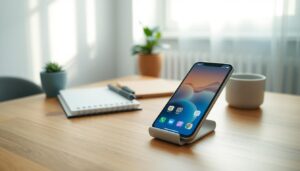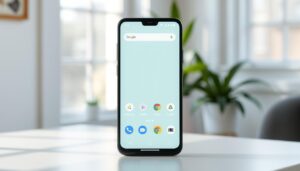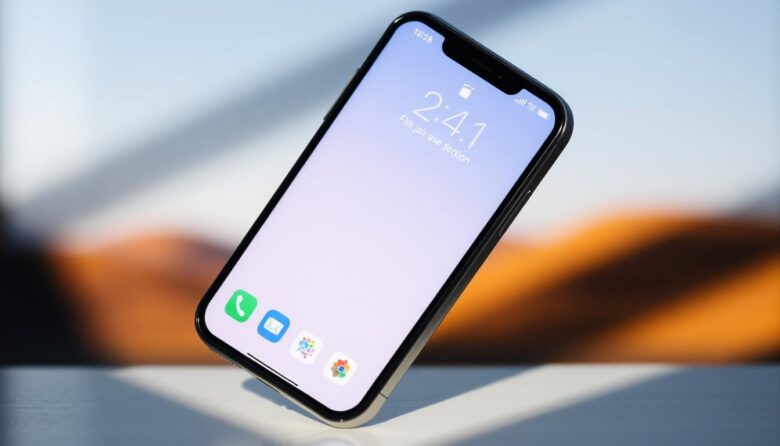
Want an iphone home that feels calm and speeds up daily tasks? This short guide shows practical ways to get a minimal iphone home screen that looks good and works fast.
We’ll focus on a tidy home screen layout that uses Spotlight search, a small dock of favorite apps, and compact folders to cut taps. You’ll learn quick steps in Settings to change wallpaper, add widgets, and assign Focus-based pages so the phone matches work or personal modes.
Expect easy moves: drag icons to the App Library, create folders by dropping one app on another, or replace icons with Shortcuts. You can reset the layout any time via Settings > General > Transfer or Reset iPhone > Reset > Reset Home Screen.
By the end you’ll have fewer distractions, faster launches, and a phone look you enjoy seeing each day. Pick from one-page, dock-only, or photo-friendly layouts and mix what fits your device and thumb reach.
Why minimal iPhone home screen layouts boost focus and speed
A focused home screen helps you launch the right app quickly and keeps distractions at bay.
When frequently used apps sit in easy reach, you cut the time and taps needed to get things done. A tidy home screen layout places essentials in prime positions and tucks rarely used app icons into folders or the App Library.
Widgets add value by showing calendar entries, weather, or reminders at a glance. That means less switching between apps and more uninterrupted flow during work or peak time.
Spotlight search is another speed tool: type a few letters and open any app without swiping through pages. Pair that with Focus modes to swap page sets for Work or Personal, and your iPhone home stays aligned with your intent.
Minimal screen layouts also reduce notification noise and visual clutter. Users report lower stress and higher productivity when the phone shows only what matters. The goal is not to hide tools, but to give the fastest path to action and better daily habits.
Quick setup: the fastest way to declutter your home screen
Trim your home screen in minutes with a few targeted moves that speed up app access. These steps use built-in tools so you don’t delete anything, just tidy the iphone home and cut taps.
Move apps and make folders fast
Long-press any icon until the icons jiggle, then drag apps across pages into the App Library and release. Group key services by dragging one app onto another and rename the folder so the home stays organized.
Change wallpaper, widgets, and icons the smart way
Go to Settings > Wallpaper > Add New Wallpaper to pick a background that fits your screen layout. Press and hold an empty area, tap Add Widget, pick size, and place one or two high-value widgets where you look first.
To create custom icons, open Shortcuts, tap +, add Open App, pick the app, use the menu to Rename and Add to Home Screen, then choose an image. If you want to revert, use Settings > General > Transfer or Reset iPhone > Reset > Reset Home Screen. Finally, use Settings > Focus to assign pages for Work or Personal so the right apps appear at the right time.
Simple homescreen ideas
Let Spotlight do the heavy lifting so your screen stays almost blank. This approach trims visual clutter and makes launching any app a quick tap or two.
Clean and clutter‑free: rely on Spotlight search instead of icons
Shift most icons into the App Library and use Spotlight (swipe down and type) to open apps. Your iphone home becomes a calm canvas that speeds up search and reduces distractions.
Just the basics: a Smart Stack with essential apps
Place a Smart Stack widget that rotates calendar, weather, and reminders. Pair it with two or three core apps so the home screen layout stays light but useful at a glance.
Folders only: emoji‑labeled categories for tidy navigation
Create folders by stacking related apps and rename them with short labels or emojis like 📨 Comms or 🎧 Media. This keeps icons grouped and easy to scan.
Dock only: four daily essentials within thumb reach
Keep four essentials in the dock — for example Phone, Messages, Calendar, Notes — and move everything else to the App Library. The dock‑only layout favors one‑handed speed.
Match icon and folder colors to your wallpapers or pick neutral backgrounds so the whole look feels intentional. Test finding your top apps with search; if it’s faster, remove more icons and stick with the cleaner layout.
One‑page home screen layout that keeps everything on one screen
Cut swipes and find apps faster by fitting essentials on one clear screen. A One-Page Wonder uses placement and compact folders so your iphone home feels calm and works fast.
Commit to a single-page home screen so you stop losing time between pages. Place your most-used apps along the lower rows and in the dock for easy thumb reach on larger iphone models.
Build three or four compact folders for secondary apps. Well-labeled folders hold many tools while keeping the home tidy and reducing visual noise.
Keep the top eight apps visible and push similar apps into folders. Add a small calendar or clock widget to the page so you get time-sensitive info without opening apps.
Include only one folder in the dock (for example a “Work” folder) to expand capacity without losing quick taps. Test ordering by frequency or workflow and review after a week to prune what you never open.
How to prioritize apps and use compact folders effectively
Order icons by daily priority and group by action—create, plan, communicate—to boost productivity. Adjust monthly so the layout matches changing routines and stays useful.
Widgets that add value without visual noise
Widgets can give quick context without turning your phone into a noisy dashboard. Pick a tight set that shows useful info and keeps your home screen clean.
To add a widget, press and hold an empty area, tap Add Widget, browse options, choose a size, and place it where it reads easily. Apple’s Smart Stack rotates relevant cards automatically, surfacing the right content as the day changes.
Smart Stack, calendar, and weather for at‑a‑glance info
Choose one small calendar widget for time blocks and pair it with a compact weather widget. Together they give high value with minimal space and fewer glances at your screen.
- Use Smart Stack to cycle helpful widgets throughout the day.
- Avoid too many widgets so your primary app icons stay visible and fast to tap.
- Place widgets where your eye lands—top-left or top-center—and match styles to your wallpaper in Settings > Wallpaper.
- Check widget update behavior occasionally and remove any that don’t earn their spot after a week.
Combine a single widget with a folder beneath it to save room. Keep photos in widgets sparingly so they support the look rather than dominate it.
Icon tweaks that make your phone look polished
Small icon changes can make your iPhone home feel curated and faster to use. A few focused tweaks help the entire home screen look intentional without adding clutter.
Below are practical steps for replacing icons and grouping them by color so your eye finds the right app at a glance.
Using Shortcuts to replace app icons without clutter
Open Shortcuts, tap +, add Open App and choose the app. Tap the three-dot menu, Rename, then Add to Home Screen and pick a custom image.
After adding the shortcut icon, move the original app into the App Library so the home screen stays clean. Keep the shortcut name identical to the app for easy search and recognition.
Only replace the apps you display on your main page. That keeps the screen layout fast and avoids slowing launch times with unnecessary shortcuts.
Color‑coded icons for faster visual scanning
Pick a color scheme—blue for social, green for finance, yellow for utilities—and apply it to visible icons. Color groups let your eyes scan the home faster than reading labels.
Match icon tones to your wallpaper and widget accents to create a unified look. Use simple, flat artwork so icons remain legible in both light and dark modes.
Store experimental sets in one folder while you refine them, and back up your images so you can restore the layout if you reset the phone.
Wallpaper, themes, and vibes: make your iPhone home look intentional
Choose a wallpaper and palette that set the tone for how you use your phone each day. A clear visual theme makes the iphone home feel purposeful and helps you find apps faster without extra taps.
Black-and-white, grayscale, and dark-mode optimized looks
Use Settings > Wallpaper > Add New Wallpaper to pick a background, then customize the home separately. For a monochrome look, match crisp black-and-white icons to a light or dark wallpaper for strong contrast.
Enable grayscale under Settings > Accessibility > Display & Text Size > Color Filters to mute bright hues across the interface. Pair deep wallpapers with silhouette icons for a dark-mode‑optimized screen that reads well at night.
Pastel, neon, retro, and character-driven themes
Build playful themes with themed icon packs, matching wallpapers, and coordinated widgets. Pastel wallpapers give a soft vibe; neon wallpapers and bold icons add punch. Retro sets use grainy textures and nostalgic colors.
Use photos sparingly as lock or home wallpapers—pick shots with negative space so apps and widgets stay legible. Save multiple wallpapers and swap them by mood or season to keep your home screen fresh and useful.
Productivity‑first layouts that reduce distraction
Build a productivity-first layout that helps you stay focused from morning to evening. Use Focus to create clear work and personal contexts so the phone matches what you need at the time.
Open Settings > Focus to pick allowed people and apps, set schedules, and assign custom pages for Work or Personal. Place calendar, email, and notes in prime spots so you tap once and get to work.
Work vs. personal: Focus modes with custom pages
Design your home screen around the work you actually do. Keep calendar, notes, and email up front and move social or media into folders on later pages to reduce impulse taps.
Assign different wallpapers per Focus to give a quick visual cue. A swapped wallpaper helps your brain switch contexts and resist checking nonwork apps during work time.
Use one small calendar widget and a Reminders widget to avoid app-hopping. Let Spotlight search handle tools you rarely use so the main page stays lean and fast.
Limit pages during the day and order icons by workflow—Plan, Do, Review—so your thumbs move in a simple path. Review the layout weekly: remove apps you didn’t use and promote ones you reached for repeatedly.
Photo‑centric and seasonal screens that stay minimal
Rotate a curated album on your iphone home screen so the photo is the hero but the layout stays fast.
Use a single photo widget to spotlight favorite photos while keeping just a few essential icons visible. Pick wallpapers with negative space so app labels remain readable and the image breathes.
Build seasonal variations—winter cozy tones, fall warmth, spring pastels—by swapping wallpapers and a few subtle icon accents rather than redoing the whole home. Keep color choices steady across swaps to preserve a familiar look.
Keep a one‑page grid with compact folders so the screen layout stays tidy and your images are not covered by many icons. Set the photo widget to rotate a curated album for fresh moments without a collage effect.
Choose icon packs with clean lines and muted tones so they don’t overpower photos. Test app name legibility on light and dark images and tweak wallpaper brightness in Settings > Wallpaper when needed.
Limit seasonal widgets to essentials—a small weather card and a calendar—so the phone stays useful without clutter. Refresh your wallpaper album a few times a year to keep the home screen feeling new and intentional.
Essential how‑tos: change, reset, and update your screen layout
If your layout starts to feel cluttered, a few safe resets and targeted restores get the home back to useful quickly.
Reset home screen layout safely
To restore the default order without deleting apps, open Settings > General > Transfer or Reset iPhone > Reset > Reset Home Screen. This moves icons back to the default grid and keeps your App Library intact.
Keep a recent backup so you can recover a preferred look after a full reset or new phone setup. If a layout stops working, reset and rebuild the minimal essentials in minutes.
Add back removed apps from App Library
If you removed an app from pages, swipe to the App Library, pull down to reveal the list, then tap and hold the app and drag it to the home screen in one motion. That returns the app without changing other tiles.
To revert custom icons made with Shortcuts, delete the shortcut tile and drag the original app from the App Library back to the screen. Update wallpapers anytime in Settings > Wallpaper > Add New Wallpaper and use the lock screen Customize flow to change the time font and color.
When testing changes, make one update at a time—wallpaper, then widgets, then icons—so you can tell which tweak improved clarity. Run a quick audit monthly to remove unused apps and re-align folders for faster access.
Pro tips to keep your iPhone home screen fast and clutter‑free
A few pro habits help your phone stay responsive and your day stay focused.
Keep your top four apps in the dock and use them the same way every day. Muscle memory speeds actions and makes the iphone home feel instant.
Group similar apps into clearly named folders. Folders cut scanning time and make your home screen layout compact and logical.
Use Spotlight search for quick launches instead of swiping through pages. Search opens any app fast and keeps screens tidy.
Pick one or two widgets that save taps and avoid widget overload. Place time‑sensitive apps where they belong—calendar and timer near the top for daytime use.
Review apps weekly; archive or delete what you don’t use. Back up with iCloud so your layout, wallpapers, and app positions restore smoothly to a new device after an update.
Make small layout tests, keep what speeds you up, and discard the rest. A clean layout becomes a habit that keeps the phone fast and the home calm.
Make your phone look clean today and keep it that way
Take five minutes now to tidy your iphone home screen. Move nonessential apps to the App Library, keep four essentials in the dock, and add one Smart Stack or widget to stabilize the page.
Create Work and Personal Focus pages so the right home screen appears at the right time. Use a calming wallpaper and a simple theme; subtle colors help you scan the layout faster and keep the phone look restful.
Rotate seasonal wallpapers and a few icon accents, and drag apps back from the App Library when you need them. If the layout feels cluttered, reset the home screen and reapply only the essentials — speed beats sentimentality.
Set a monthly reminder to audit your screen layout, keep a screenshot of your favorite arrangement, and share options with a friend. Small routines keep the iphone home useful and clear for the long run.