
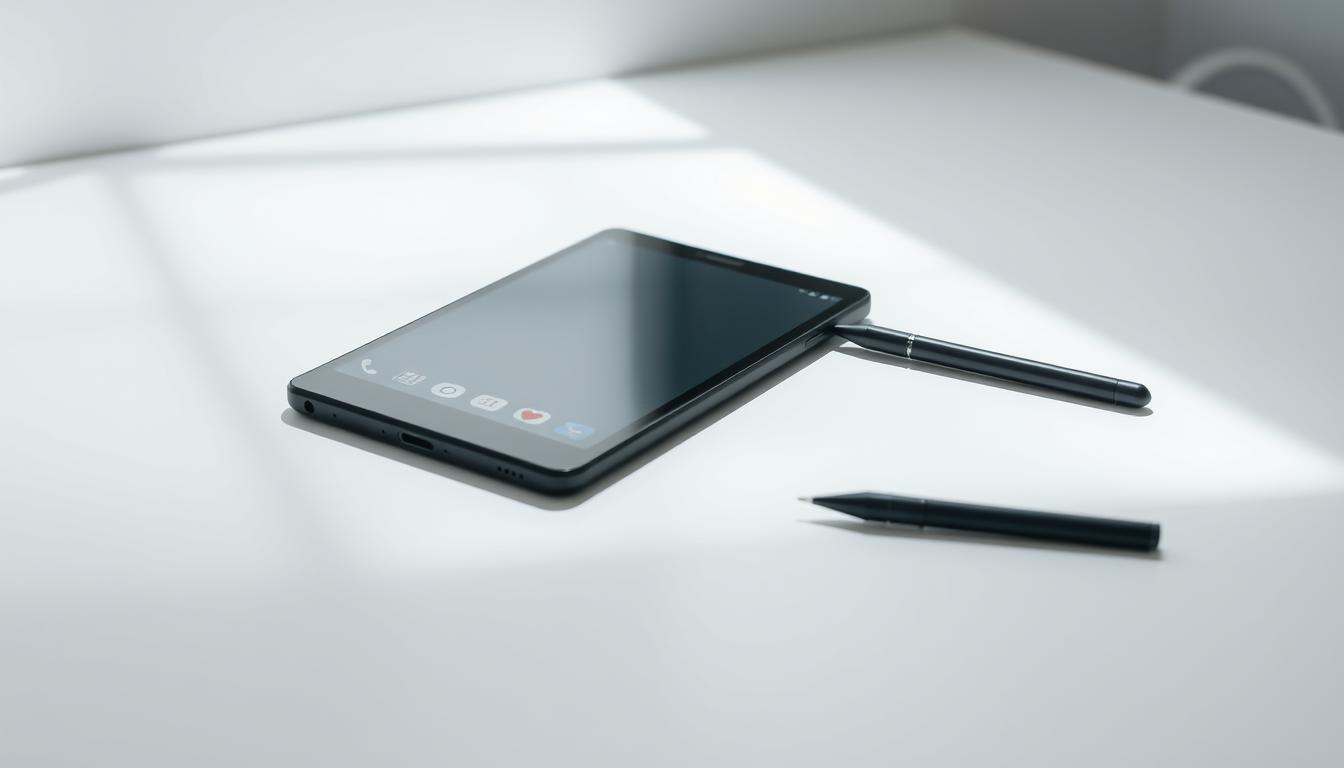
How to Build a Minimalist Android Setup for Focused Productivity
Anúncios
This article shows a practical, step-by-step way to calm your phone and cut distractions. The goal is a lighter, more focused phone that supports real work without buying new hardware.
Think of the light phone approach: limit features to calling, texting, and a few tools. You can emulate that on modern smartphones by uninstalling clutter, using a pared-back launcher, and turning the screen to grayscale.
Tools like OLauncher, Niagara, and Blloc Ratio help group apps phone and surface time on icons. Ruthless app removal, disabling assistant triggers, and tuning notification and notification history cut impulsive checking.
Anúncios
Android’s Digital Wellbeing and multiple users let you add friction, batch communications, and create a clean profile with only essentials. People who try this find calmer use, fewer pings, and an experience that favors what matters each day.
Read on to plan goals, remove clutter, tune the home interface, and use built-in tools to keep results sustainable in a busy world.
Anúncios
Why a minimalist phone matters for focus and screen time
A simpler phone can cut constant interruptions and reclaim chunks of your day. When you remove color, feeds, and extra icons, the urge to scroll drops and focused work gets longer uninterrupted stretches.
Minimalist phones vs. smartphones: what you actually need
True minimalist phones offer calling, texting, and a few utilities. Some use ePaper or monochrome displays to reduce stimulation and curb mindless scrolling.
Contrast that with full-featured smartphones and you see most daily tasks need only calls, maps, calendar, notes, and a basic browser. That example helps people rethink what apps really matter.
The Light Phone idea, without buying new hardware
The Light Phone idea is a design philosophy: nudge intentional phone use by stripping feeds and flashy media. You can copy it on your current device by installing essentials, using a plain wallpaper, and creating a secondary user with no social or game apps.
A separate profile acts as a stronger barrier than timers because switching profiles takes time. Many report less impulse checking, better batching for messages, and a calmer experience overall while keeping safety and utility intact.
Plan your minimalist android setup: goals, rules, and essentials
Define the phone’s role in your day before you touch any apps or settings. Write a short list of goals — less time on feeds, fewer interruptions, and more focused stretches of work.
Define your “must-have” apps and daily workflows
Start by listing needed functionality, not brands. Think calling, texting, navigation, calendar, notes, and payments. Use an example essentials set as a baseline: Phone, Messages, Camera, Clock, Calendar, Calculator, Google Keep, Google Maps, Wallet, Pocket Casts, Spotify, Telegram, Uber, Venmo, a password manager, authenticator, Personal Safety, and Photos.
Choose one app per job where possible. Pick the single messaging or navigation app you actually use and remove duplicates. Keep the plan in your notes so edits stay easy and consistent with your goals.
Set clear boundaries: social media, games, and news feeds
Decide hard rules for social media and games: remove them from the light phone profile or turn off notifications and set strict batch check-in times. Build friction with fewer options for leisure apps so they don’t expand during the day.
Use Do Not Disturb schedules, default settings that match your goals, and a weekly review to prune anything that didn’t earn its place. This keeps the setup practical and durable.
Strip the noise: uninstall, disable, and hide distracting apps
Begin cleanup with a plan: remove, hide, or disable anything that invites scrolling. A quick pass saves time and stops reflex taps.
Be ruthless: using bulk uninstallers to speed up cleanup
Start with a Play Store bulk uninstaller to remove dozens of apps at once. This is much faster than long-pressing icons one by one on your phone.
Target obvious time drains like games and social feeds. Give each removed app a trial-freeze: if you miss it after a week, it can stay gone.
What to keep for daily life
Keep a short, clear list so the phone stays useful. One example list: Phone, Contacts, Camera, Clock, Calendar, Calculator, Keep, Maps, Wallet, a key messenger, a password manager, an authenticator, Personal Safety, and Photos.
Limit overlap by keeping one app per job and only the things you actually use each day.
Hide or disable system apps you won’t use
Go into settings to disable or hide system components you don’t need. Some users turn off the Google app and hands-free Assistant activation to cut accidental prompts—results vary by device.
Where disabling isn’t possible, hide icons with your launcher’s options and remove the Play Store icon to reduce chances of reinstalling tempting apps. Expect notification counts to fall and focus to rise.
Dial in your home screen: minimalist launchers and widgets
A well-chosen launcher and a few calm widgets shape better phone behavior. Tweak the front page so each tap advances your goals instead of pulling you into a feed.
OLauncher: a near light phone app list
OLauncher offers a text-first launcher that feels close to a light phone. It is free and ad-free, and it keeps only a handful of apps visible.
Recommended tweaks: hide the Play Store, disable the drawer keyboard pop-up, and map swipe gestures to two priority apps. Those small changes speed common tasks while limiting options that invite distraction.
Niagara Launcher: info without clutter
Niagara gives a clean list with on-screen weather and a compact calendar widget. It adds a bit more functionality while keeping the display calm.
If you want quick context — appointments or today’s weather — choose Niagara and limit extra widgets to avoid visual noise.
Blloc Ratio and purposeful cues
Blloc Ratio groups app stacks and shows on-icon usage minutes to nudge intent. Its Root widgets page supports weather, timer, and quick notes.
Use those cues to measure habit changes instead of relying on timers alone.
Pick widgets that help, not distract
Limit widgets to high-value tools: calendar, a simple timer, and lightweight notes. Keep one page only, use a plain dark background, and organize apps by verbs (Call, Pay, Navigate).
Reassess weekly and remove any item that doesn’t save taps or improve your experience.
Tame notifications and alerts for a calmer day
Cutting alert noise makes the phone feel like a tool instead of a tug on your attention.
Turn off nonessential alerts and use DND wisely
Open notification settings and sort by recent. Turn off notifications for nearly every nonessential app to quiet the day quickly.
Keep only core alerts: Phone, Messages, system safety, and media playback. Use Do Not Disturb mode for scheduled deep work and sleep windows.
When channels exist, mute marketing or suggested content instead of everything from an app. Set custom rules for repeat callers or starred contacts so critical calls still get through.
Batch communication instead of reacting in real time
Replace the react-now habit with defined batch windows. Pick one or two times to process messages and mail, and stick to them.
Enable notification history so stray alerts are caught later and shut down at the source. Expect a rapid drop in background anxiety as prompts fall away.
Review your notification list weekly and mute any new noisy offender, especially social media or media-heavy apps, so interruptions stay under control.
Use Android’s built-ins: Digital Wellbeing, grayscale, and Focus
Built-in controls can turn your device from a habit engine into a quiet tool. Use system options to blunt color, silence alerts, and limit apps so the phone supports work instead of derailing it.
Grayscale and bedtime routines
Turn your screen to grayscale in Accessibility to reduce feed pull. On Pixel go to Accessibility > Color and motion > Color correction > Grayscale. Samsung users will find similar Vision enhancements under Accessibility.
Bedtime Mode can flip grayscale on a schedule and pair with Do Not Disturb so the device shifts to calm without thinking about it.
Timers, Focus, and Do Not Disturb
Use the Digital Wellbeing app to set app timers for stubborn services. Add Focus or DND routines to silence categories of apps during work sessions.
Soften the display
Choose dark mode and a plain dark wallpaper to reduce visual pop. A matte screen protector also mutes contrast and reflections, making your smartphone feel more like a tool than a media device.
Disable hands-free Assistant activation if accidental prompts break focus. Revisit these settings monthly and keep only the options that match your plan.
Create a dedicated minimalist profile with Multiple Users
Add a separate user to turn your device into a clean focus mode. This gives you a second environment that lives beside your main phone profile and keeps distractions out of reach.
Set up a secondary user as your “minimalist mode”
Go to Settings > System (or Accounts & Backup) > Multiple Users/Users and add a new User. Choose a full user profile — not just another account — so the home and permissions start empty.
Install only essentials; leave social and games out
Sign into Google if you want, but install only essentials: Phone, Messages, Maps, Wallet, and safety tools. Leave social, games, and feeds off this profile so the apps phone never becomes a time sink.
Leverage friction: slower profile switching reduces impulse use
Switching users takes a few extra taps and a moment to load. That small friction cuts the urge to jump back for a quick scroll. Keep a plain wallpaper and a light launcher here so the mode signals a different intention at home or during work blocks.
Live with your setup: iterate, measure, and keep what works
.
Run a short experiment: record screen time and prune tools that don’t earn their place. Treat the next two weeks as a lab for phone use and note the times you still get pulled into feeds.
Check notification history and Digital Wellbeing reports to find stray alerts and the apps that eat your focus. Turn off or uninstall the offenders.
Iterate: keep widgets to calendar, timer, and notes. Hide extra icons and tweak your launcher if the home starts to fill up again. Change wallpaper or visual tone if the display feels busy.
Write a brief weekly note about what worked. Share findings with people who struggle with attention, and when the experience feels right, save a short article checklist so you can rebuild this life-friendly phone fast.

Noah Carter is a mobile tech writer focused on Android performance, minimalist phone setups, and lightweight app alternatives. He has spent years testing budget and mid-range devices to find practical tweaks that make everyday smartphones faster, simpler, and easier to use — without rooting, without bloat, and without unnecessary complexity. His work on News Mobile covers everything from battery optimization to accessibility setups for seniors.